Most people picture virus removal as running a scan and deleting whatever it flags. That's the easy part, and it's also the part that leaves the machine reinfected a week later. A real cleanup is about what the scan doesn't catch: where the infection got in, what it left behind to reinstall itself, and what it might have taken on the way. Here's what that actually involves, and how to keep it from coming back.
- A scan removes the file, not the machinery that quietly reinstalls it.
- The order matters: find the entry point, scan from outside Windows, then reset the browser and startup.
- Rootkits load before Windows, so a scan running inside Windows can't see them.
- If a keylogger was running, treat the exposed passwords as compromised and change them.
- Macs get this too. The "Macs don't get viruses" line stopped being true a while ago.
If the machine is infected, stop entering passwords on it. Don't log into banking or email. If files are encrypted or you're locked out, disconnect it from the internet and leave it alone until it's cleaned.
Why a scan on its own isn't enough
Antivirus is good at what it's designed for: spotting a known bad file and quarantining it. The problem is that a modern infection isn't just a file. It's usually a bundle:
- The payload the antivirus recognizes.
- A browser hijacker that rides along in your extensions.
- Registry edits and scheduled tasks that quietly reinstall the payload after you remove it.
- A persistence hook that runs at startup so it survives a reboot.
Delete the file and leave the rest, and the machinery rebuilds it. That's why people scan, feel relieved, then watch the pop-ups return a few days later. The infection was never fully gone.
Some of the nastier ones go a step further. Rootkits load before Windows does, which means a scan running inside Windows is asking the infection whether the infection is there. It'll say no.
A scan running inside Windows is asking the infection whether the infection is there. It'll say no.
What a proper cleanup actually involves
The order matters as much as the tools. Roughly how it goes:
- Find the entry point first. Before removing anything, figure out how it got in: a bad extension, a cracked program, a fake update, a "tech support" call. If you skip this, you clean the machine and leave the door open.
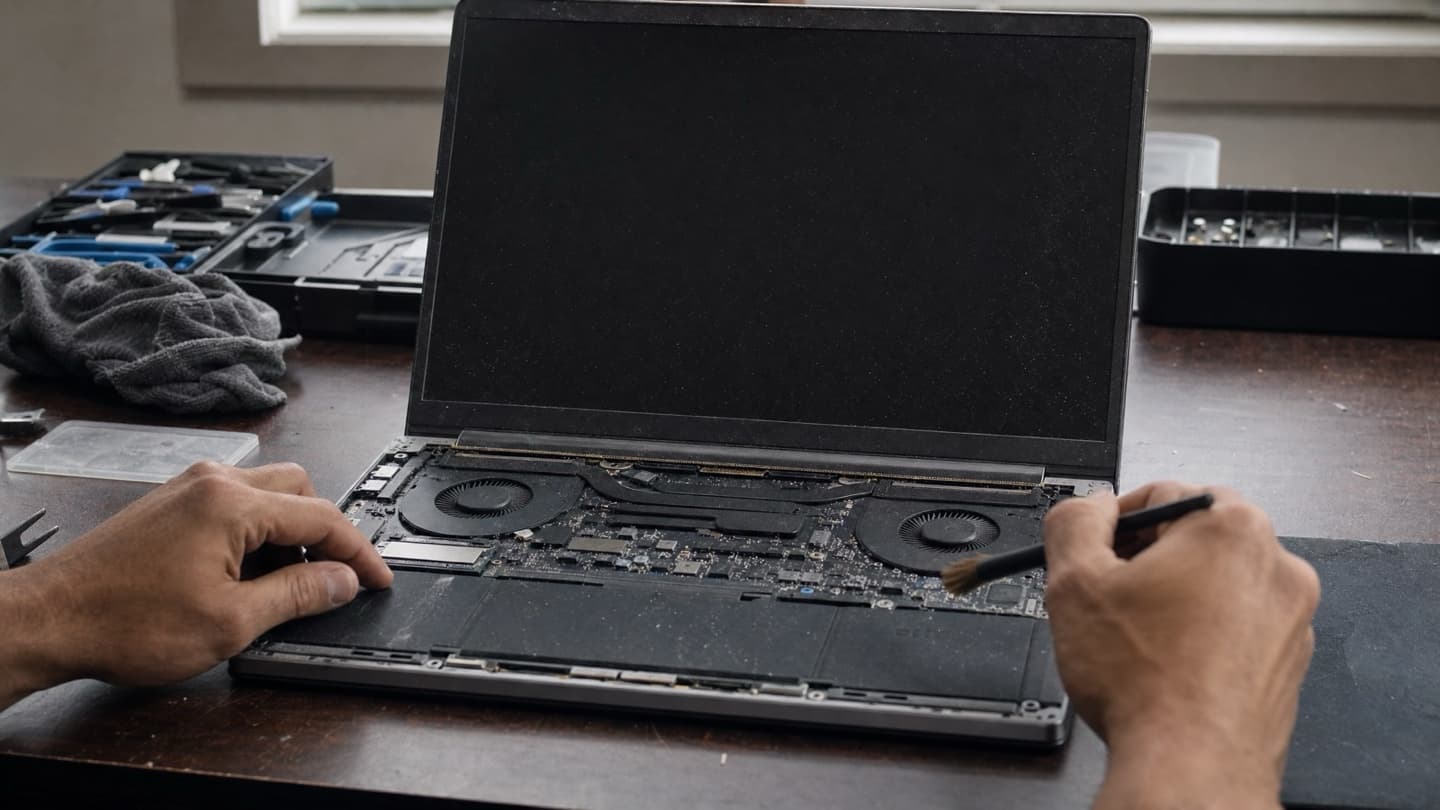
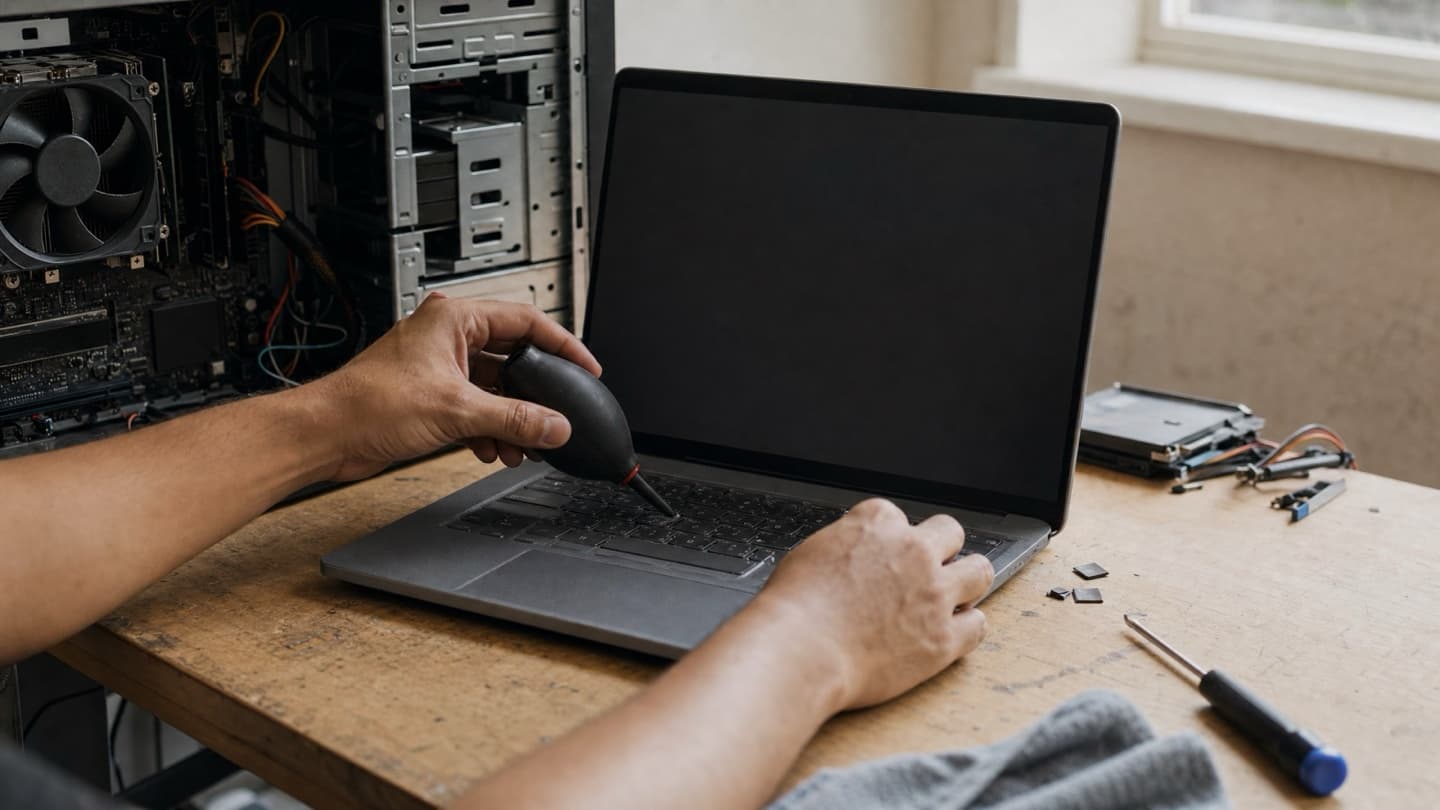
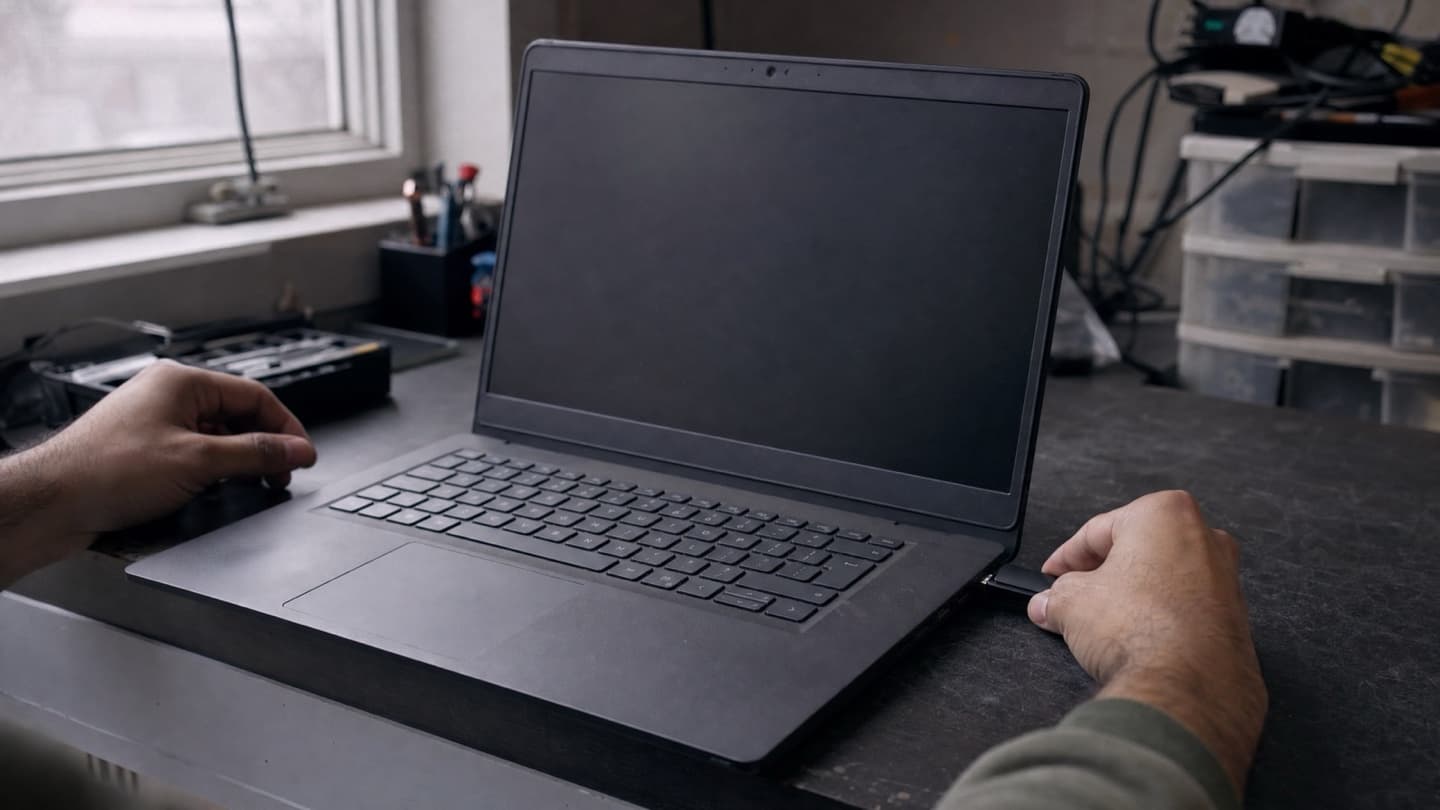
- Scan from outside Windows. Booting the machine from separate, clean media means the infection isn't running and can't hide. This is where the rootkits and the deeper stuff that survives normal scans finally show up.
- Reset the browser and startup. Strip the hijacked extensions, homepages, and search settings, and clear the scheduled tasks and startup entries that reinstall the payload. This is the step DIY usually misses, and it's why infections come back.
- Harden what's left. Updates applied, real protection configured properly, risky or unwanted software removed. A clean machine that's left wide open just gets reinfected.
- Figure out what was exposed. If a keylogger or spyware was running, some passwords should be treated as compromised. Knowing which accounts to change matters as much as the removal itself.
If the infection has actually damaged Windows, or a rootkit is buried deep enough that rebuilding is safer than chasing it, the right move is to back up your files, wipe, and reinstall clean. Done properly, your data comes through fine. Our data recovery guide covers what's recoverable when files are damaged or encrypted.
How to keep it from coming back
Removal is half the job. Reinfection usually happens because the same habit that let it in is still there. What actually helps:
- Stop using cracked or "free" paid software. Pirated apps and their keygens are one of the most reliable ways to get infected. The download you saved is rarely worth the cleanup.
- Audit your browser extensions. Remove anything you don't actively use. An extension you trusted a year ago can turn malicious in a single update. Fewer extensions, fewer doors.
- Let Windows and your browser update. Most infections exploit holes that were patched months ago. Staying current closes them.
- Keep one real antivirus running, not five. Windows Defender is genuinely fine for most people. Stacking multiple security tools makes a machine slower and less stable, not safer.
- Back up your files somewhere the machine can't reach. An external drive you unplug, or cloud backup. This is the one thing that turns ransomware from a disaster into an inconvenience.
- Slow down on the scary pop-ups and unexpected calls. No real warning screen has a phone number. Microsoft and Apple don't call you about your computer. Those two rules alone prevent a huge share of infections.
Do Macs need this too?
Yes. The "Macs don't get viruses" line stopped being true a while ago. Mac adware and browser hijackers in particular have climbed sharply, and the fake "tech support" scams hit Macs just as often. The cleanup approach is the same idea, and it's worth doing properly on a Mac too.
What it costs, honestly
There's no flat number that's true for every machine, so be wary of any quote given before someone has looked at it. A straightforward adware cleanup is quick. A deep rootkit, or an infection that's damaged Windows and needs a rebuild with a data backup, is a bigger job, and it costs accordingly. The bad ones cost more than the easy ones, and no one can tell which yours is from a phone description.
The honest way to handle it is a look first, then a firm number before any work starts. That's how we do it: the diagnosis is free, you get a flat quote up front, and if the machine isn't worth cleaning, we'll tell you that instead of charging you to find out.
Bring us the machine and we'll find out exactly what's on it, then quote a flat price before touching anything.
When to get someone else on it
You can handle a mild adware infection yourself with a good scan and a browser cleanup. It's worth handing over when:
- The infection keeps coming back after you've removed it.
- Banking or saved passwords might have been exposed.
- Files are encrypted or you're locked out.
- Windows won't start properly anymore.
- You paid or gave remote access to a "tech support" scammer.
That last one matters: those scammers almost always leave remote-access software behind so they can come back. Disconnect the machine from the internet, call your bank to dispute the charge, and get it cleaned. Removing exactly that kind of leftover access is a normal part of the job.
We handle virus and malware removal across Calgary, in your home or remotely, on both Windows and Mac, with a free diagnosis and a flat quote before any work. See virus and malware removal, or if you're still not sure it's an infection, start with the signs your computer has a virus.