Microsoft ended support for Windows 10 on October 14, 2025. Your PC still turns on and works exactly as it did the day before, which is exactly why the change is so easy to ignore. It's quieter than a crash, and it matters more than a slow startup ever will.
- Windows 10 still runs, but the monthly security patches stopped on October 14, 2025.
- The risk is security, not speed: unpatched machines are the easy target.
- If your PC meets the requirements, upgrading to Windows 11 is free and keeps your files.
- If it can't run 11, the real question is hardware upgrade versus a new machine.
- Whatever you choose, back up everything you can't replace before you start.
What "end of support" actually means
Windows 10 didn't stop working. What stopped is the monthly security patch. Microsoft is no longer fixing the holes that attackers find, and they find new ones constantly. So every month that passes, your machine has a few more open doors than it did the month before, and nobody is coming to shut them.
That's the whole thing. No feature updates, no bug fixes, no technical support from Microsoft. Everything else, your files, your programs, your printer, keeps running like normal. Which is exactly why it's easy to ignore.
Why it's a security problem, not a performance one
A lot of the noise online frames this as "your computer will get slow." It won't. An unpatched Windows 10 machine runs at the same speed it always did.
The real issue is that unpatched systems are the easy target. When a new vulnerability gets found in Windows, patched machines get fixed and unpatched ones stay open. Attackers know the fix exists, they know what it plugs, and they go looking for the machines that never got it. Ransomware and credential theft lean heavily on holes that were patched everywhere except the computers still running old software.
Attackers know the fix exists, they know what it plugs, and they go looking for the machines that never got it.
If your PC only ever browses the web and checks email, the risk is lower, but it isn't zero. Anything you log into, banking, email, anything with a password, is worth protecting. If you run a business off the machine or store client data on it, treat this as something to deal with, not something to sit on.
Your options, plainly
There are really only four, and the right one depends on your specific PC.
1. Upgrade to Windows 11 (free, if your PC qualifies)
If your computer meets Microsoft's requirements, the upgrade to Windows 11 is free and keeps your files and programs in place. This is the best outcome for most people. The catch is the hardware bar: Windows 11 needs TPM 2.0, Secure Boot, and a supported processor, and plenty of otherwise-fine machines fail one of those checks.
Sometimes the check fails for a silly reason. TPM and Secure Boot are often present but switched off in the BIOS, and turning them on makes an "unsupported" PC eligible in ten minutes. We wrote a full walkthrough of the upgrade here: how to upgrade Windows 10 to 11 without losing your files.
2. Enroll in Extended Security Updates (a stopgap, not a fix)
Microsoft offers Extended Security Updates (ESU) for Windows 10, which buys you extra time on security patches after the October 2025 cutoff. It's a stopgap. It's meant to give you a window to plan the move, not to keep Windows 10 alive forever. If you go this route, treat it as a countdown, not a solution.
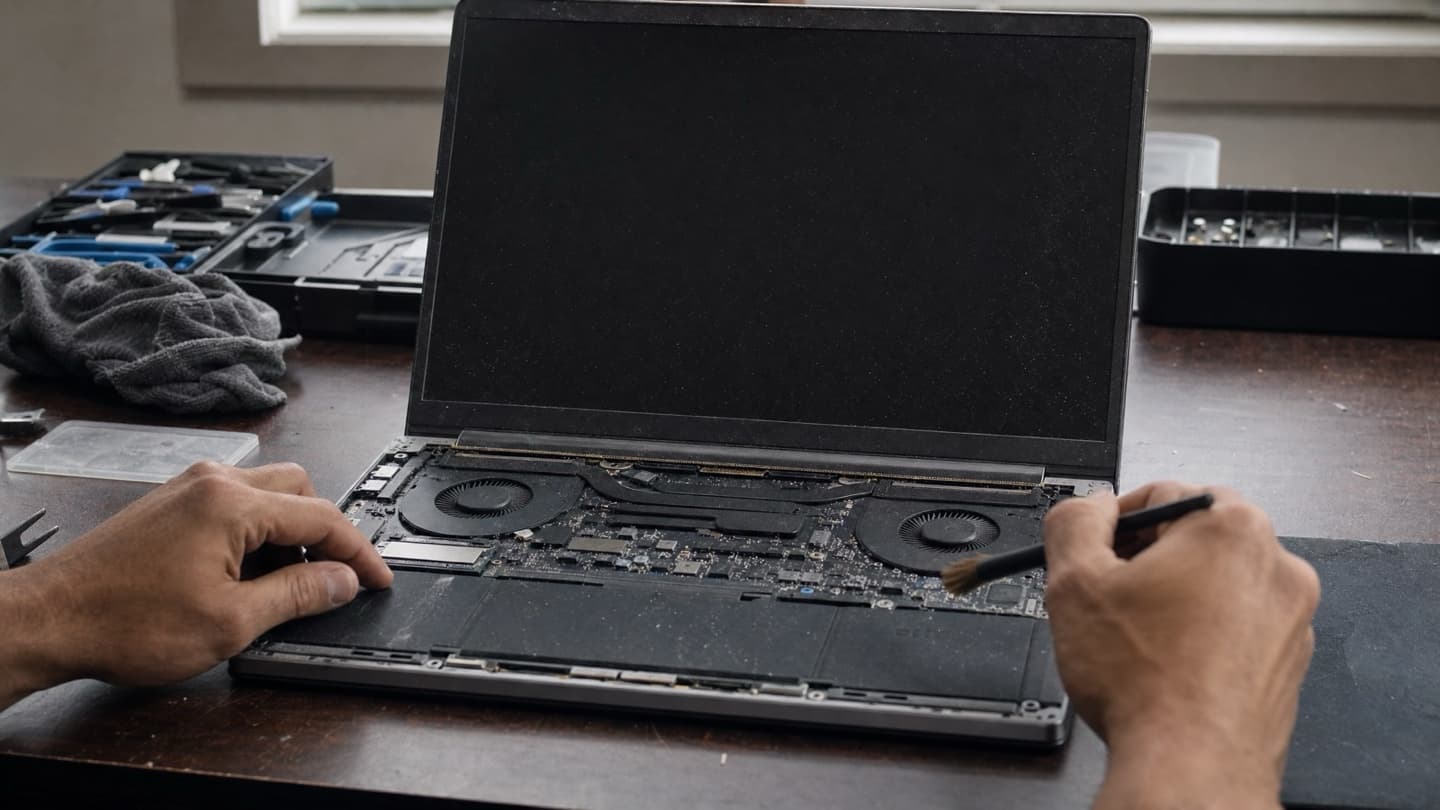
3. If your PC can't run 11, upgrade the hardware or replace it
This is where most people get stuck. Your PC works fine, but it can't run Windows 11 and never will. Now what?
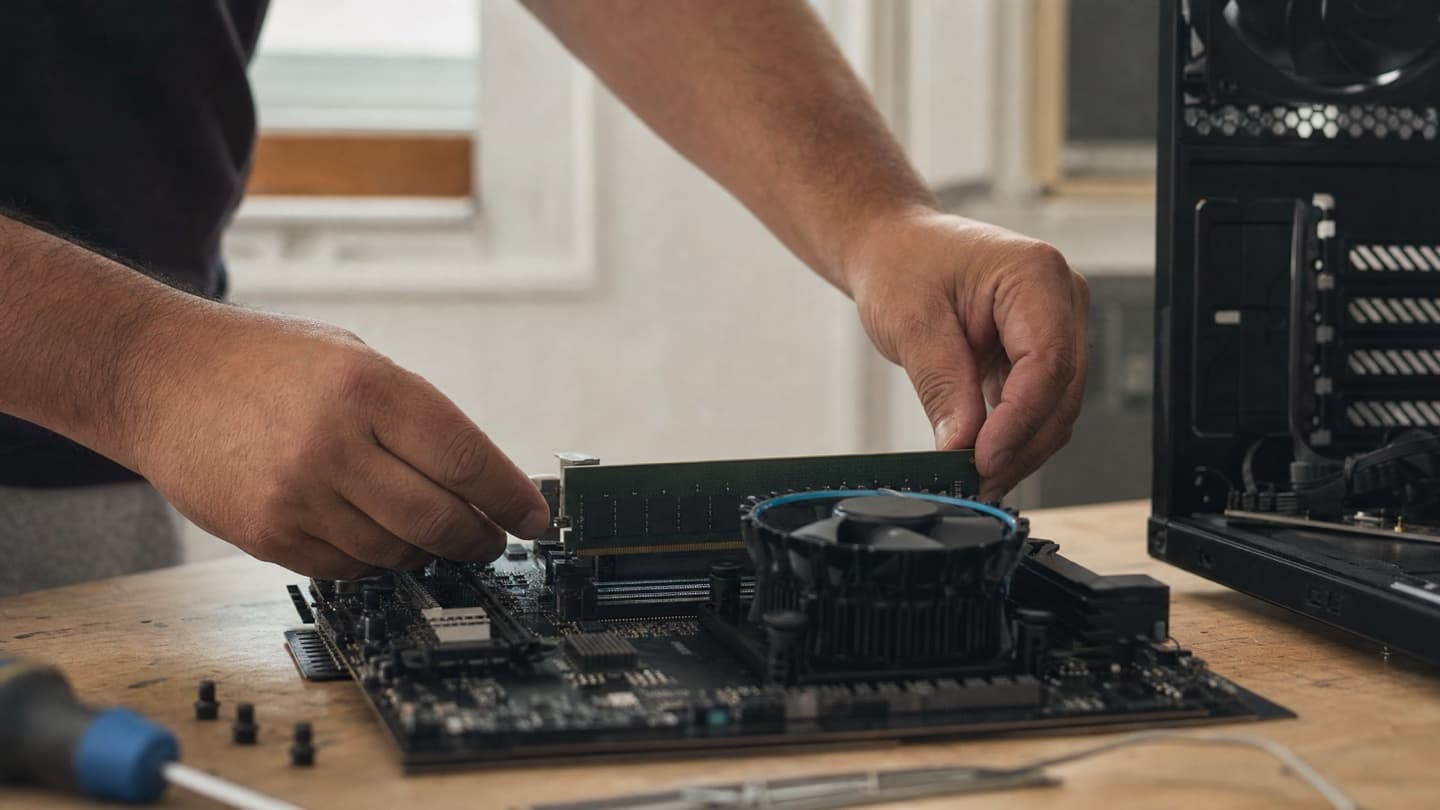
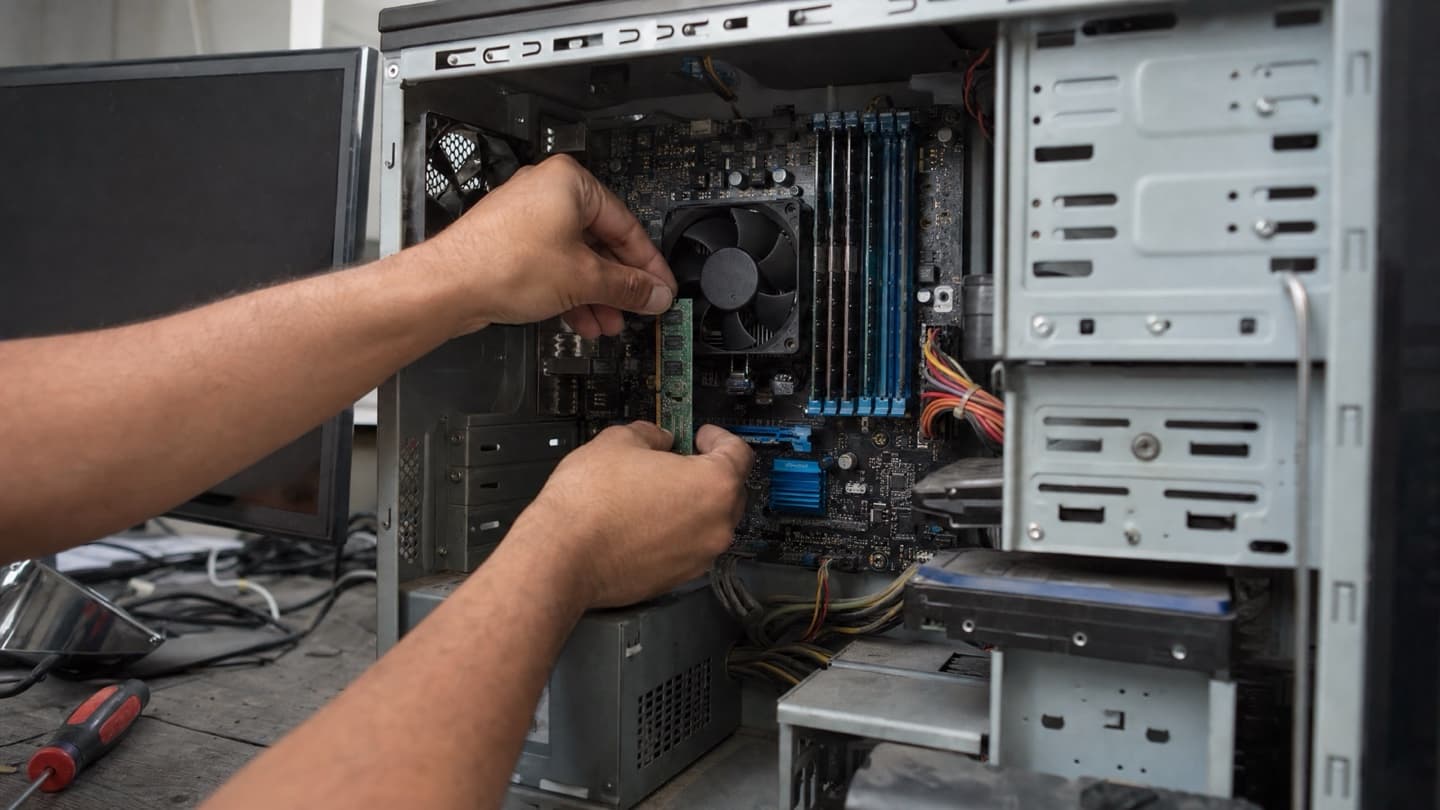
It depends on the machine. A desktop that's three or four years old but fails the CPU check is one conversation. A ten-year-old laptop with a mechanical hard drive is another. In a lot of cases the honest answer is that a new machine costs less than the upgrades needed to drag the old one across the line, and you're better off replacing it. In others, the hardware is genuinely fine and the block is purely the compatibility check.
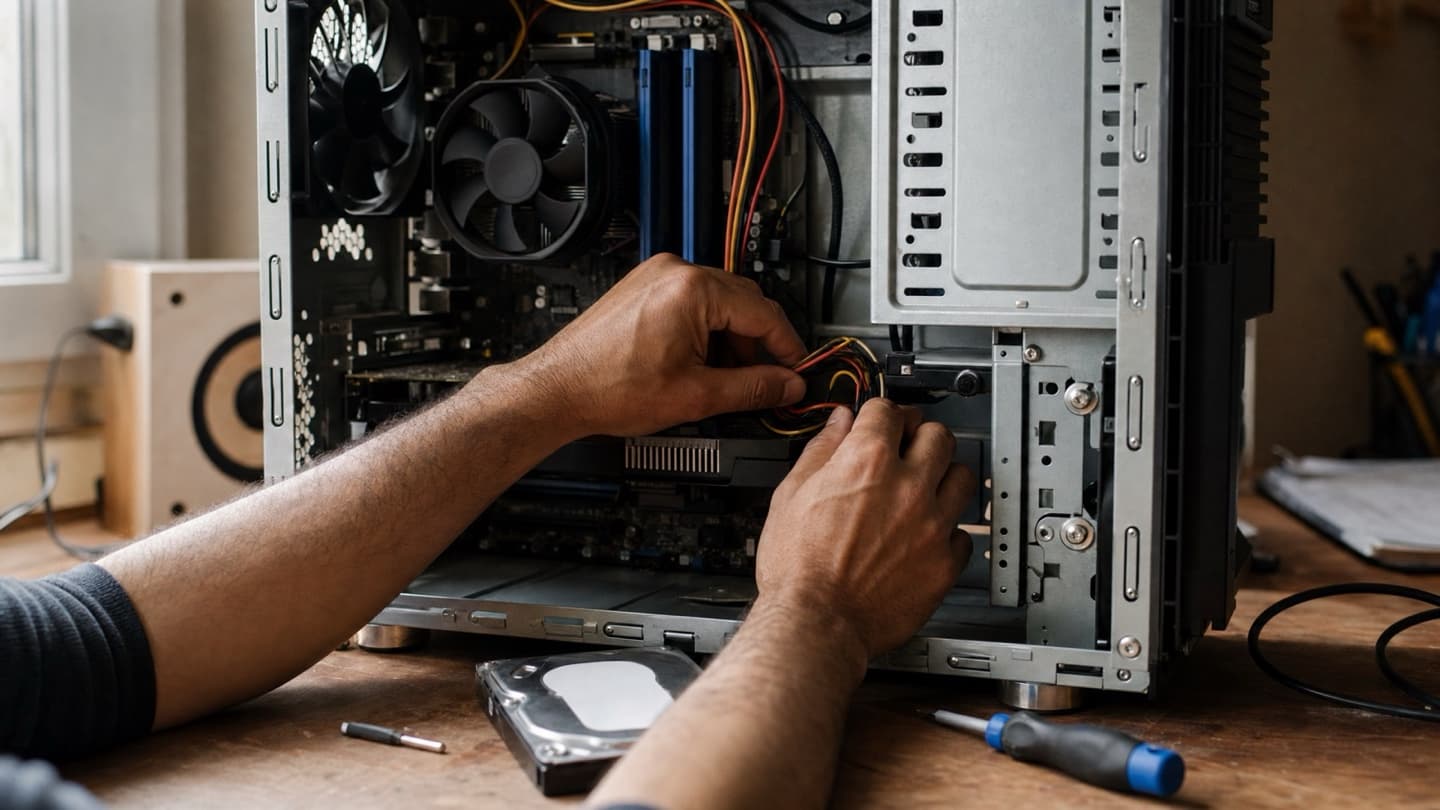
That's the call worth getting right, because it's the difference between a small fix and a much bigger bill. If you're not sure which side your PC falls on, that's exactly what a diagnosis is for.
We'll tell you straight whether it's worth upgrading the hardware or replacing the machine, with a flat quote before any work starts.
4. Do nothing (and know the risk you're taking)
You can keep running Windows 10 unpatched. It'll work. Just do it with your eyes open: back up your files somewhere off the machine, don't do banking or anything sensitive on it, and understand that the risk grows the longer you wait. This is the option for a machine that's offline, or one you're planning to retire soon anyway.
Before you change anything, back up
Whatever you decide, back up first. Not because upgrades usually go wrong, they usually don't, but because the one time an install stalls or a tired hard drive picks that moment to die, a backup is the difference between an annoyance and a disaster.
Copy your photos, documents, and anything you can't replace to an external drive or the cloud before you start. Upgrades are generally safe, but a failing drive can pick the worst moment to quit.
The short version
Windows 10 support ended October 14, 2025. Nothing broke, but the security patches stopped, and an unpatched machine is a softer target every month. If your PC can run Windows 11, upgrade, it's free. If it can't, the real question is hardware upgrade versus new machine, and that comes down to the specific PC in front of you.
If you'd rather not guess, we sort this out for people across Calgary, in your home or remotely. The diagnosis is free, the quote is flat, and we back up your files before touching anything. If the smart move is a new computer, we'll say so instead of selling you upgrades that don't pay off. See hardware repair and upgrades.