Your PC freezes the moment you open one too many browser tabs. Apps hang when you switch between them. RAM is the first thing to check. Here's how much you actually need for Windows 11 in 2026, and how to tell whether RAM is your problem before you spend a cent.
- 8 GB is the floor for light use (browsing, email, Office). It works, but it fills up fast.
- 16 GB is the right answer for almost everyone: everyday work, lots of tabs, casual gaming.
- 32 GB is for heavy multitaskers, serious gaming, and video editing. Most people don't need it.
- The quick test: open Task Manager, watch the Memory graph. If it sits near 100 percent when things get slow, more RAM will help.
The short answer
Microsoft says Windows 11 needs 4 GB. That's the number that lets it install, not the number that makes it pleasant. Nobody should run a daily machine on 4 GB in 2026.
Here's what actually holds up:
| How you use the PC | RAM to aim for |
|---|---|
| Browsing, email, streaming, Office | 8 GB |
| Everyday work with lots of tabs | 16 GB |
| Casual gaming | 16 GB |
| Serious gaming, video editing | 32 GB |
If you take one thing away: 16 GB is the sweet spot. It's cheap enough that it's rarely worth agonizing over, and it covers the way most people actually use a computer.
16 GB handles all of it without you ever thinking about memory. That's the goal. You shouldn't have to think about it.
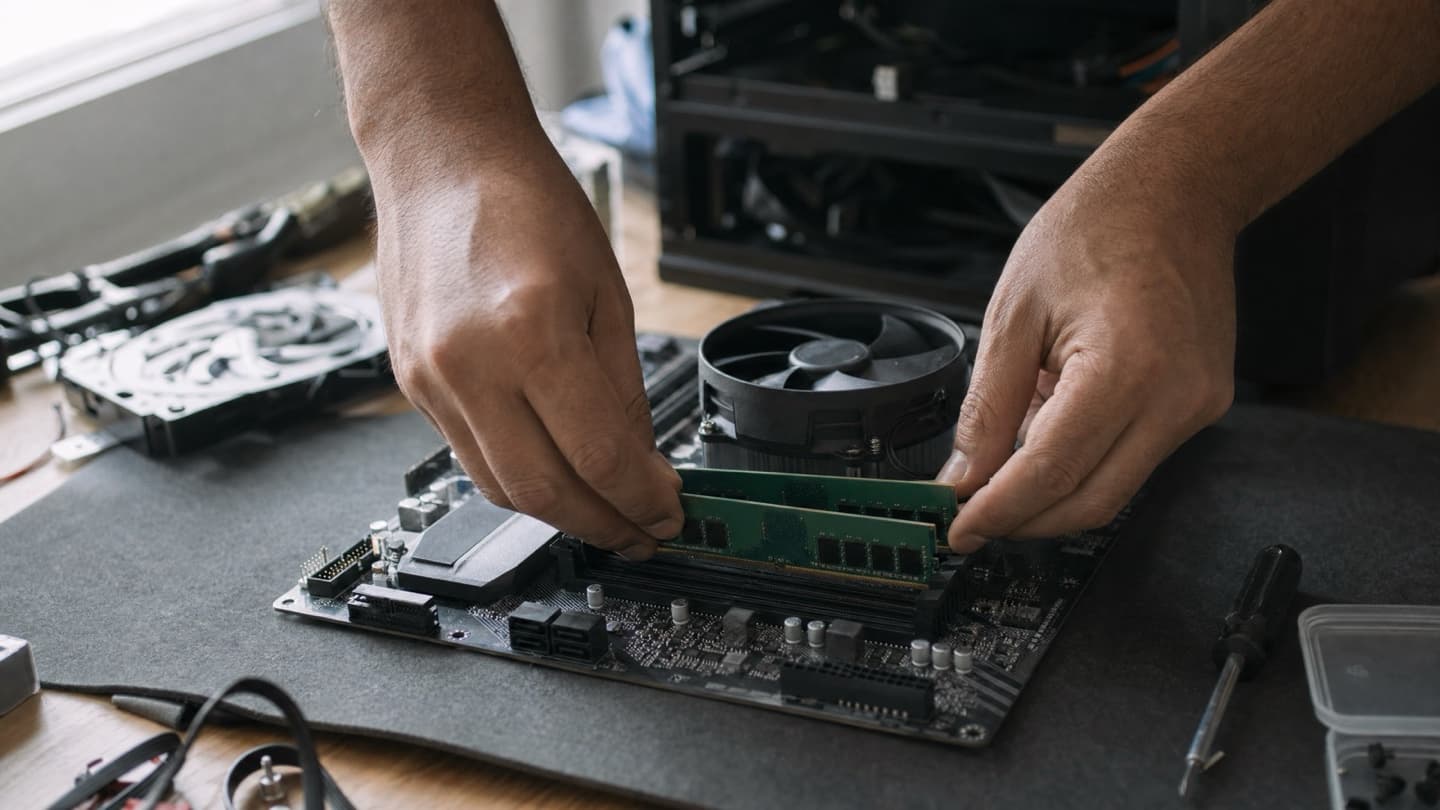
If you'd rather not open the machine yourself, we do RAM upgrades as a mobile service across Calgary: we confirm what the machine takes first, then agree one price for the RAM and the work before anything starts.
What RAM does, in plain terms
RAM is your computer's working memory. It's the desk you spread things out on while you work. The more desk you have, the more you can keep open at once without shuffling.
When you run out, Windows starts moving stuff to your drive to make room. That's called paging, and it's much slower than real memory. On a slow drive it's the difference between "responsive" and "why is everything hanging." So low RAM doesn't just cap how much you can open. It makes everything you have open feel sluggish.
Windows 11 itself uses more memory than Windows 10 did. Add a browser with a dozen tabs, a couple of chat apps, cloud sync running in the background, and 8 GB disappears faster than you'd think.
Is 8 GB enough for Windows 11?
For light use, yes. If your day is web, email, a bit of Office, and streaming, 8 GB gets you through it.
Where it runs thin:
- A browser with a lot of tabs open
- Photo editing, or anything creative
- Gaming
- Running several apps at once and switching between them
If that's your day, 8 GB will feel tight, and it'll only get tighter as apps keep growing. Treat it as the minimum, not the target.
Why 16 GB is the one to buy
For most people, 16 GB is where the friction goes away. Enough room for a full browser, your work apps, video calls, and background stuff all at once, with headroom to spare. It's what most new machines ship with now, and for good reason.
Remote work, office work, casual gaming, a pile of tabs that never gets closed: 16 GB handles all of it, with headroom left over. You stop noticing memory, which is exactly the point.
When you actually want 32 GB
32 GB is real, but it's for specific work:
- Video editing, especially 4K
- Large photo projects or design work
- Running virtual machines
- Serious gaming, particularly if you stream at the same time
If none of that is you, 32 GB won't make your everyday computing faster. Past the point where you have enough, extra RAM just sits there. More is not automatically better.
How to tell if RAM is actually your bottleneck
Before you buy anything, check. This takes two minutes and it's free.
Open Task Manager (Ctrl+Shift+Esc), click Performance, and select Memory. Now use the computer the way you normally do, and watch the graph.
- If memory sits near 90 to 100 percent when things feel slow, you're out of RAM. More will help.
- If memory has room to spare but the machine is still slow, RAM isn't your problem. Something else is.
That second case matters. RAM gets blamed for a lot of slowdowns it didn't cause. A slow mechanical hard drive, a startup crammed with apps, or malware will all make a PC crawl no matter how much memory you add.
More RAM only helps if you're actually running out. If Task Manager shows plenty of free memory when the machine is slow, the money is better spent elsewhere. Watch it through a normal day before you order anything.
RAM or SSD: which upgrade first?
The two fix different things, so it depends on what's actually slow.
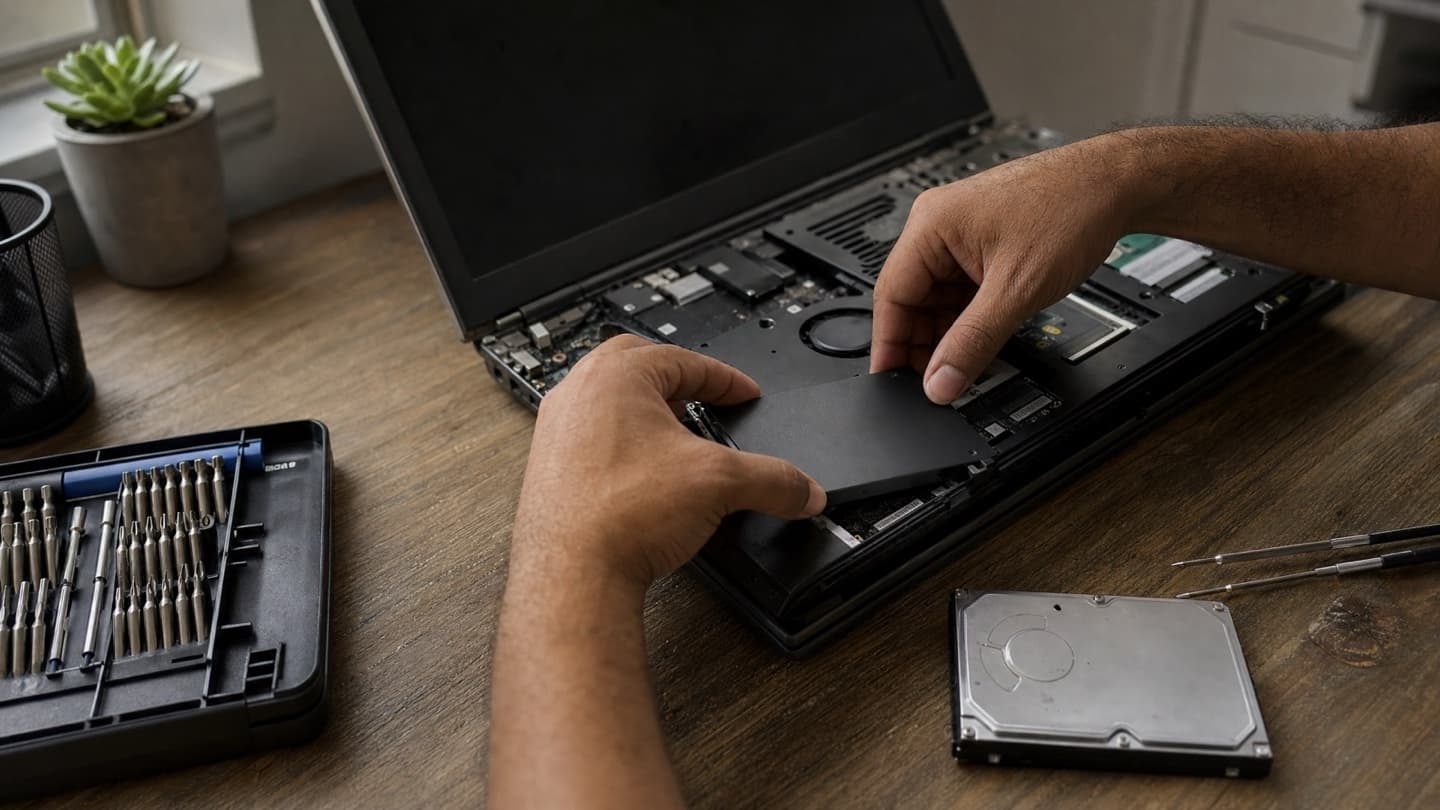
- An SSD fixes slow: boot times, apps taking forever to open, files crawling. If your PC still has a mechanical hard drive, this is the bigger, more obvious win. Start here.
- More RAM fixes stuck: freezing when you multitask, tabs reloading, lag switching between apps.
If you're on an old spinning hard drive, do the SSD upgrade first. It's the single biggest jump most older machines will ever feel. If you're already on an SSD and the machine still chokes under a full workload, that's the RAM talking.
On a lot of older computers, doing both together is what turns a frustrating machine back into a good one, often for a fraction of the cost of replacing it.
Before you order RAM
RAM isn't one-size-fits-all. The wrong stick either won't fit or won't run right. A few things trip people up:
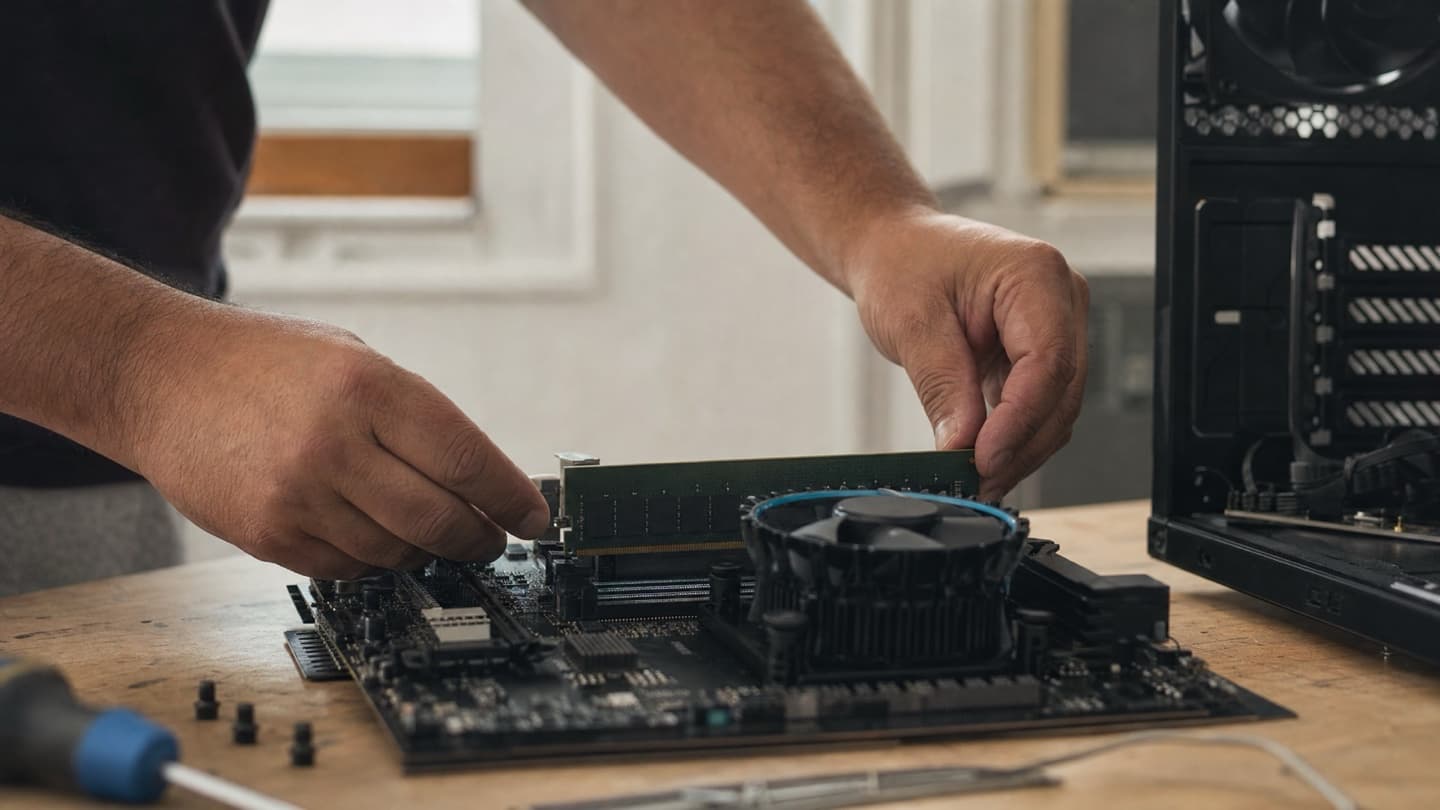
- Laptops and desktops use different memory, and it has to match your board's type and generation.
- Your motherboard has a maximum it supports. Going over it does nothing.
- Two matched sticks (dual-channel) run faster than one big stick on its own.
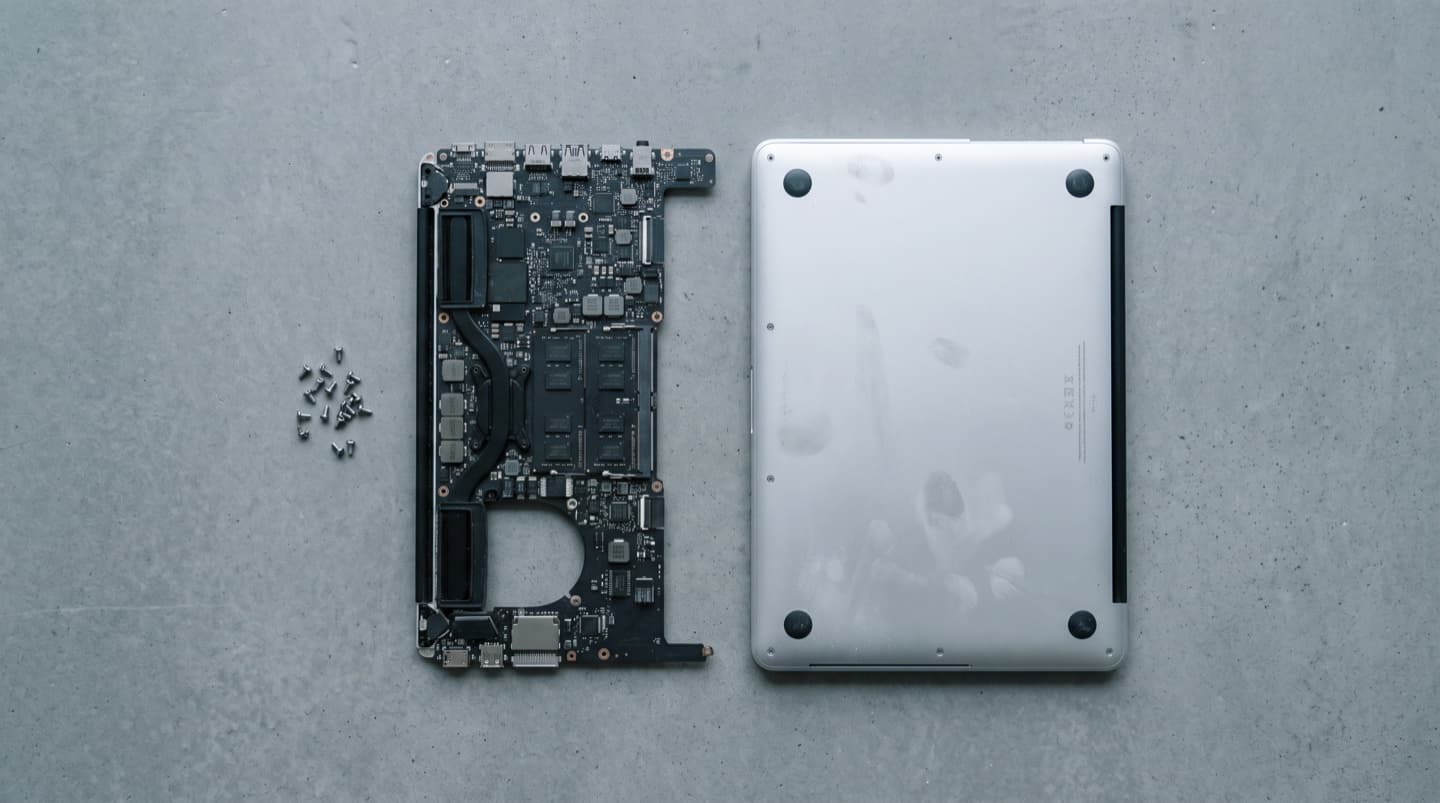
- Some laptops have RAM soldered to the board and can't be upgraded at all.
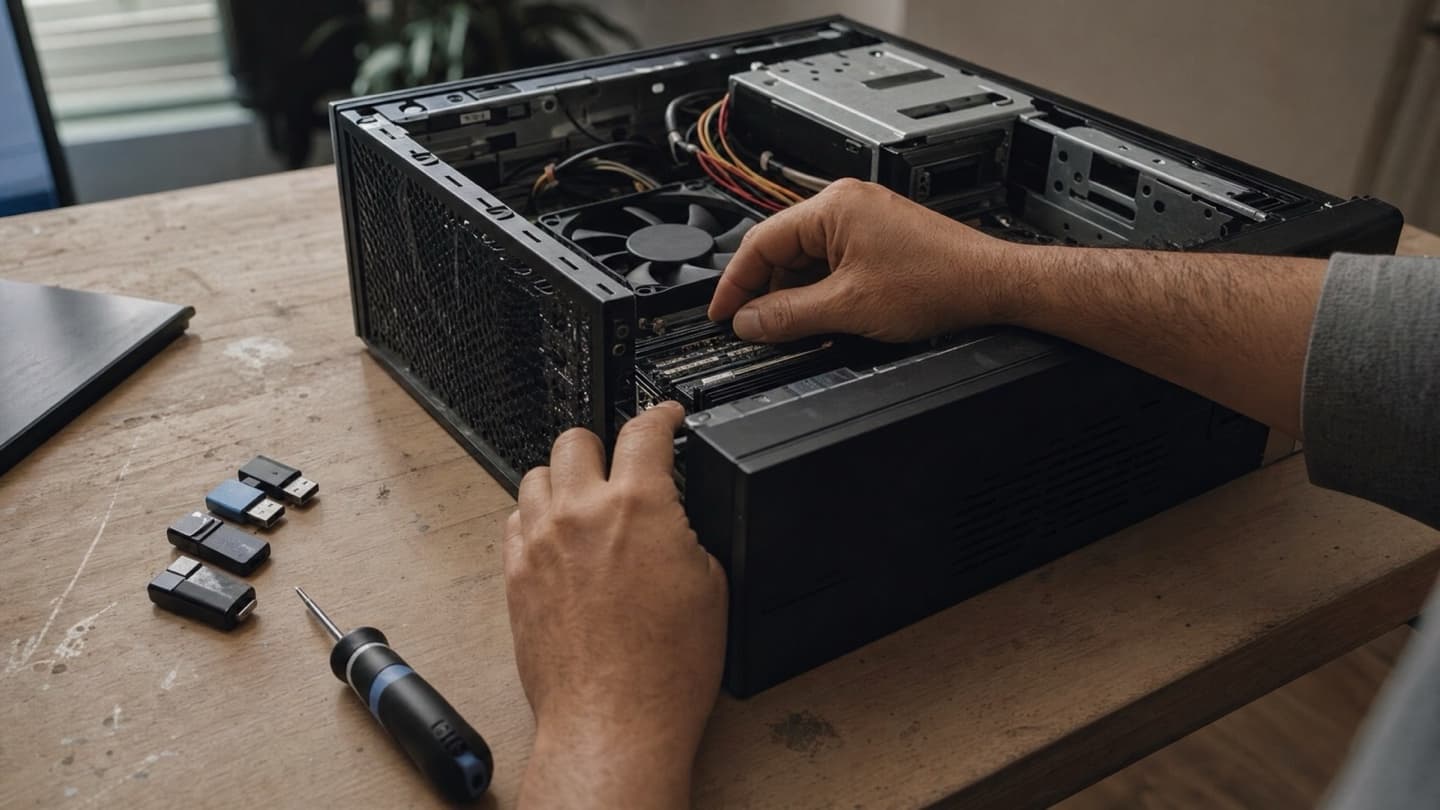
That last one catches people. It's worth confirming your machine is even upgradeable before you buy. If you'd rather not guess, we'll check it for you: what your machine takes, whether it can be upgraded, and whether RAM is even the right fix, then quote one price before any work. If an upgrade won't genuinely help, we'll say so.
The bottom line
For Windows 11 in 2026:
- 8 GB is the minimum for light use
- 16 GB is right for most people
- 32 GB is for editing, heavy multitasking, and serious gaming
But check Task Manager first. RAM is only the fix if you're actually running out of it. If the machine is slow for some other reason, more memory won't touch it, and there are plenty of other reasons a Windows 11 PC runs slow. And if you're weighing RAM against a bigger overhaul or a new machine entirely, our guide to the signs your computer needs an upgrade walks that line.
Common questions
For light use, yes. Browsing, email, Office, and streaming all run on 8 GB. It fills up fast once you add a tab-heavy browser, video calls, or anything creative, so treat it as the minimum rather than the target. If the machine already feels tight, 16 GB is the upgrade that makes the friction go away.
Only if you're currently running out. When memory fills up, Windows pages to the drive and everything slows down, and more RAM fixes exactly that. If Task Manager shows plenty of free memory while the machine is slow, the cause is something else, usually the drive, startup bloat, or malware, and extra RAM won't change a thing.
No, and this is the trap. Plenty of modern laptops have memory soldered to the board, which means the amount you buy is the amount you keep forever. Desktops are almost always upgradeable. Check your exact model before ordering sticks, or have someone confirm it for you.
For most people, yes. Past the point where you have enough, extra memory sits idle and changes nothing about how the machine feels. 32 GB earns its keep for 4K video editing, large design projects, virtual machines, and gaming while streaming. If none of that is your day, put the money toward an SSD or keep it.
When to hand it off
If Task Manager says you're out of memory but you'd rather someone else confirm the right stick, install it, and make sure the machine actually got faster, that's a quick job for us.
Honest advice on whether RAM or an SSD is your real bottleneck, a price agreed before anything happens, and no fee if we can't fix it.