A slow computer isn't always a computer you need to replace. Most of the machines people give up on could run like new for the cost of one part. The trick is matching the symptom to the upgrade that actually fixes it, and knowing the point where a new machine really is the smarter buy.
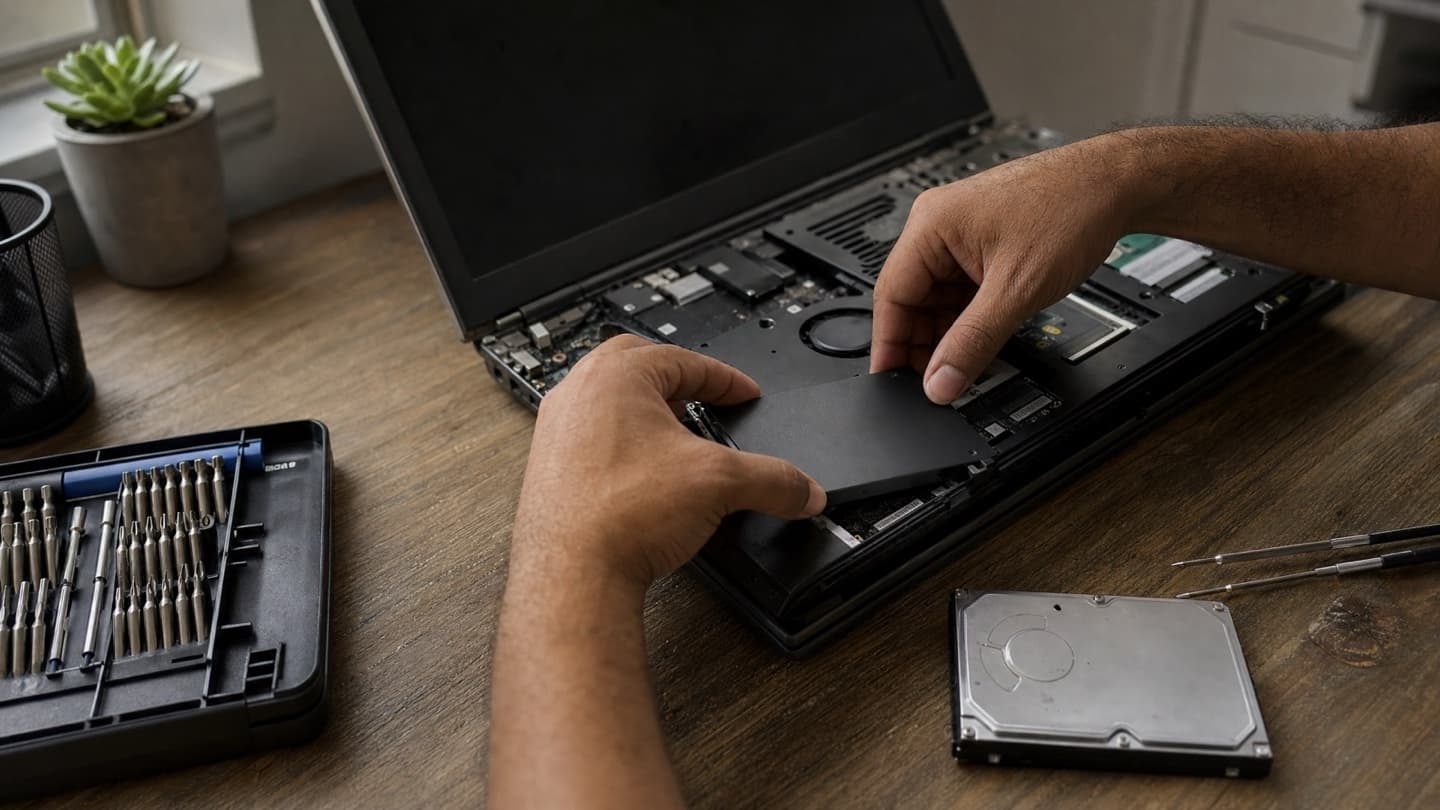
- Slow startup and slow-loading programs mean the drive: an SSD is the fix.
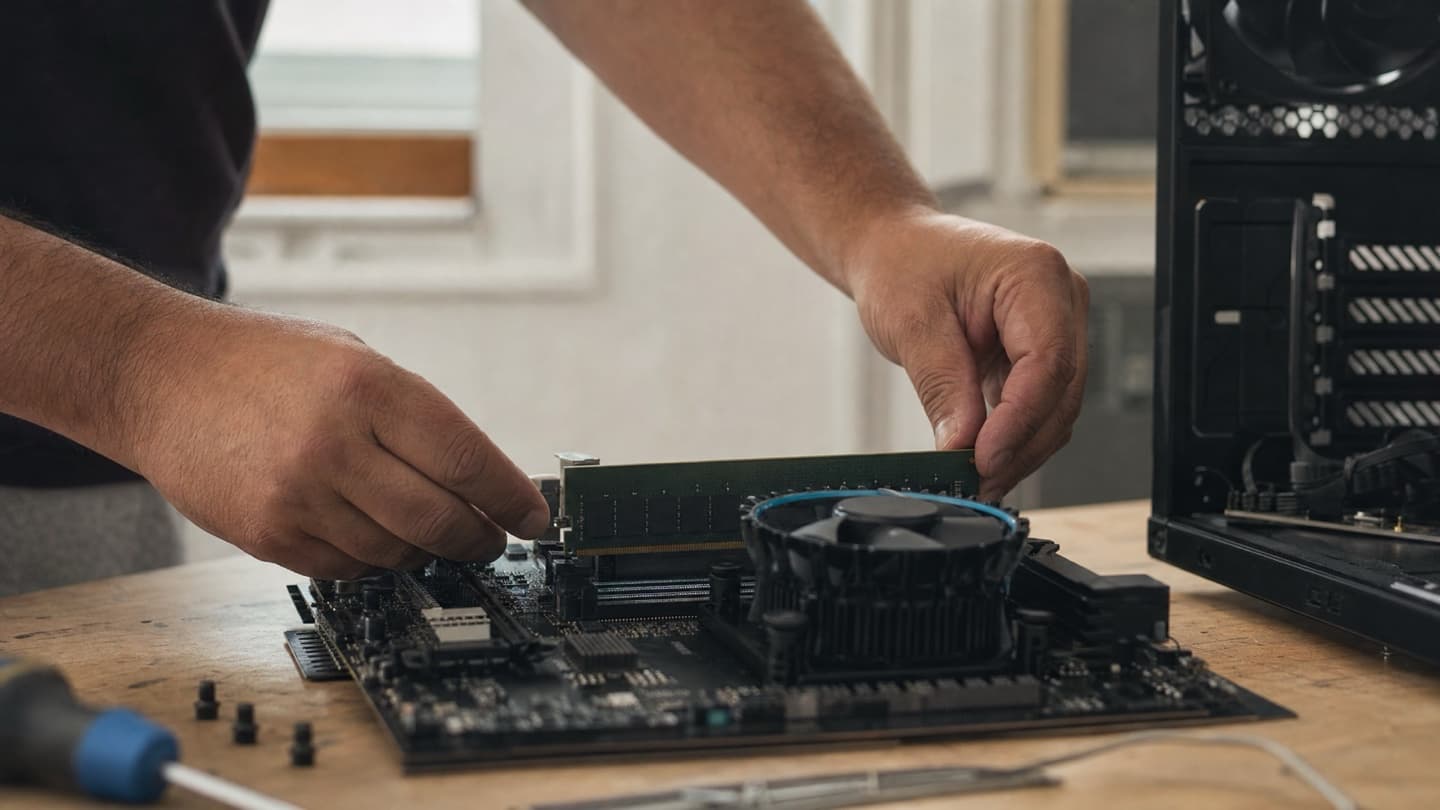
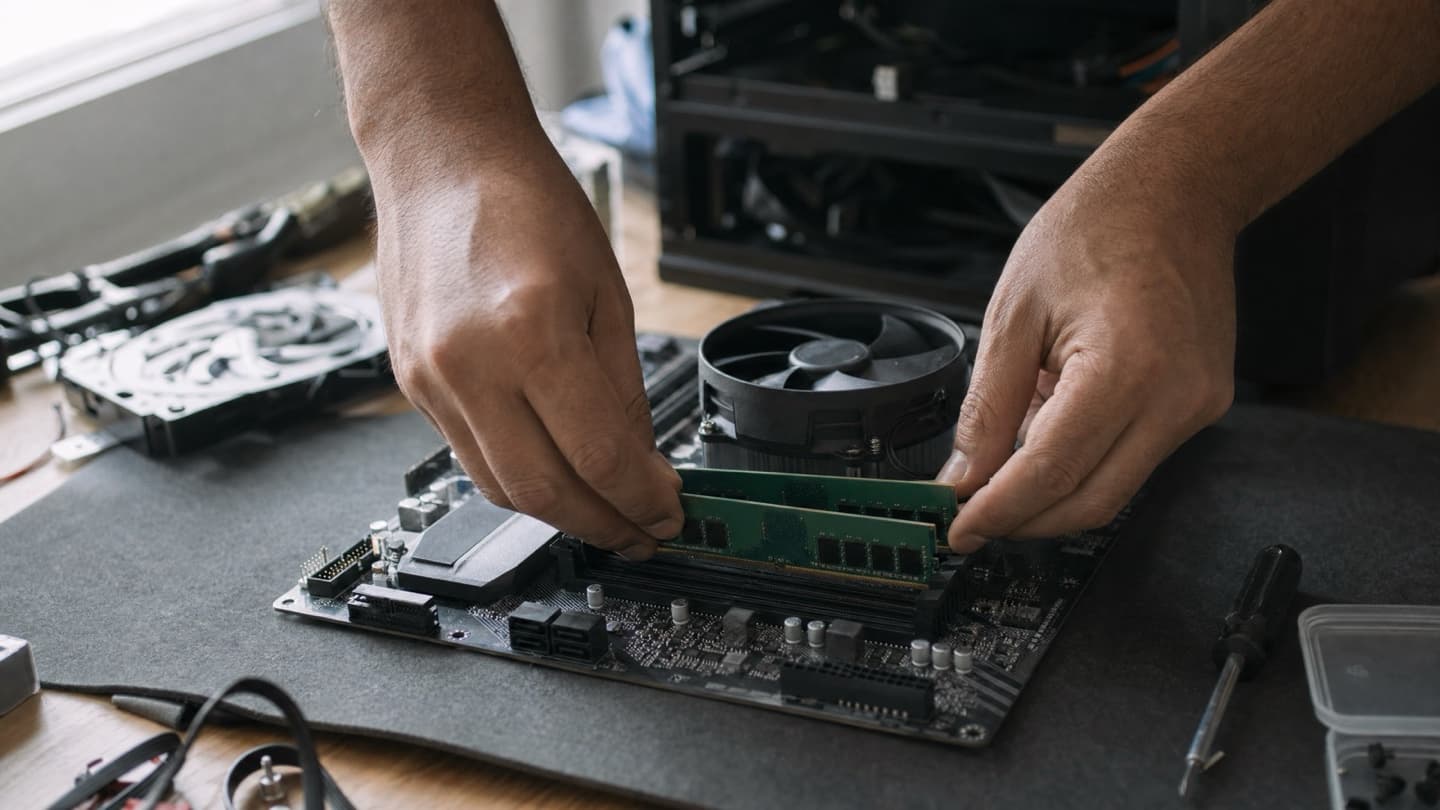
- Choking with a lot open means memory: add RAM, usually to 16 GB or 32 GB.
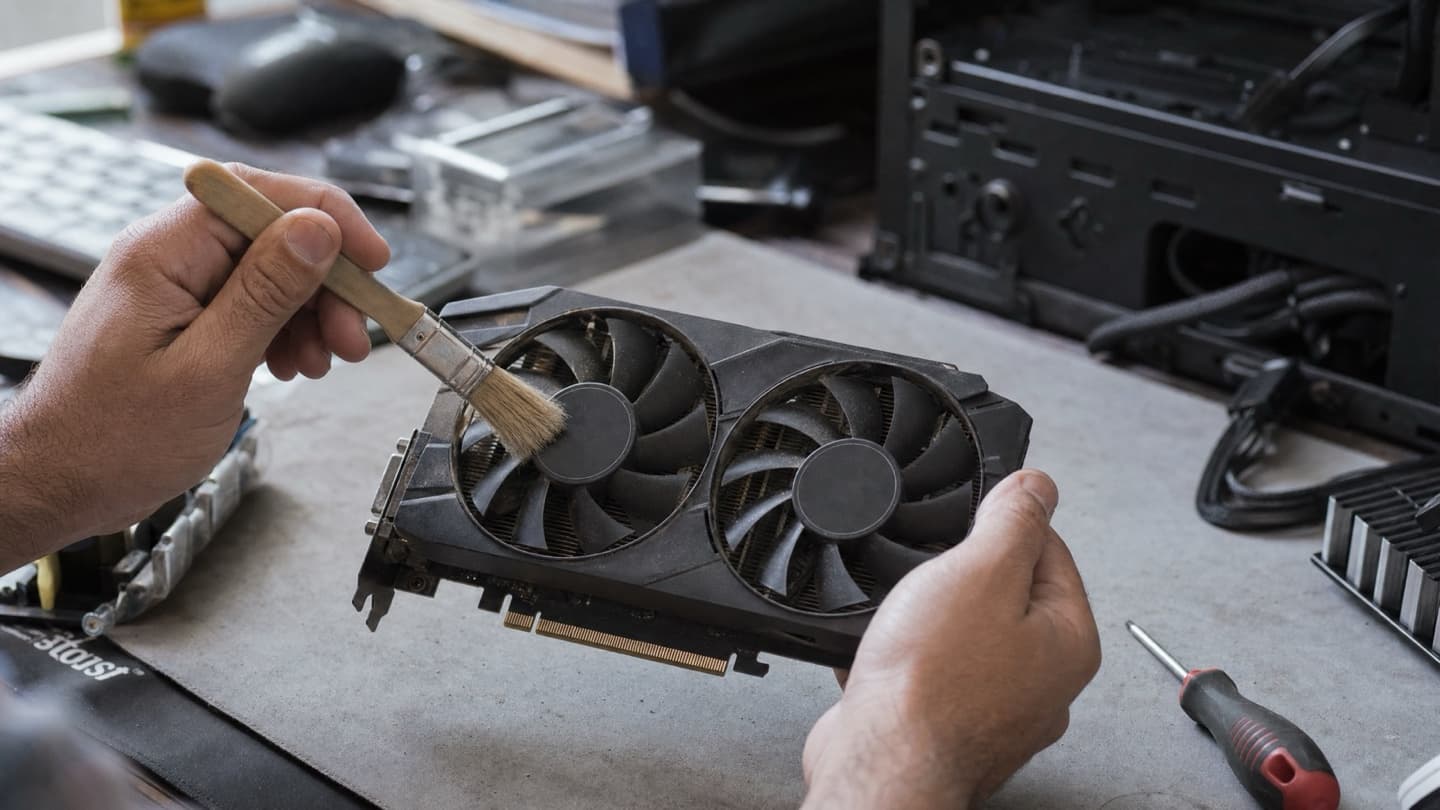
- Running hot and throttling is dust, not a part. It needs a cleaning.
- Lean toward replacing when several things fail at once or the processor is past it.
- Most people replace too early, when a cheap drive and a stick of RAM would have carried the machine for years.
Here are the symptoms, worst offender first, and the single upgrade that fixes each.
It takes forever to start up: you need an SSD
This is the clearest sign, and the easiest win. If your PC takes more than a minute to reach the desktop, then makes you wait again before it's actually usable, the hard drive is the reason. Old spinning drives are slow, and no amount of cleanup changes that.
An SSD is the fix, almost every time. Swap the old drive for a solid-state one and the same computer boots in seconds, opens programs without the lag, and feels years newer. It's the one upgrade that surprises people most. If you only ever do one thing to an aging PC, put in an SSD. Our SSD upgrade guide covers picking the right drive if you're doing it yourself.
Before you write off a five-year-old machine as too slow, check whether it still has a spinning hard drive. Nine times out of ten that's the whole problem, and it's a cheap part to change.
Not the type to open up a computer yourself? We do the swap as a mobile service anywhere in Calgary, data moved over included, with one price agreed before any work.
It chokes when you have a lot open: you need RAM
If the machine bogs down the moment you've got a dozen browser tabs, a video call, and a couple of programs running, but it's fine when you keep things light, that's memory. RAM is the workspace your computer uses to juggle everything at once. Run out and it starts stalling, reloading tabs, and lagging as you switch between windows.
More RAM is the fix. Most everyday machines are happier at 16 GB, and if you keep a lot open or edit photos and video, 32 GB. Before you buy, it's worth checking how much RAM you actually need so you're not overspending or buying sticks the machine can't take.
It runs hot and throttles: you need a cleaning, not a part
Loud fans, a hot laptop underside, sudden slowdowns during anything demanding, the occasional shutdown out of nowhere. That's heat, and heat makes a computer slow itself down on purpose to avoid damage.
This one usually isn't an upgrade at all. It's dust. Fans and heatsinks clog up over a couple of years, and old thermal paste stops doing its job. A proper internal cleaning and fresh paste brings temperatures back down and the speed back up. Spend on a new part before you clean it out and you've fixed nothing.
It can't keep up with modern software: look closer before you spend
Struggling with Windows 11, video calls that stutter, cloud apps that crawl. This one's a judgment call. Often it's still just the drive or the memory, and an SSD and RAM sort it out. But if the processor is genuinely a generation or two too old for what you're asking of it, upgrades hit a ceiling.
This is exactly the case where it pays to have someone look before you buy anything. The wrong guess here is where people waste the most money, in either direction.
Upgrade or replace: where the line actually is
Most of the time upgrading wins, and it isn't close. But there's a real point where a new machine is the smarter spend.
Lean toward upgrading when:
- The machine is roughly five years old or newer.
- Speed is the complaint, not things breaking.
- The rest of the hardware is sound.
- It already runs Windows 11, or can.
Lean toward replacing when:
- Several things are failing at once, not just slow.
- The processor is too old for what you need and can't be swapped.
- The repair adds up to a real chunk of what a new machine costs.
- It can't run Windows 11 and won't get security updates much longer.
What people get wrong
Most people replace too early. A machine that boots slow and lags feels done, so it gets swapped for a new one when a cheap drive and a stick of RAM would have carried it for years. And plenty of slowness isn't hardware at all: startup bloat and junk software drag a machine down just as hard, which is its own rabbit hole worth checking before you spend on parts.
The SSD-and-RAM combination is the one that turns a frustrating old PC into something genuinely pleasant again.
The opposite mistake is real too, just rarer: pouring money into parts for a machine whose processor is simply past it, where the money would have been better spent on a replacement.
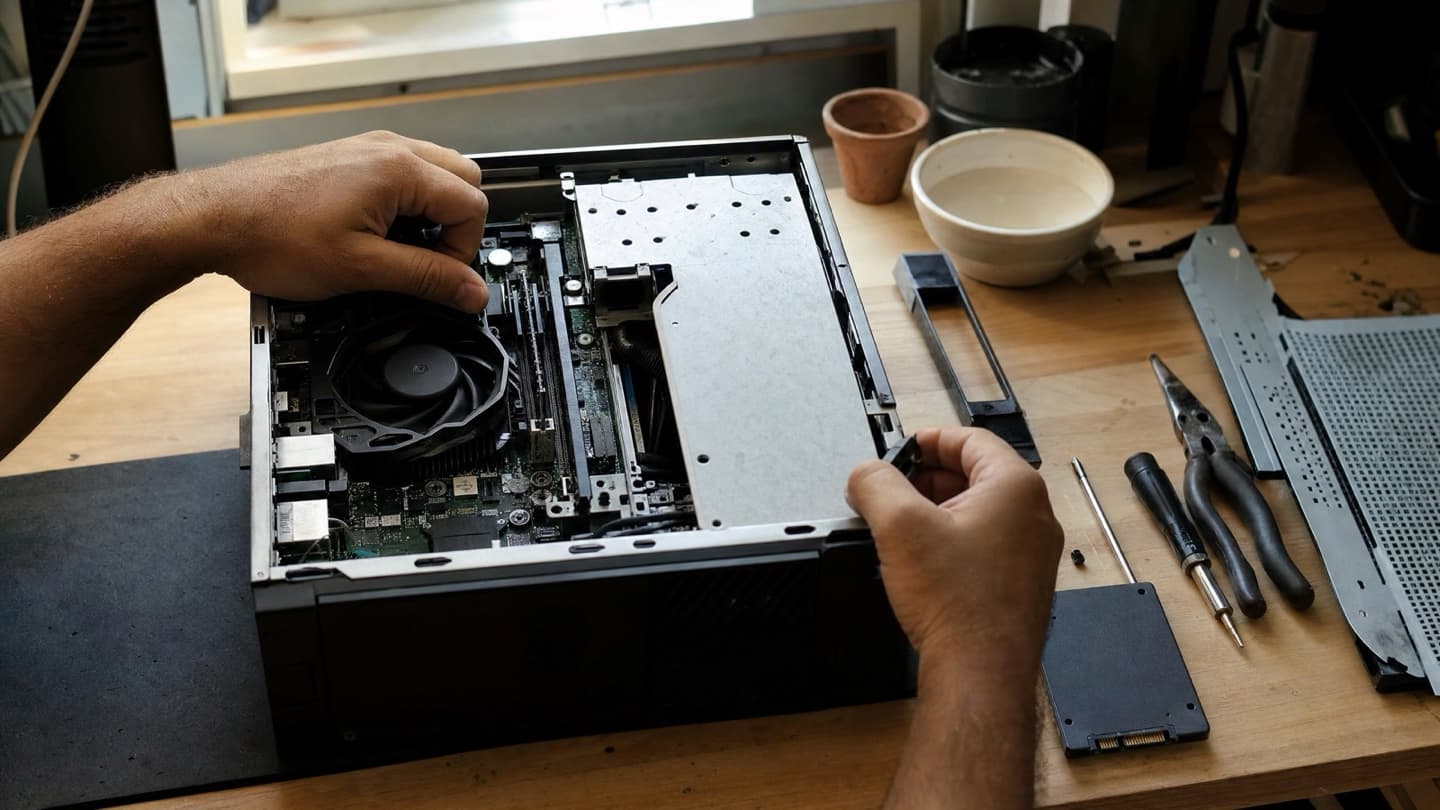
That's the whole reason to get it looked at before you decide. If an upgrade won't genuinely help, we'll say so, because we'd rather tell you that than sell you a part that doesn't move the needle.
Common questions
An SSD, almost every time. Swapping an old spinning hard drive for a solid-state one is the change that makes an aging machine feel new again.
Depends on the symptom. Slow startup and slow-loading programs mean the drive, so start with an SSD. Choking when you have lots open means memory, so add RAM. Many machines benefit from both.
With an SSD, enough RAM, and the occasional cleaning, five to eight years is realistic for everyday use. Hardware rarely dies at that age; it just gets neglected.
When several things are failing at once, when the processor is too old to keep up and can't be swapped, or when the repair cost climbs toward the price of a new machine. If it can't run Windows 11, that's another point in favor of replacing.
Yes. An SSD and enough RAM make a large difference in startup, loading, and multitasking. Windows 11 itself is rarely the real problem on a machine that's slow.
When to hand it off
If you'd rather skip the guessing, one visit settles it: which part is the bottleneck on your machine, what the fix costs all in, and whether it's worth doing at all. The pricing page has how that visit is billed.
We come to you and tell you plainly whether an SSD, more RAM, or a cleaning is the fix on your specific machine, and whether it's even worth doing before you buy a single part. One price agreed before any work, and no fee if we can't fix it.