If your Windows 11 PC still boots off a mechanical hard drive, swapping it for an SSD is the best upgrade you can make, and it's not close. It's the difference between waiting for your computer and just using it. Here's how to pick the right one.
- On a PC with a spinning hard drive, an SSD is the single upgrade you'll actually feel.
- The only real choice is SATA or NVMe, and it comes down to what your machine's slots support.
- On an older machine you won't notice NVMe over SATA in normal use, so don't overpay for speed you can't see.
- Aim for 1 TB for most people. 500 GB is the practical floor now.
- Back up everything before you move a drive, whether you clone or do a fresh install.
Why an SSD is the upgrade that matters
A hard drive stores your data on spinning platters and reads it with a physical arm. That mechanical part is the bottleneck. Windows 11 constantly reads and writes small files in the background, and a spinning drive can only do so much of that at once. So it queues up, and everything waits.
An SSD has no moving parts. It reads data electronically, and it can handle a pile of requests at the same time. That's why the change is so dramatic. It's not a small bump. Boots that took a minute or two happen in seconds. Apps open when you click them instead of after a pause.
| Hard drive (HDD) | SSD | |
|---|---|---|
| Boot time | 1 to 2 minutes | 10 to 20 seconds |
| Opening apps | Noticeable wait | More or less instant |
| Moving parts | Yes | None |
| Noise | You can hear it | Silent |
If a computer feels slow and it's on a hard drive, the drive is almost always the reason. People assume the whole machine is worn out and start shopping for a new one. Usually the machine is fine. The storage is just old technology.
Sold on the idea but not on doing the swap yourself? We do SSD upgrades as a mobile service across Calgary, and moving your data over is part of the job.
SATA or NVMe? The one real decision
SSDs come in two speeds, and picking between them is mostly about what your computer supports.
SATA SSD
SATA uses the same connection old hard drives used. It's slower than NVMe on paper, but here's the thing: it's still several times faster than any spinning drive, and against a hard drive the jump is night and day. It also fits almost anything, including older laptops and desktops that can't take the newer kind.
Get a SATA SSD if your computer is a few years old, or you just want the biggest possible improvement for the least money. On an older machine you will not feel the difference between SATA and NVMe in normal use. You'll feel the difference between a hard drive and either of them, and it's enormous.
NVMe SSD
NVMe plugs straight into the motherboard and is a good deal faster than SATA. That speed shows up when you're moving large files, editing video, or loading big games. For everyday browsing and Office work, you honestly won't notice it over SATA.
Get an NVMe drive if your machine has a slot for one (most computers from the last several years do) and you do heavier work, or you just want the fastest option. Newer laptops often only take NVMe anyway.
Not every computer has a slot for an NVMe drive, and the slots come in different sizes and standards. This is the easy thing to get wrong when ordering online. If you're not sure what your machine takes, it's worth confirming before you buy rather than after.
External SSDs
An external SSD is great for backups and carrying files around, and it's a real upgrade over an external hard drive. But it won't speed up your computer the way replacing the internal drive does, because Windows still runs off the old drive inside. Different job. Both worth owning.
How much space do you need?
Bigger than you think, usually. Windows 11 and your apps eat a chunk before you've saved a single file, and a drive that's nearly full slows down.
| How you use the PC | Size to aim for |
|---|---|
| Browsing, email, Office | 500 GB |
| General use with photos and files | 1 TB |
| Gaming, video editing, big libraries | 2 TB or more |
500 GB is the practical floor now. 1 TB is the comfortable middle and where most people should land. The price gap between sizes is smaller than it used to be, so it's rarely worth squeezing into the smallest one and running out in a year.
What to look for when you buy
Beyond size and SATA vs NVMe, a few things separate a good drive from a cheap one:
- Stick to known brands. Samsung, Crucial, Western Digital, Kingston, and a handful of others make reliable drives. The no-name bargain on a marketplace is a gamble with your data.
- DRAM cache helps sustained performance. Rock-bottom drives skip it and slow down during long transfers. Fine for a backup drive, less ideal for your main one.
- Rated endurance is published for every drive as the total data it's built to write over its life. Any mainstream drive from the brands above has far more than everyday use will ever touch.
- Match the format to your machine: the connector, and for NVMe the physical size and standard.
Moving your stuff over
This is the part people underestimate. You have two ways to do it.
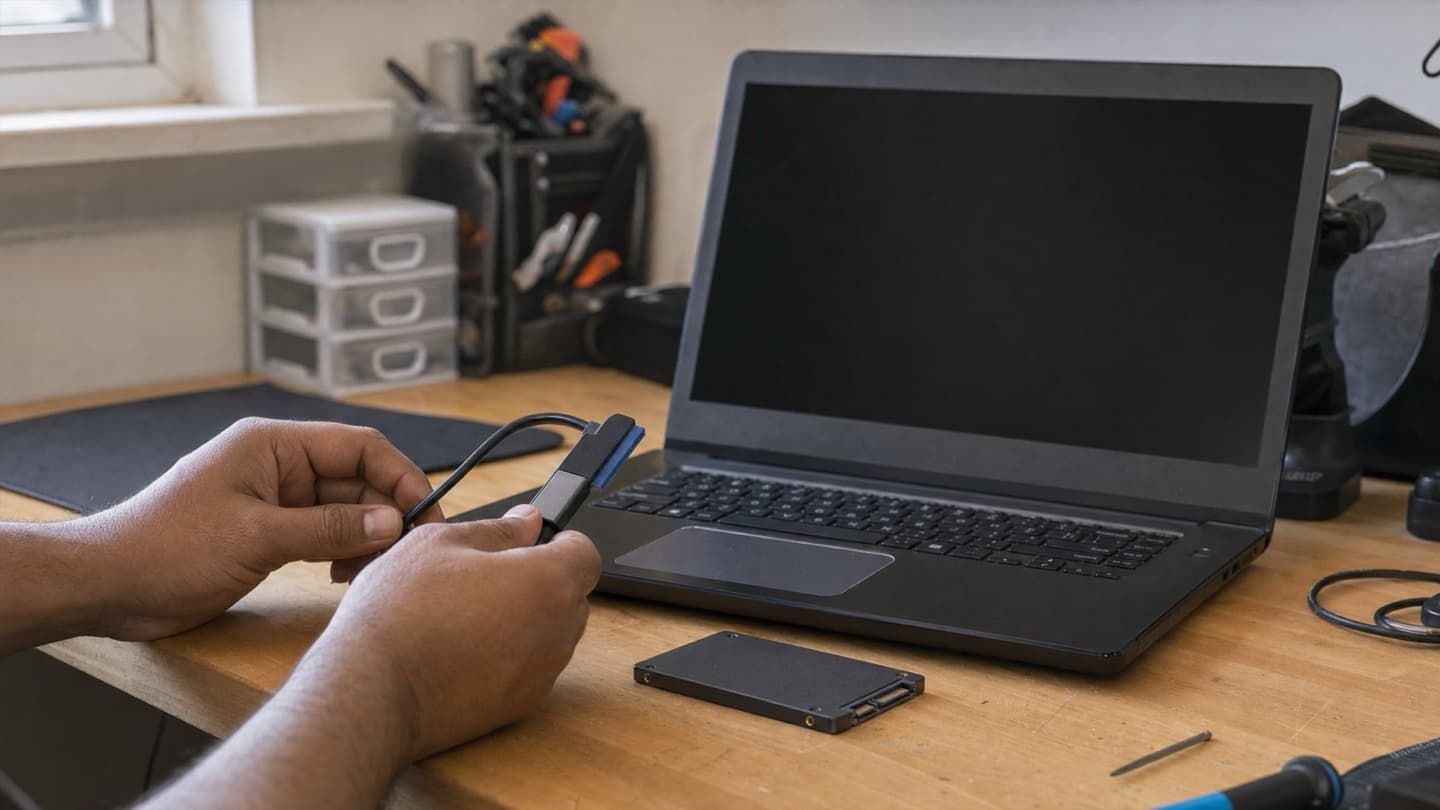
Clone the old drive to keep Windows, your programs, and your files exactly as they are. It's the convenient route, but cloning from a failing or badly fragmented drive can carry problems across, and it needs the right cable or a spare slot to have both drives connected at once.
Fresh install of Windows 11 gives you a clean, fast machine, but you'll reinstall your programs and copy your files back by hand.
Any time you're moving a drive around, back up everything important first. Drives fail, cables come loose, and a clone can go sideways. A backup means a bad moment stays a minor one.
When an SSD alone isn't the whole fix
An SSD fixes slow storage. It doesn't fix everything.
If your PC is also short on memory, you'll still hit freezes when you multitask, and that's a RAM question, not a storage one. On a lot of older machines, an SSD plus a bit more RAM together is what fully brings it back. And if the slowness came on suddenly, malware or junk software can be the culprit rather than the hardware.
The full rundown of what makes a machine drag is in our guide on why a Windows 11 PC runs slow, and if you're weighing whether the machine is worth putting parts into at all, the signs your computer needs an upgrade guide walks the upgrade-or-replace line. But if you're on a hard drive, start with the SSD. It's the upgrade you'll feel the second you turn the machine back on.
Common questions
Usually, yes. If the laptop still runs off a spinning hard drive and the rest of it works, an SSD is the one part that makes it feel years newer, and it's cheap relative to a replacement machine. The exception is a laptop with a processor so old it struggles regardless of storage. If you're not sure which side of that line yours is on, get it looked at before buying anything.
Buy what your machine supports. If it has an NVMe slot, use it. If it's older and only takes SATA, a SATA SSD still delivers the jump that matters, because the enormous difference is hard drive versus SSD, not SATA versus NVMe. In everyday use you won't feel the gap between the two SSD types.
No. Cloning copies Windows, your programs, and your files to the new drive exactly as they are, so the machine boots up the same, just faster. A fresh install is the cleaner route if the old system was cluttered or misbehaving, but it means reinstalling programs and copying files back by hand.
500 GB is the practical floor and 1 TB is where most people should land. Windows and your apps claim a chunk of space before you save a single file, and a nearly full drive slows down. Gamers, video editors, and anyone with big photo libraries should look at 2 TB.
When to hand it off
If picking the drive is easy but the clone, the cable, and the "does my laptop even have an NVMe slot" question are not, that's the part we do every week.
We do SSD upgrades as a mobile service across Calgary. We confirm what your machine takes, give you one price for the drive and the work before anything starts, and move your data over intact. If your machine can't take the drive you're picturing, or an upgrade won't actually help, we'll tell you before you buy a thing.