A slow computer is rarely one big problem. It's usually a few small ones stacked up. The free fixes take about twenty minutes, and if the machine is still dragging after that, the two upgrades worth paying for are cheap and obvious. Here's the order to work through it, easiest first.
- Most slow PCs are a few small problems stacked up, not a dying machine.
- Start with the free stuff: startup apps, a real restart, free space, the browser, updates, animations, background apps.
- Two hidden causes get blamed on old age: malware running quietly and heat throttling from dust.
- Task Manager tells you the truth. Watch what's pinned near 100 percent while it's slow.
- Still slow? An SSD if you're on a hard drive, more RAM if you're out of it.
Do the free stuff first
None of this costs anything, and it clears out the most common causes before you think about spending money.
1. Trim your startup programs
Half the apps you install quietly set themselves to launch when Windows starts. Discord, Spotify, OneDrive, Adobe's updater, every game launcher. None of them ask. They just pile on, and a slow boot and a sluggish first few minutes is the result.
Open Task Manager (Ctrl+Shift+Esc), click the Startup apps tab, and disable anything you don't need running the second you turn the PC on. Your antivirus can stay. Steam and Discord can wait until you actually open them. This one change alone often makes a noticeable difference.
2. Reboot properly
Windows 11's fast startup doesn't fully reset things the way you'd expect, so a machine that's been running for weeks can accumulate junk in memory. A genuine restart (Start, Power, Restart, not shut down) clears it out. If you never actually reboot, start there. Sometimes that's the whole fix.
3. Check your free space
Windows needs elbow room to work. It uses spare drive space for updates, temporary files, and virtual memory. When a drive gets down to its last few gigabytes, everything slows and updates start failing.
Open Settings, System, Storage. If your main drive is nearly full, turn on Storage Sense to clear temporary files automatically, run the cleanup recommendations it offers, uninstall programs you don't use, and move big folders of photos or video off to an external drive or the cloud. Aim to keep at least ten percent free.
4. Look at your browser
For a lot of people the "slow computer" is really a slow browser. A couple dozen tabs, a stack of extensions, and something streaming in the background will eat memory and CPU no matter how good the machine is.
Close tabs you're not using, remove extensions you don't recognize or need (especially toolbars and "coupon" or "shopping" helpers), and restart the browser now and then. If things get better the moment you close the browser, you've found it.
5. Update Windows and your drivers
Pending updates run in the background and drag things down until they finish. Let them. Go to Settings, Windows Update, install what's waiting, and reboot.
Graphics drivers are the ones worth updating by hand, especially if games or video stutter. Get them from the maker's site (Nvidia, AMD, or Intel) rather than trusting Windows to have the newest version. Skip the third-party "driver updater" apps that promise to scan and fix everything. They're mostly junk, and some are worse than junk.
6. Turn off the eye candy
Windows 11's animations look nice and cost you a little responsiveness. On an older machine, turning them down makes menus and windows feel snappier right away.
Search "adjust the appearance and performance of Windows," pick Adjust for best performance, then tick "Smooth edges of screen fonts" back on so text still looks fine. Everything else off.
7. Stop background apps you're not using
Some apps keep running and phoning home even when they're closed. Go to Settings, Apps, Installed apps, click the three dots next to an app, choose Advanced options, and set "Let this app run in the background" to Never for the ones that don't need it. Weather, Xbox, random store apps, the stuff you never open. Leave anything you rely on for notifications alone.
That's the twenty-minute list. If working through it isn't your idea of an afternoon, our hardware and upgrade service sorts exactly this, and we come to you anywhere in Calgary, usually same day.
Rule out the things that hide
Two causes don't show up in the obvious places, and both get blamed on "the computer being old" when they're nothing of the sort.
8. Malware
Modern junk software doesn't announce itself with flashing pop-ups anymore. A lot of it runs silently, burning CPU and bandwidth in the background. The tells are a fan that never settles down, browsing that's crawling for no reason, redirects to pages you didn't ask for, or the machine running hot while you're doing nothing demanding.
Run a proper scan. If something turns up, virus removal clears out what's hiding and stops it climbing back in.
It's amazing how often a "dying" computer is just infected.
9. Overheating
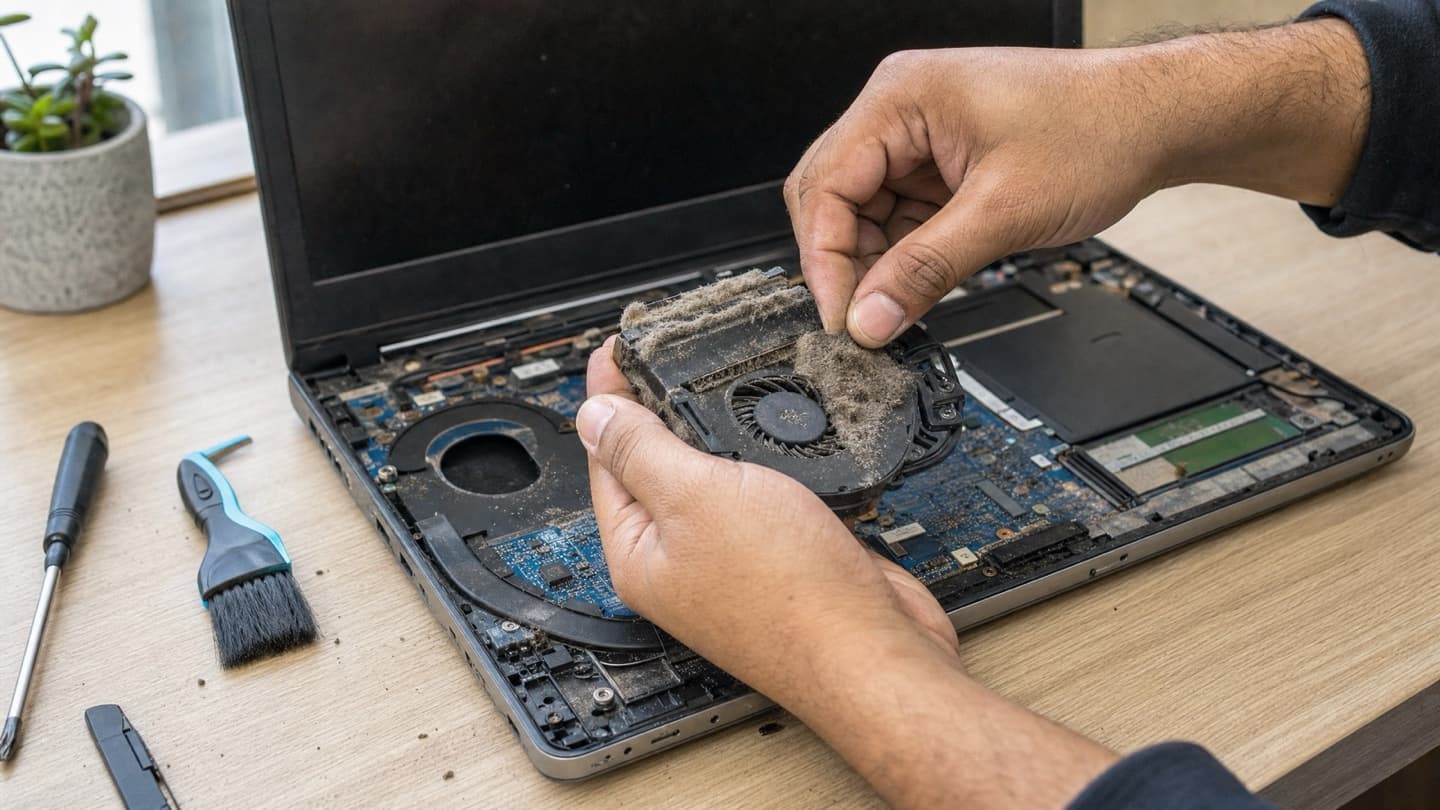
When a computer gets too hot, it deliberately slows itself down to avoid damage. This is called thermal throttling, and it's a common cause of a machine that's fast when cool and crawls after twenty minutes of real work.
The usual reason is dust. Fans and vents clog up over a couple of years, worse in homes with pets, and the trapped heat forces the slowdown. Loud fans, a hot laptop underside, and lag that gets worse the longer you use it all point this way. A can of compressed air on the vents helps. A proper clean and fresh thermal paste helps more, and on a laptop it's fiddly enough that most people would rather hand it off.
10. A runaway process
Open Task Manager and click the CPU column to sort by usage. Sometimes one process is chewing up everything: a stuck Windows update, a browser tab gone rogue, some updater checking for updates on a loop.
If you don't recognize a process, look it up before you kill it. Ending the wrong system process can crash Windows or a program you had open.
On the Performance tab, actually watch CPU, Memory, and Disk while the machine is being slow. Whatever's pinned near 100 percent is your suspect. It turns "it's just slow" into a specific thing you can fix.
One more special case: if the machine got slow right after moving to Windows 11, give it a day. Windows runs indexing and cleanup in the background after a big upgrade, and it passes. Missing or generic drivers are the other usual culprit there, and the fixes are in our Windows 10 to 11 upgrade guide. If the machine never ran well since the upgrade, it's worth a proper look rather than living with it.
The two upgrades that actually count
If you've done the free stuff and the machine still drags, it's a hardware limit. Two upgrades fix the vast majority of slow PCs, and they're both far cheaper than a new computer.
11. An SSD, if you're still on a hard drive
This is the big one. If your PC boots off an old mechanical hard drive, that single part is almost certainly why it's slow, and no amount of settings tweaking fixes it. Swapping it for an SSD is the biggest improvement most older machines will ever get. Boots that took a minute or two drop to seconds, and apps open when you click them.
The full breakdown of which drive to buy is in our guide to SSD upgrades for Windows 11, but the short version: if you're on a hard drive, this is where the money goes first.
12. More RAM, if you're running out
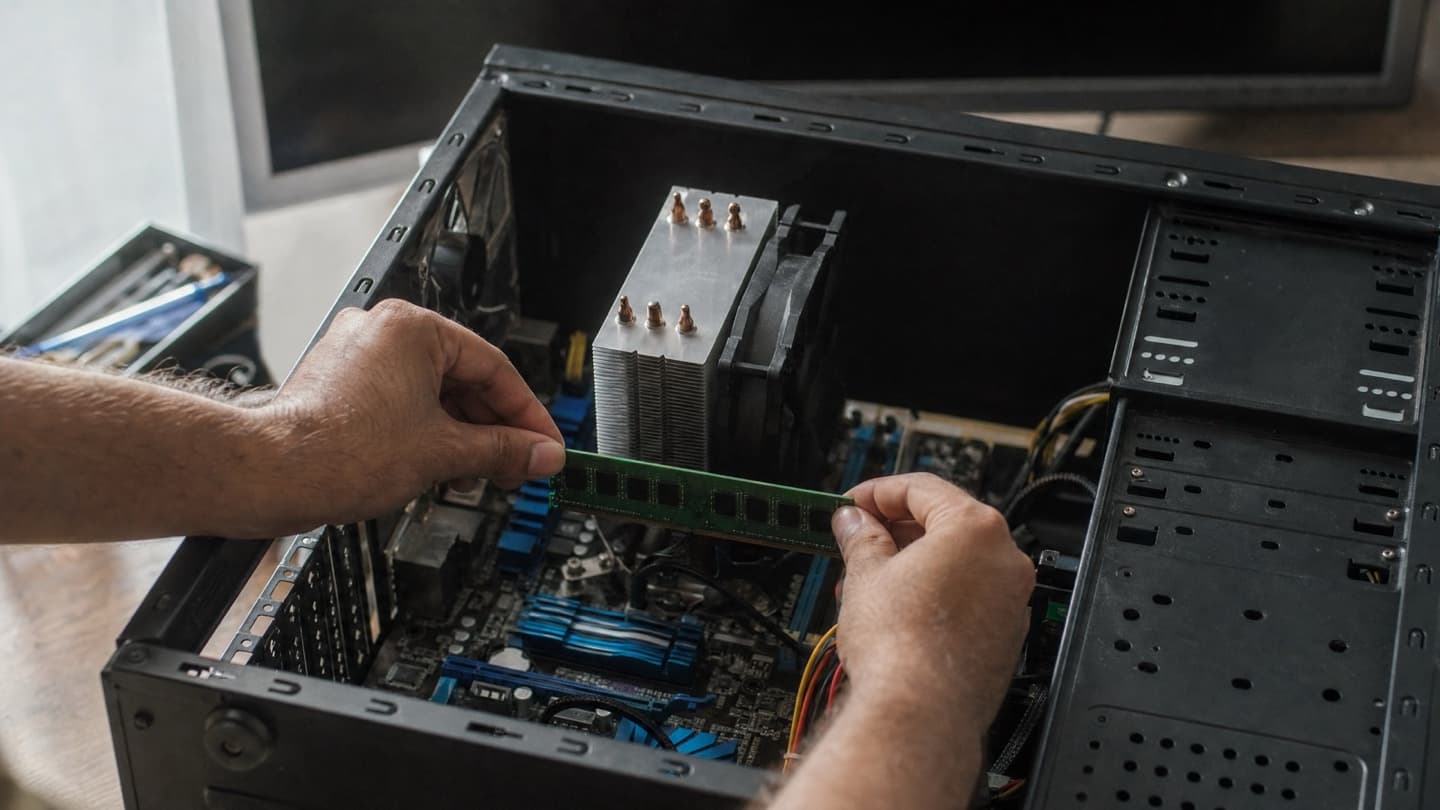
The other common wall is memory. If the machine freezes when you multitask, tabs reload when you come back to them, or apps hang while you switch between them, you're likely out of RAM. Check the Memory graph in Task Manager: if it's pinned near 100 percent when things slow down, more will help.
8 GB is tight in 2026, and 16 GB is the comfortable spot for most people. Our guide on how much RAM you need walks through it. On a lot of older machines, an SSD and a bit more RAM together are what fully bring it back to life, and fitting both is a routine hardware upgrade job.
When it's still slow after all that
If you've been through the whole list and the machine is still crawling, something deeper is usually going on: a drive that's starting to fail, corrupted system files, a driver conflict, or a hardware fault. Persistent slowdowns paired with freezes, crashes, or files that go missing can be an early warning of a drive on its way out, so back up anything important sooner rather than later.
That's the point where guessing at parts gets expensive.
We diagnose it across Calgary, at our SW Calgary shop or in your home, tell you exactly what's slowing the machine down, and quote before touching anything. If an old machine genuinely isn't worth the upgrade, we'll tell you that too, rather than sell you parts it doesn't need.
Common questions
A sudden slowdown usually has a specific trigger: a Windows update still finishing in the background, a new app that added itself to startup, malware, or a drive that's filling up or starting to fail. Open Task Manager while it's slow and see what's pinned near 100 percent, that tells you which of those you're dealing with.
Not by much on its own. Windows 11 runs fine on most hardware that officially qualifies for it. When an older machine feels worse after upgrading, the usual causes are a mechanical hard drive that was already the bottleneck, too little RAM, or drivers that didn't carry over cleanly, all fixable without replacing the computer.
Microsoft's minimum is 4 GB, but that's a floor, not a recommendation. 8 GB works for light use and feels tight with modern browsing. 16 GB is the comfortable spot for most people in 2026, and it's usually a cheap upgrade on machines that can take it.
If the PC currently boots from a mechanical hard drive, yes, dramatically. It's the single biggest speed improvement an older machine can get: boot times drop from minutes to seconds and programs open when you click them. If you already have an SSD, the gain from a newer one is much smaller, and the money is better spent on RAM or elsewhere.
When the fixes cost more than the machine is worth to you. A seven-or-eight-year-old computer that's slow, crashing, and failing the Windows 11 hardware check is usually better replaced than upgraded. A three-to-five-year-old machine that's just slow is almost always worth an SSD and a RAM bump instead.
The short version
Work through it in this order and you'll fix most slow PCs without spending much, if anything:
- Trim startup apps and do a real restart.
- Free up drive space and tame the browser.
- Install updates, update graphics drivers, and turn down the animations.
- Scan for malware and check for overheating.
- Still slow? An SSD if you're on a hard drive, more RAM if you're out of it.
Most of the time the machine isn't old. It's just carrying a few small problems that add up, and every one of them is fixable.