The freezes that drive people up the wall are the ones with no pattern. Fine for an hour, then it locks up mid-sentence. Fine all week, then twice in one morning. Nothing obvious to blame, so it's hard to know where to even start. The trick is to stop guessing and start narrowing it down. Random freezing almost always has a cause. It just isn't showing itself yet.
- One stuck app is minor. The whole machine locking up, mouse and all, is the one worth chasing.
- Random, no-pattern freezes usually trace to overheating, memory, a failing drive, or a flaky driver.
- The fastest way to find it is to log the timing and check Reliability History, not to swap parts and hope.
- Test the free, non-destructive stuff first: temperatures, memory, drive health, drivers.
First, is it one program or the whole machine?
Before anything else, figure out the scope. It changes everything.
If a single app freezes but you can still move the mouse and switch to other windows, that's a stuck program. Open Task Manager (Ctrl+Shift+Esc), find the app marked "Not responding," and end it. Annoying, but not usually a sign of a sick computer.
If the whole thing locks up, mouse and all, and you have to hold the power button to get out of it, that's the one worth chasing down. The rest of this guide is about that.
Not up for the detective work? We come to you across Calgary, usually same day, and you get a straight answer on whether it's worth fixing. Here's how visits are priced.
Catch it in the act
Intermittent problems are only hard because you're not watching when they strike. Give yourself a record.
Windows keeps one for free. Open the Start menu, type "reliability," and open View reliability history. You get a timeline of crashes, freezes, and errors by day. Look at the days it froze and see what else happened around the same time: a driver update, a specific app crashing, a Windows update. A cluster of red X's in one afternoon often points straight at the cause.
Then keep your own note. Every time it freezes, jot the time and what you were doing. After a few days a pattern you couldn't see in the moment usually appears. "Only when I'm on a video call." "Only after it's been on for hours." That's the whole game.
The usual causes behind random freezes
Overheating that only shows under load
A machine can be fine at idle and lock up the second it gets busy, because that's when it heats up. If your freezes cluster around games, video calls, or exporting files, heat is the first thing to rule out. On a laptop, add loud fans and a hot underside to the list of tells.
Download a free monitor like HWMonitor and watch your CPU and GPU temperatures while you push the computer. If they climb past roughly 90 C right before it freezes, you've found it. The cause is almost always dust in the fans and heatsinks, or thermal paste that's dried out after a few years. Both are straightforward to fix, and we cover the whole process in laptop overheating fixes.
Running out of memory
The everyday cause, especially on machines with 8 GB or less. Too many browser tabs, a couple of heavy apps, and Windows runs out of working memory and grinds to a halt.
Quick test: open Task Manager, click the Performance tab, and watch the Memory graph while you use the computer normally. If it sits near 100 percent when things freeze, that's your answer. Closing tabs and background apps buys you time. More RAM fixes it for good.
Bad RAM
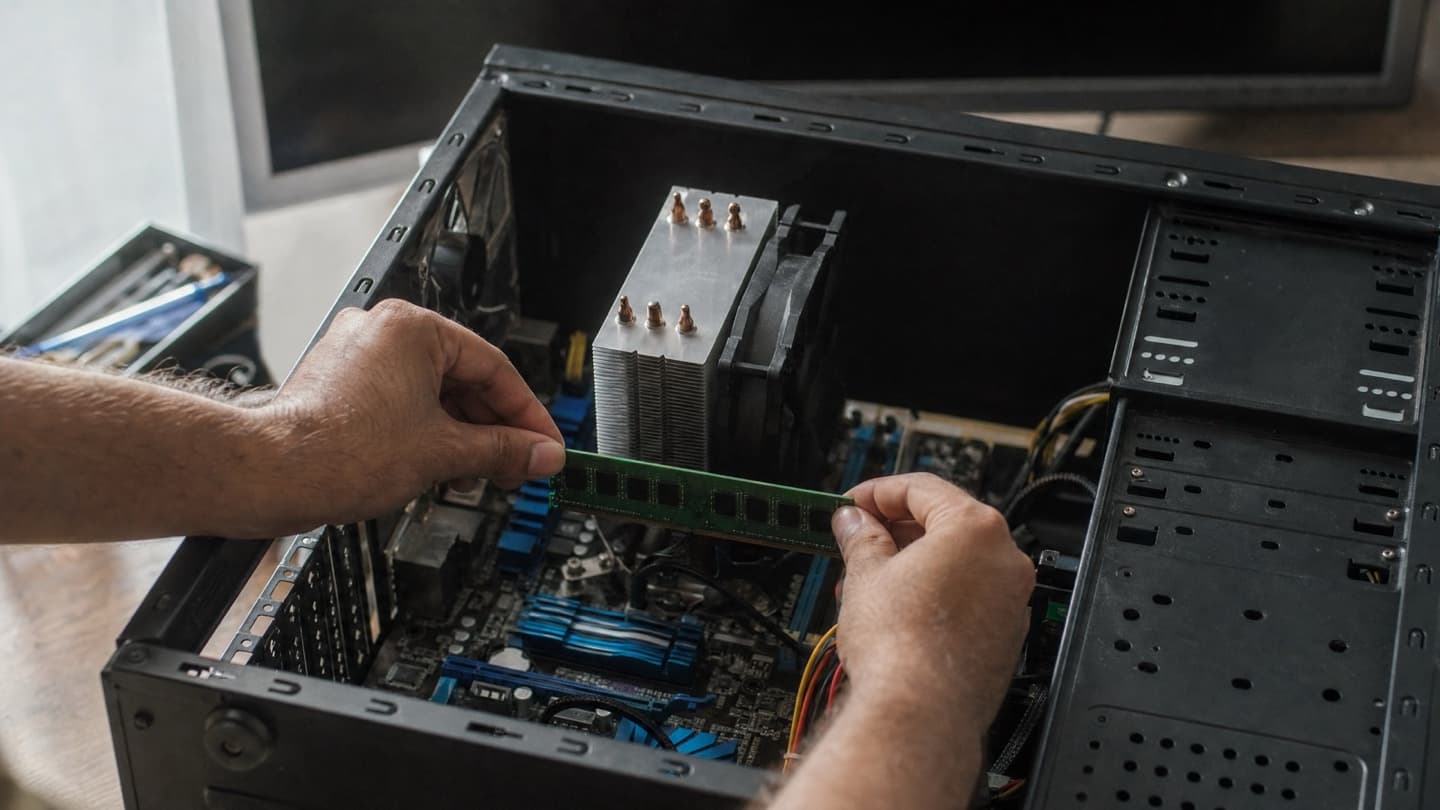
Different from running out of it: faulty memory is the classic cause of freezes that make no sense. One failing module can be fine most of the time and glitch only when that exact patch of memory gets used, which is why it feels so random. It often comes with the occasional blue screen too.
Windows has a built-in test. Type "Windows Memory Diagnostic" in the Start menu, let it restart, and it checks your RAM on the next boot. For a more thorough pass, MemTest86 run overnight is the real standard. If either flags errors, that's your problem, and it's an inexpensive fix.
A drive that's starting to go
Failing SSDs and hard drives cause freezing long before they die outright. The machine hangs while it waits on a sector the drive is struggling to read, so the freezes cluster around opening files, saving, and launching programs. On an old spinning hard drive you might hear faint clicking or buzzing. On an SSD you won't, so you check its health instead.
Grab CrystalDiskInfo (free). It reads the drive's own health data and gives you a plain status: Good, Caution, or Bad. Anything but Good means back up now and plan a replacement.
While you're in there, check the free space too. Windows needs room to work, and a drive down to its last few gigabytes will slow and eventually freeze all on its own. Clear out downloads and old files, or move to a bigger drive.
If the drive shows Caution, or the machine hangs on opening and saving files, copy your important files off before you do anything else. Troubleshooting a failing drive can be the thing that pushes it over the edge.
Malware running in the background
Something hiding in the background can eat enough CPU and memory to lock the machine up. If the freezing showed up alongside pop-ups, a browser that redirects on its own, or a fan that never rests, get it scanned. A proper virus removal clears out what's hiding and stops it coming back.
A driver or Windows fault
If the hardware checks out clean, the cause is usually software. A bad graphics driver is the top offender for random freezes, especially during anything visual. Update it from the maker's site (Nvidia, AMD, or Intel) rather than relying on Windows Update to have the current one.
Corrupted Windows system files do it too. Open Command Prompt as administrator and run sfc /scannow, then DISM /Online /Cleanup-Image /RestoreHealth. Both repair damaged system files without touching your data.
A diagnosis order that actually works
Work top to bottom. Each step is free and rules something out, so by the end you've either fixed it or narrowed it to one thing.
- Rule out a stuck app with Task Manager. If ending one program clears it, that program is the problem.
- Check Reliability History for a cluster or a recent change that lines up with when it started.
- Log the timing for a few days to find the pattern the moment hides.
- Watch memory and temperatures under load with Task Manager and HWMonitor.
- Test the RAM with Windows Memory Diagnostic or MemTest86.
- Check drive health and free space with CrystalDiskInfo, and back up if it's anything but Good.
- Update the graphics driver from the maker's site, and scan for malware if the machine also feels off.
- Repair system files with
sfc /scannowand DISM.
Most random freezes give themselves up somewhere in that list.
When it's worth handing off
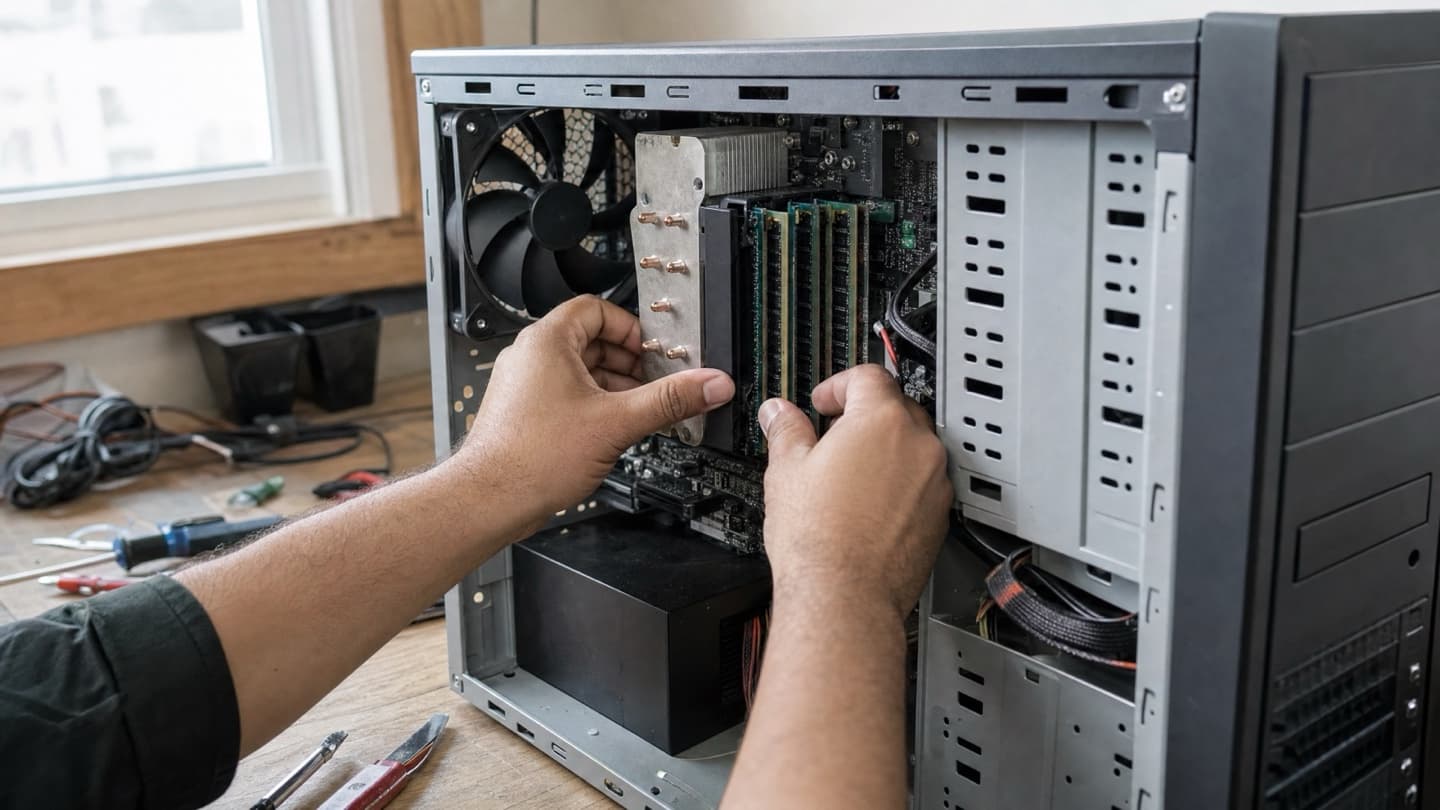
Some random freezes hide well. A power supply that dips under load, a motherboard fault, RAM that only fails under heat, these can take proper stress-testing and spare parts to pin down, and that's slow going without the gear. If you've worked the list and it's still locking up, or the tests point at hardware you'd rather not swap on a guess, that's the sensible time to bring it in.
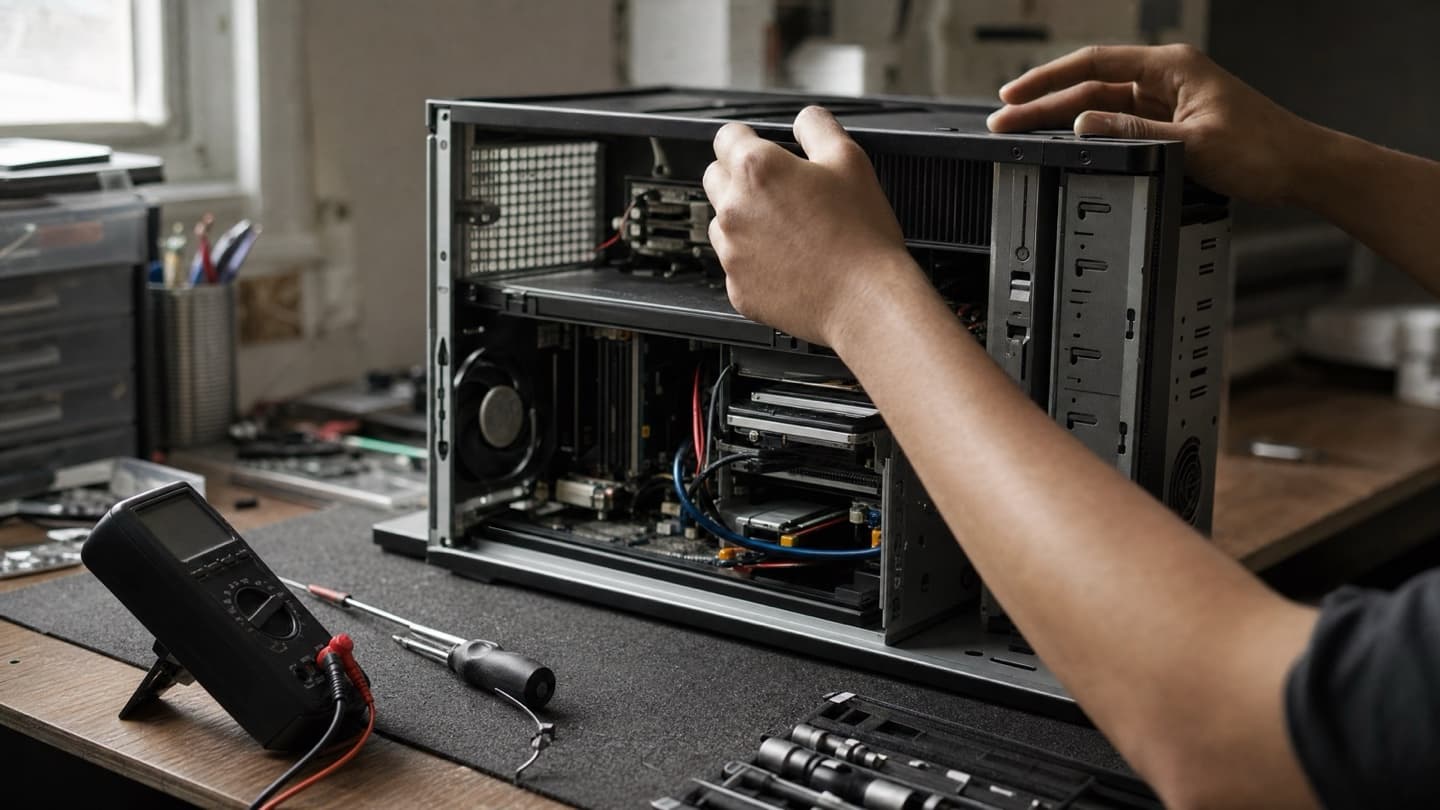
We track down the cause and agree a price with you before touching anything, and if we can't fix it, you don't pay. If it's an aging machine where the fix costs more than it's worth, we'll say so plainly rather than sell you a repair. If the drive is the culprit and files are at risk, our data recovery work is the safer route than pushing a dying drive.
Random freezing almost always has a cause. It just isn't showing itself yet.
For related reading, the hard drive failure warning signs post covers the drive angle in depth, and if your machine reboots on its own rather than freezing, that's a different problem we cover in computer keeps restarting.
We'll run the hardware and software tests, find the real cause, and give you a flat quote before any work.
Common questions
Because the cause only shows up under specific conditions you haven't connected yet, like heat under load or one bad patch of memory. Logging the timing and checking Reliability History usually surfaces the pattern.
Yes. A single failing module can work correctly until that exact region of memory gets used, which is why the freezes feel random. A memory test will catch it.
On a machine with 8 GB of RAM or less, yes. Once Windows runs out of working memory everything grinds to a halt. Watch the Memory graph in Task Manager; if it sits near 100 percent when things freeze, that's the cause.
Check its health with CrystalDiskInfo. Anything but a Good status, or hanging when you open and save files, points at the drive. Back up right away if so.
Either. Overheating, RAM, and drives are hardware; drivers and corrupted Windows files are software. The diagnosis order above tells them apart without swapping parts.