A hot laptop isn't just uncomfortable on your legs. When the inside gets too hot, the chip deliberately slows itself down to avoid damage, so a machine that used to be quick starts to lag and stutter. Push it further and it shuts off mid-task with no warning. The good news is that most laptop overheating comes down to dust, dried thermal paste, or blocked airflow, and all three are fixable.
- Sudden lag under load is usually thermal throttling: the CPU slowing itself to shed heat.
- Random shutdowns during demanding tasks are the last-ditch safety cutoff, and a sign to act.
- Confirm it's really heat with a free monitor before you open anything.
- Airflow and dust you can often handle yourself; a packed heatsink or dried paste is a bench job.
- A process pinning the CPU can fake overheating, so check Task Manager and scan for malware.
The warning signs, from mild to serious
Overheating shows up as a progression. The earlier you catch it, the less it costs to sort out.
- Fans running loud and constant, even when you're only browsing or in a video call. The fan ramping up on a light task means the cooling is already struggling.
- The machine getting sluggish under load. Games drop frames, exports crawl, apps hang. This is thermal throttling: the CPU pulling its own speed down to shed heat.
- The underside or the keyboard getting hot to the touch, and the air from the vents feeling weak.
- Random shutdowns or reboots during anything demanding. This is the last-ditch safety cutoff, and it means the temperature is hitting the limit.
If you're at loud fans and a warm base, you've got time. If it's shutting itself off, it needs attention before the heat starts wearing on the hardware.
Not fixing it yourself? Our laptop repair service handles the clean-out and repaste, and we come to you, usually same day.
Confirm it's actually heat
Before you take anything apart, prove it. Download a free monitor like HWMonitor and watch your CPU temperature while you push the machine with whatever makes it struggle.
Most laptop CPUs start throttling somewhere around 90 to 100 C, depending on the chip. If you see temperatures climbing into the 90s right before it lags or shuts off, heat is confirmed and you know what you're chasing. If it stays cool and still locks up or crashes, the problem is something else, and forcing air through it won't help. Start with the computer freezing randomly guide instead, or computer keeps restarting if it reboots on its own.
A lot of "overheating" is just the laptop sitting on a bed, a couch, or a lap, with the intake vents on the bottom pressed into fabric. Move it to a hard, flat surface and re-test. If the temperatures drop, you've found it, and you never had to open a thing.
The three real causes, and how to fix each
Blocked airflow
The quickest win, and the one to try first. Laptops pull cool air in through vents on the bottom and push hot air out the sides or back. Soft surfaces block the intake, so a laptop that runs hot on your lap can run fine on a desk.
Keep it on something hard and flat. Give the side and rear vents clearance. If you use it on your lap a lot, a cheap laptop stand or cooling pad that lifts the base and lets air underneath genuinely helps. None of this costs much, and for a lot of people it's the whole fix.
Dust in the vents and fans
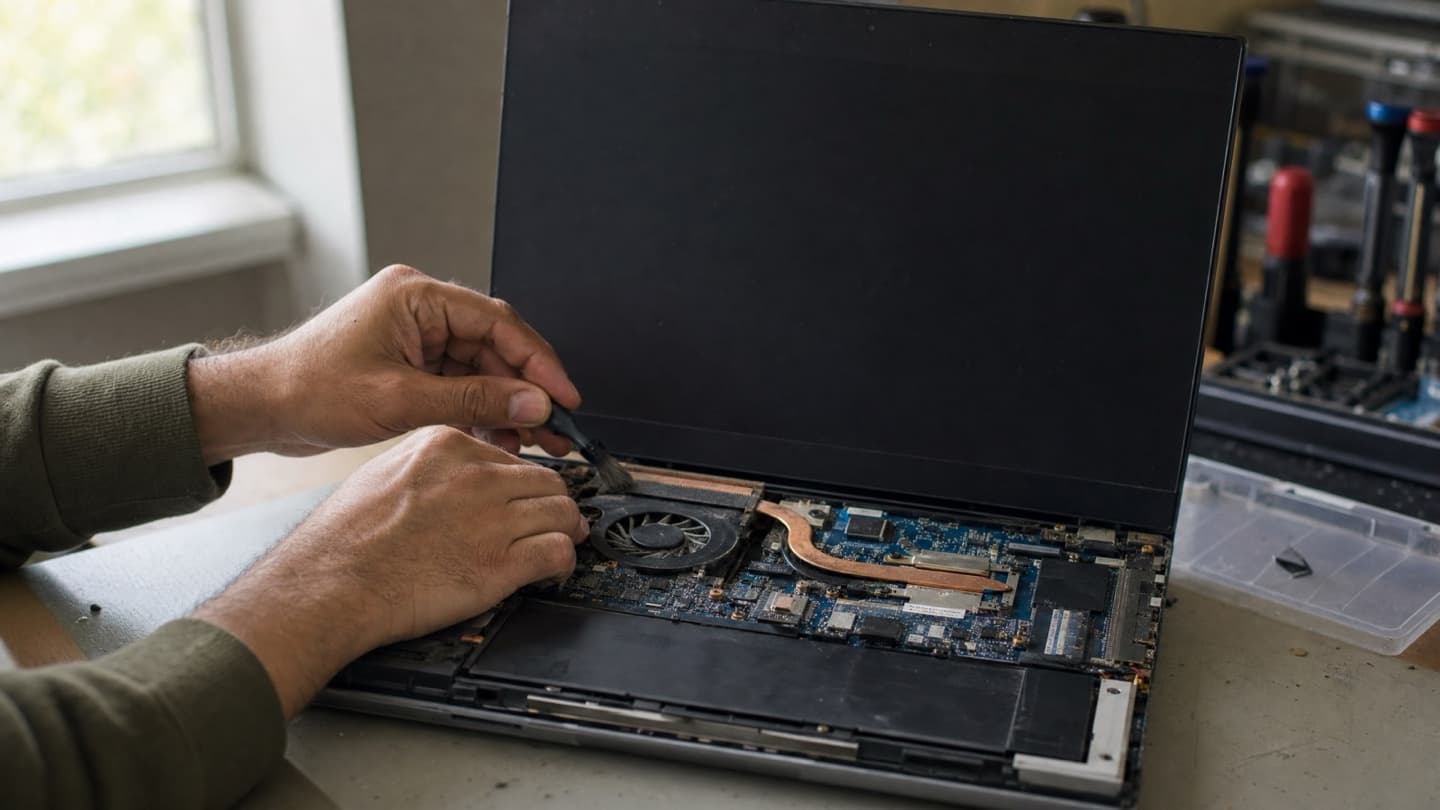
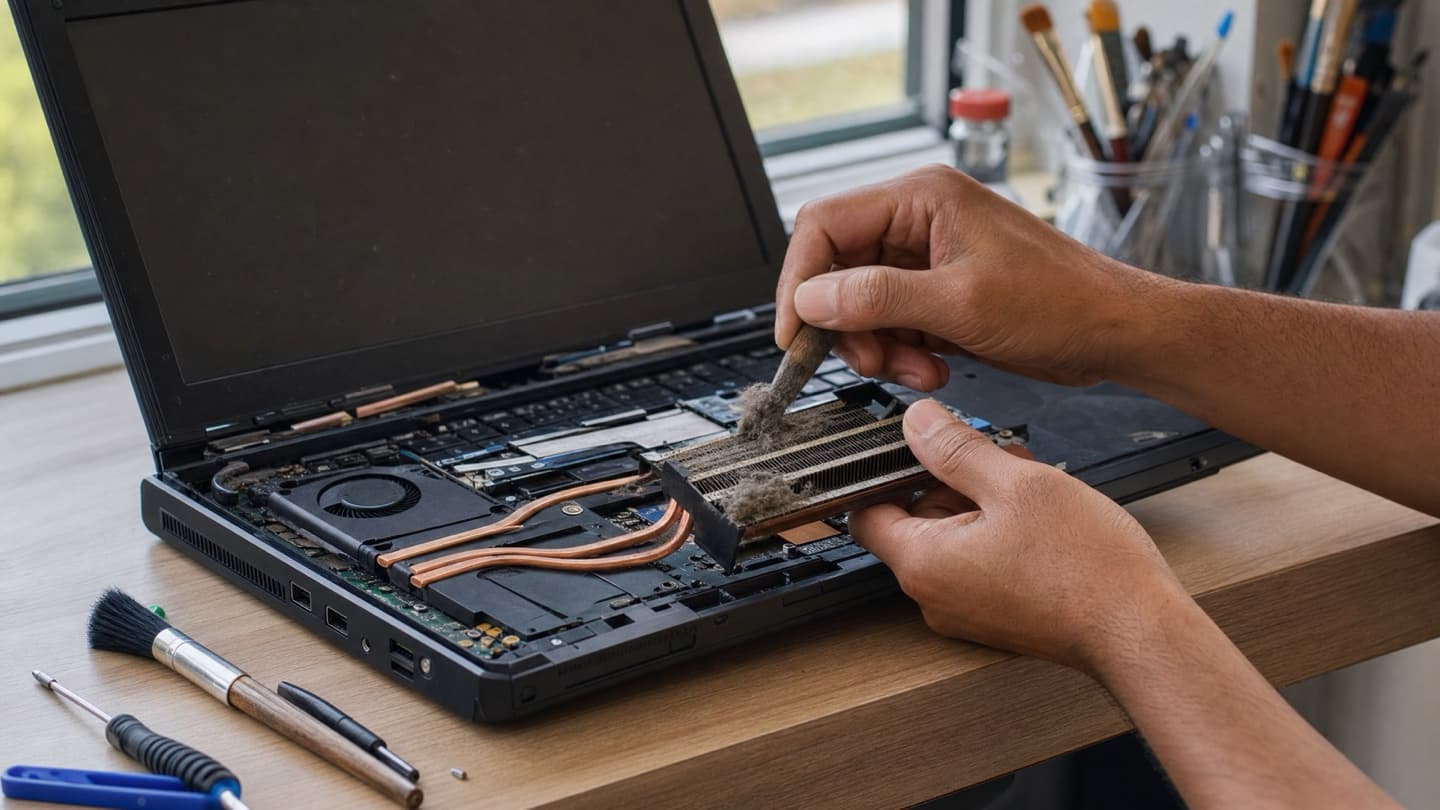
This is the big one on any laptop more than a year or two old. Dust packs into the vents, the fan blades, and the fine metal fins of the heatsink, and it chokes the airflow until almost no heat gets out. You can often see it: shine a light at the exhaust vent and look for a grey felt of dust across the fins.
A can of compressed air aimed into the vents helps a little as a stopgap. Do it outdoors, in short bursts, and hold the fan still with something so it doesn't spin freely and get damaged. But blowing air from outside only moves the loose dust. The stuff packed deep in the heatsink usually needs the laptop opened up and the fan and fins cleaned properly. That's where a real cleaning makes a difference you can measure on the temperature graph.
Dried-out thermal paste
Thermal paste is the thin layer between the CPU and the metal that carries its heat away. It dries and hardens over a few years, and once it does, heat stops transferring well no matter how clean the fans are. The tell is a laptop that runs hot even at idle, or one that spikes to throttling temperatures almost instantly under load despite clean vents.
Repasting means opening the laptop, lifting the heatsink, cleaning off the old paste, and applying fresh. On a machine that runs hot for its age with clean cooling, this is often the fix that actually solves it. It's fiddly and easy to get wrong, so it's worth doing carefully or handing off.
While you're at it: check for software heat
Sometimes the hardware is fine and something is just running the CPU flat out. Open Task Manager (Ctrl+Shift+Esc) and look at the CPU column. If something is pinned near 100 percent when you're doing nothing, that's your heat source.
A common cause is malware or an unwanted background program grinding away, which also makes the fan run constantly. If the machine feels off besides being hot, throwing pop-ups or generally slow, get it scanned. A proper virus removal clears out what's hiding and the temperatures often settle on their own.
What to do, in order
Cheapest and easiest first.
- Move it to a hard, flat surface and clear the vents. Re-test.
- Confirm the temperatures with HWMonitor so you know it's really heat.
- Check Task Manager for a process pinning the CPU, and scan for malware if something is.
- Blow out the vents with compressed air as a stopgap, fan held still.
- Get it opened and properly cleaned if the dust is packed deep and temperatures are still high.
- Repaste the CPU if it runs hot for its age with clean cooling.
When it's worth calling someone
Airflow and a can of compressed air you can handle yourself. Opening the laptop to clean a packed heatsink or replace thermal paste is where it gets fiddly, and on a lot of modern laptops getting to the fan means taking off the whole bottom and disconnecting the battery. If you're not comfortable in there, or you've cleaned what you can reach and it's still hitting throttling temperatures, that's the point to bring it in.
We'll tell you whether it's dust, paste, or a failing fan before any work, and whether the job is worth doing on that machine. If it turns out the fan is worn or the machine's old enough that the repair isn't worth it, we'll tell you straight.
Months of running near the thermal limit wears on the hardware, so it's worth sorting while it's still just a cleaning.
We come to you across Calgary, Airdrie, Cochrane, and Okotoks.
If your laptop is already shutting off and won't come back on, that's the next stage. Start with computer won't turn on, since heat damage can be the reason behind it.
We'll open it up, clean the fans and heatsink properly, repaste if it needs it, and show you the before-and-after temperatures. No fix, no fee.
Common questions
The fan runs loud when the cooling is fighting to keep up. Usually that's dust packed into the vents and heatsink restricting airflow, or the CPU running hot from dried thermal paste. It can also be a background process pinning the CPU, which Task Manager will show.
Most laptop CPUs start throttling around 90 to 100 C depending on the model. Brief spikes into that range under heavy load are normal. Sitting there constantly, or hitting it during light tasks, means the cooling needs help.
Over the long run, yes. The chip protects itself by throttling and shutting off, so a single hot afternoon won't kill it. But months of running near the limit wears components down and shortens their life, which is why it's worth fixing rather than living with.
Sometimes, as a stopgap. It clears loose dust from the vents, but the dust packed deep in the heatsink usually needs the laptop opened to clean properly. If blowing it out doesn't drop your temperatures, that's the reason.
Two common reasons. Something is running the CPU hard in the background, which Task Manager and a malware scan will catch, or the thermal paste has dried out so heat isn't transferring even at idle. High temperatures while doing almost nothing point at one of those.