Press the power button and get nothing, or watch the machine light up and then sit on a black screen. Those are two different problems, and telling them apart is the first real step. A computer that shows no signs of life has a power problem. One that powers up but never puts a picture on screen has a boot problem. Sort yours into one of those and you've already narrowed it by half. This guide covers both desktops and laptops: if yours is a tower, start at the desktop sections right below; if it's a laptop, jump to the laptop checks, because the first suspects are different.
- No lights and no fans is a power fault: the outlet, the cable or charger, or the power supply itself.
- Fans spin but nothing appears on screen is a no-POST fault: usually RAM, the monitor connection, or the graphics card.
- On a laptop, a dead charger and a stuck power state are the two most common causes, and both are free to rule out.
- Reseating RAM fixes a startling number of "dead" desktops, and it costs nothing to try.
- The power supply is the hardest part to confirm at home because you need a known-good one to swap in.
Desktop with no power at all: nothing lights up
No fans, no lights, no beep, no sound when you press power. Nothing is reaching the board. Work through the easy stuff first, because it's usually one of these.
- The outlet and the cable. Plug a lamp into the same outlet to confirm it's live. Reseat the power cable at both ends, the wall and the back of the PC. A cable that's crept half out is a real and common cause.
- The switch on the back. Most desktop power supplies have a physical I/O switch next to the cable. If it got knocked to O, the machine is stone dead until you flip it back.
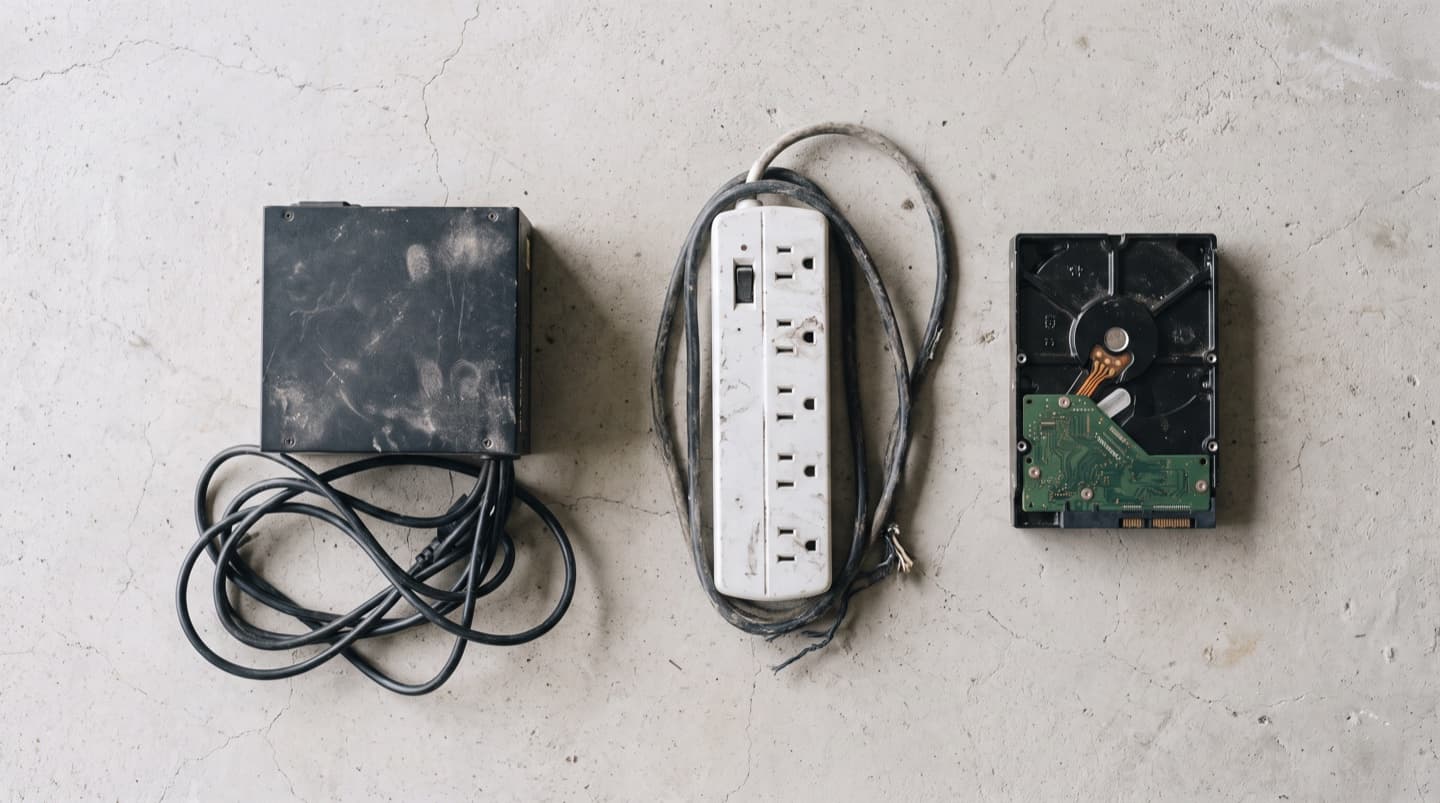
- The surge protector or power bar. Try the PC straight into the wall. Power bars trip and fail more than people expect.
- The front-panel button. The power button connects to the board by a thin cable that can work loose, especially after the case has been moved or opened.
If the outlet is live and the cable and switch are all good and you still get nothing, the power supply itself is the prime suspect. That's the next section.
Not fixing it yourself? We come to you across Calgary, usually same day, and if we can't fix it, you don't pay. More under on-site computer repair.
The power supply: the usual culprit on an older desktop
A power supply that's failing or dead is the classic reason a desktop shows no life, and it's easy to miss because nothing looks wrong from the outside. They wear out, and older machines are the usual patients.
Here's the honest part: you can't really confirm a bad PSU at home without a spare. The reliable test is to swap in a known-good power supply and see if the machine wakes up. There are paperclip "jump" tests that make the PSU fan spin on its own, but a fan spinning only proves the PSU turns on, not that it's delivering clean, steady power to everything under load. If you've ruled out the outlet, the cable, and the switch, a PSU that needs testing is the most likely answer, and that's a good point to get it checked rather than keep guessing.
A spinning fan only proves the power supply turns on, not that it's delivering clean, steady power under load.
Reseating cables and RAM inside the case is fine with the machine unplugged. The power supply is the one part you never open. It holds a charge that can hurt you even unplugged. If the PSU is the suspect, it gets swapped as a sealed unit, not opened.
Desktop powers on but black screen: the no-POST problem
This one trips people up because the machine clearly has power. Fans spin, lights come on, maybe you hear the drive. But the screen stays black and Windows never starts. That's a failure to POST, the quick self-check a PC runs before it boots, and it points at the parts the board needs before it can show a picture.
Check the monitor and the cable first
Obvious, and skipped constantly. Make sure the monitor is on and set to the right input. Confirm the video cable runs from the monitor to the graphics card's ports lower on the back of the case, not the motherboard's ports up top, if the PC has a separate graphics card. Plugging into the wrong one gives you a black screen on a perfectly healthy machine. Try a different cable if you have one.
Reseat the RAM
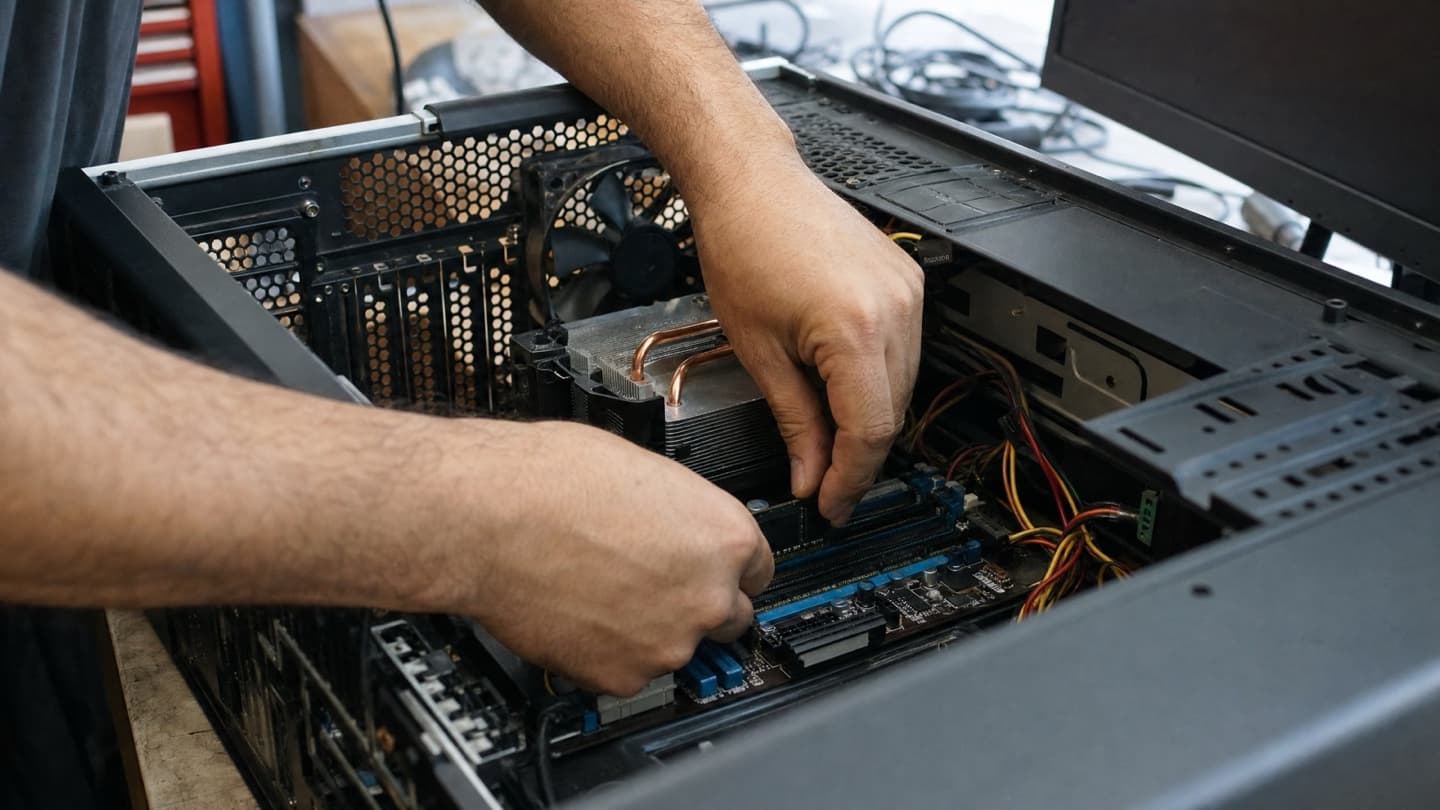
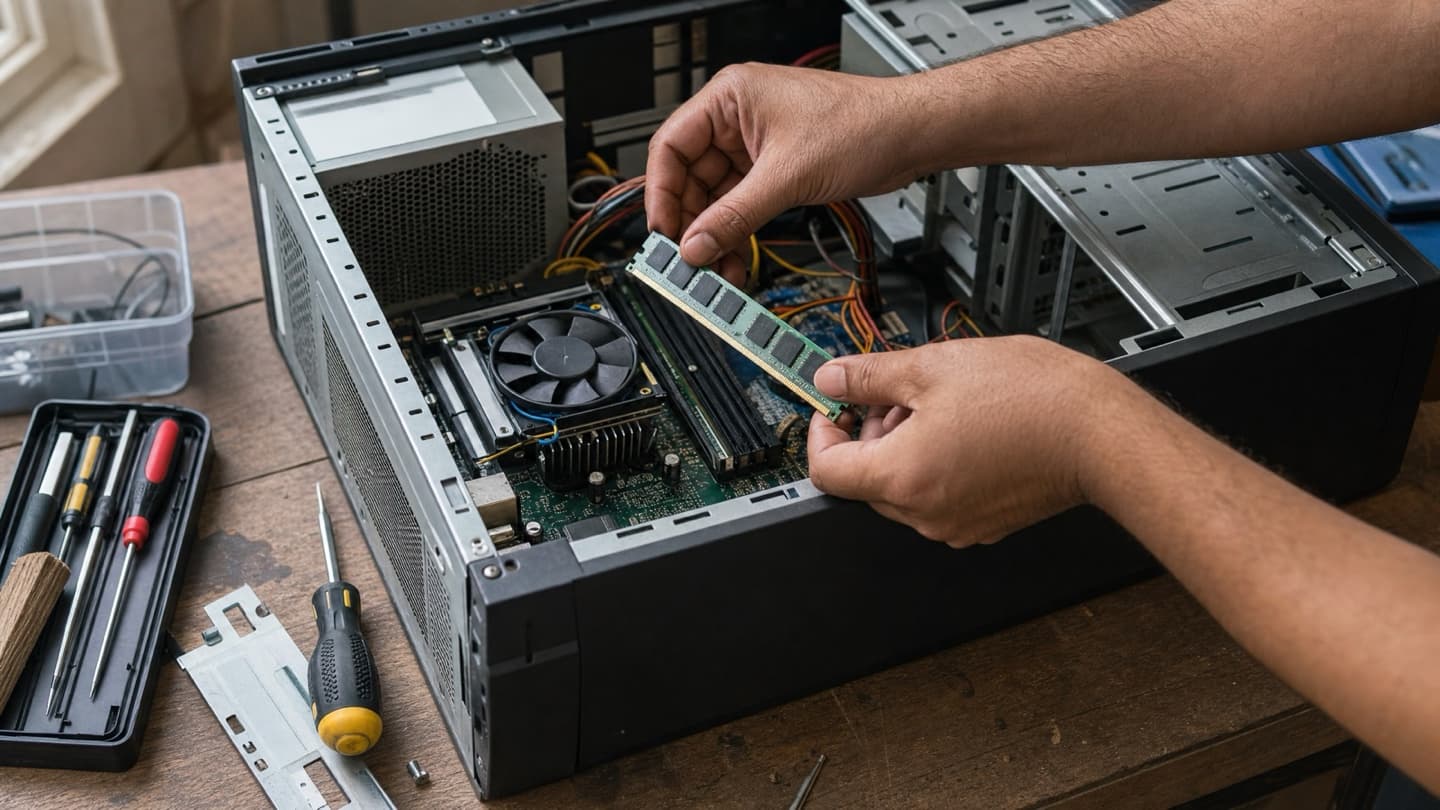
This is the highest-value thing you can do, and it's free. Loose or dirty RAM contacts are one of the most common reasons a desktop powers on but won't POST, and it often happens after the machine's been moved. Unplug the PC. Open the side panel. Push the clips on each memory stick, pull it out, and press it firmly back in until both clips snap. If there are two sticks, try booting with just one, then the other. A surprising share of "dead" desktops come back to life right here.
Reseat the graphics card
Same idea. Unplug, unclip the graphics card, reseat it firmly in its slot, and make sure its power cables are plugged in. If the board has built-in video, pull the graphics card out entirely and plug your monitor into the motherboard to test. If it posts without the card, the card is your problem.
Listen for beeps
Many desktops beep a code when POST fails. A pattern of beeps at power-on is the machine telling you what's wrong, usually memory or graphics. Note the pattern; it maps to a specific fault for your board's brand.
Laptop won't turn on: start here
A dead laptop has a different set of first suspects than a tower, because a laptop runs through a battery and a charger before anything else gets a say. Work through these in order. Every one is free to try.
Rule out the charger and the outlet
A dead battery with a charger that quit is the single most common cause, so start here. Plug the charger in firmly at both ends and look for a charging light on the laptop. No light means no power getting in. Try a different wall outlet, since a dead outlet or a tripped power bar fools people all the time. If you can borrow a compatible charger, test with that. Chargers fail far more often than laptops do, and it's usually the cable near the plug that's gone.
A fully flat battery sometimes needs a few minutes on the charger before it will even show a light or power on. Plug it in, walk away, and come back.
Do a hard reset to drain the power
This clears a stuck power state that can leave a laptop looking dead when it isn't. It sounds too simple to work, and it fixes a genuine no-boot surprisingly often.
- Unplug the charger.
- If your battery pops out, remove it.
- Hold the power button down for a full 30 seconds.
- Put the battery back, plug the charger in, and try again.
Unplug everything and try again
A USB stick, an external drive, a second monitor, or a dock can occasionally stop a laptop from starting. Unplug every accessory, leave only the charger, and power on with nothing else connected. It's a thirty-second test that rules out a whole category of causes.
Lights on but the screen stays black
Lights on, fan going, but the screen never lights up. The laptop is likely fine and the display side is the culprit: the screen itself, the backlight, or the cable behind the hinge. Two quick tests tell you a lot.
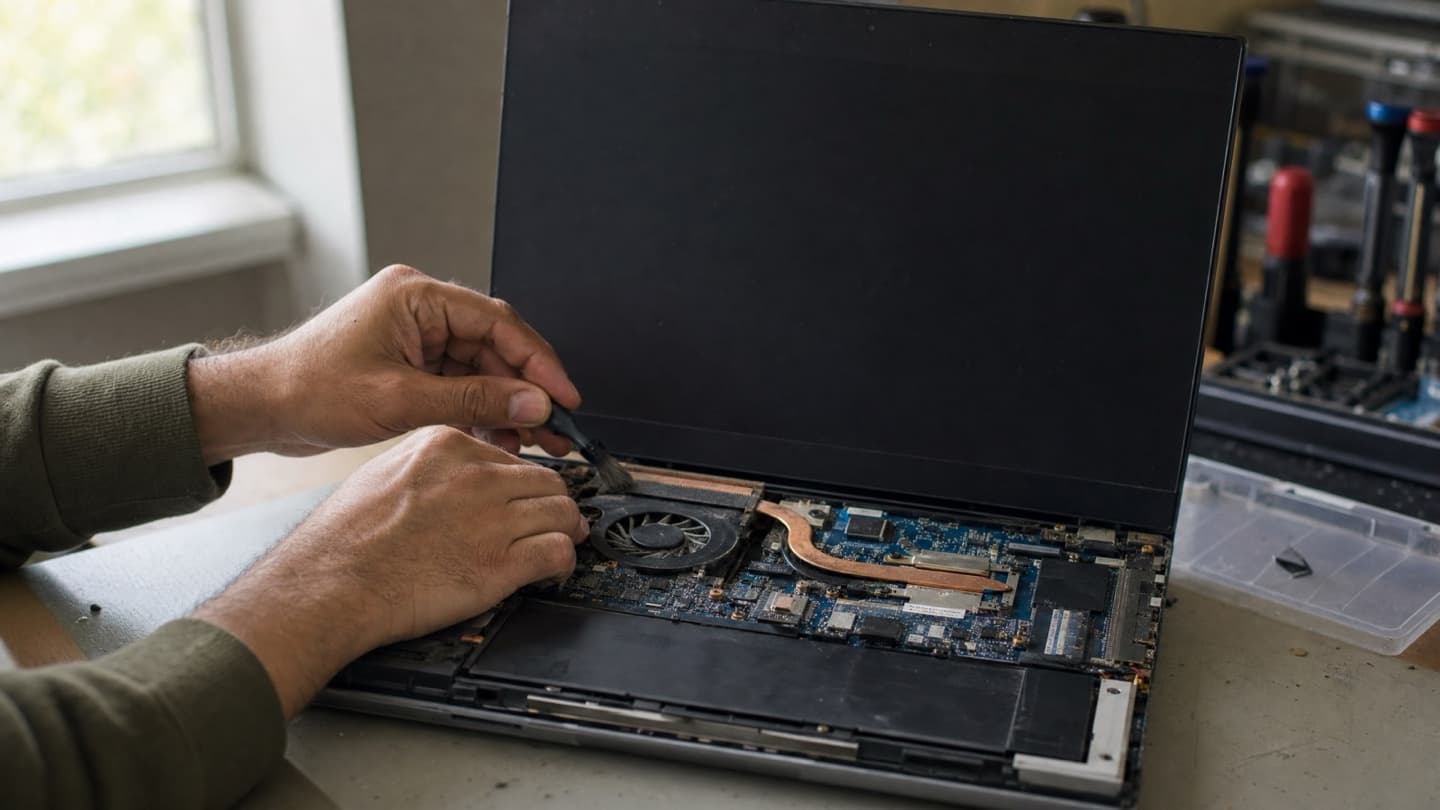
Shine a flashlight at an angle across the screen with the laptop on. If you can just make out a faint desktop, the backlight has failed but the screen still works. Then plug in an external monitor. If the picture shows up there, the laptop is running fine and the built-in display is the problem. Either way, that's a screen repair, not a dead machine. We cover it under computer and laptop repair.
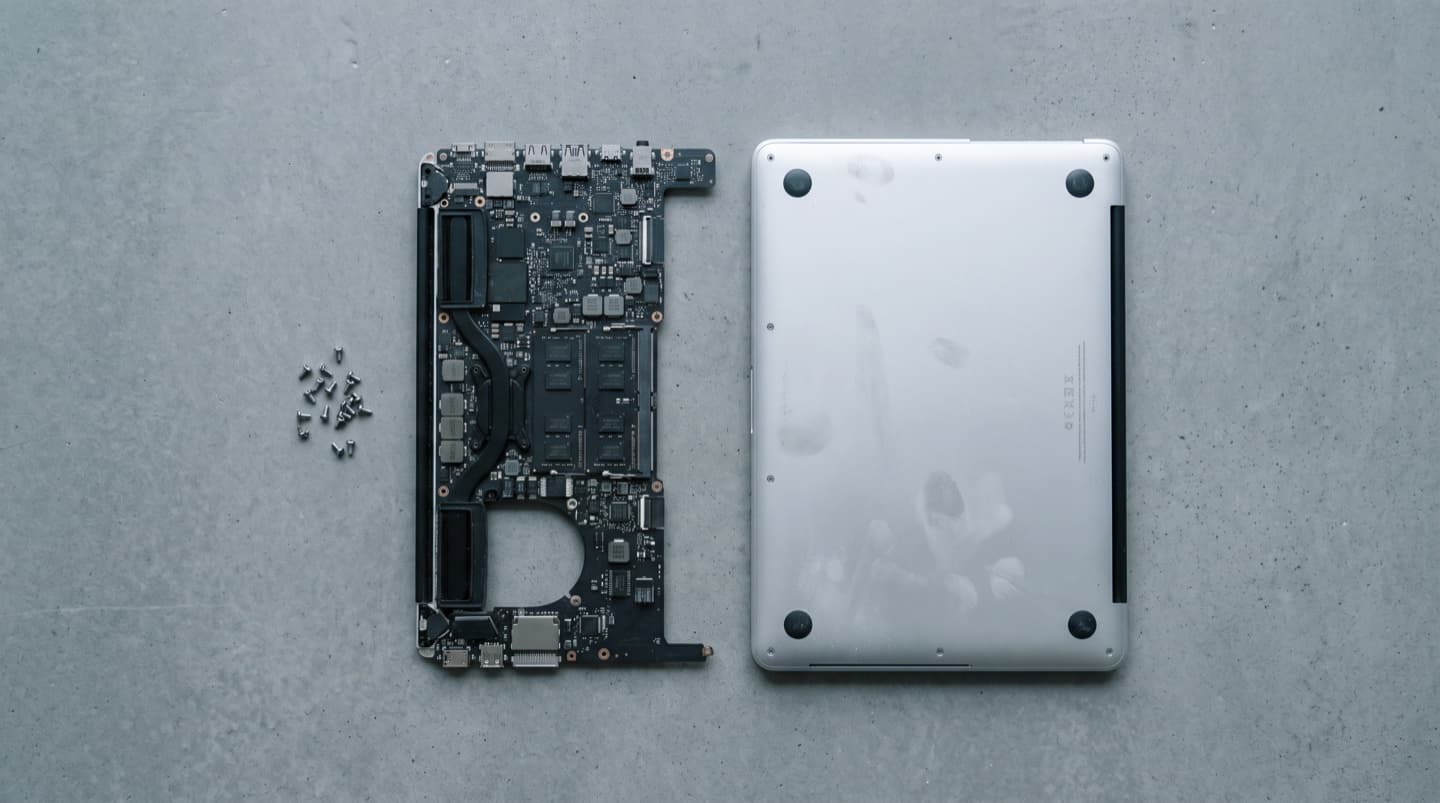
If none of that helps and the laptop is truly lifeless, what's left is usually the power jack, the battery, the RAM, or the board itself, and those need it opened up to diagnose.
Stop if there's a spill or a drop
If the laptop got wet or took a hard fall right before it died, don't keep hitting the power button.
Powering a wet board can short it and turn a cleanable spill into a replaced motherboard. Unplug it, turn it upside down to drain, and leave it off. Liquid damage needs a proper cleaning sooner rather than later, before corrosion sets in.
Boots but Windows won't load
Different problem again, and it applies to desktops and laptops alike. If the machine posts, shows the maker's logo, but then loops, hangs on a spinner, or drops into a repair screen, the hardware is mostly fine and the issue is on the software or the drive.
- A repair loop or a stuck logo usually means corrupted Windows files or a failed update. Booting to the recovery options and running startup repair, or rolling back the last update, is the common fix.
- Clicking noises, or a machine that got very slow before it stopped booting, point at a failing drive. That's a data problem as much as a boot problem. Back off and get the drive checked before you push it, because a dying drive can take your files with it. If the files matter, data recovery is the safer route than forcing a dying drive to boot.
What to check, in order
Free and non-destructive first. Work down until it starts or until you've narrowed it to one thing.
On a desktop:
- Confirm the outlet is live with a lamp, and reseat the power cable at both ends.
- Check the PSU switch on the back and try the PC straight into the wall.
- If it powers on, check the monitor input and video cable, and confirm you're plugged into the graphics card, not the board.
- Reseat the RAM, one stick at a time. This is the big one.
- Reseat the graphics card, or pull it and use the board's video if it has any.
- Note any beep pattern at power-on.
On a laptop:
- Test the charger and outlet, and give a flat battery ten minutes before judging it.
- Hard reset: unplug, hold power for 30 seconds, try again.
- Unplug every accessory and power on with only the charger connected.
- If lights come on but the screen is dark, try the flashlight test and an external monitor.
- Stop entirely if there was a spill or a drop.
On either machine, if it posts but Windows won't load, try startup repair or roll back the last update, and back up the drive first if it sounds unhealthy.
When it's worth calling someone
The hardest causes are the ones you can't confirm without opening the machine or swapping parts: a failing power supply or marginal motherboard on a desktop, the power jack, battery, or board on a laptop. If you've worked through the checks above and it's still dead or still won't post, that's the sensible point to hand it off rather than buy parts on a hunch.
We find the real cause and quote one price, visit included, before we touch anything. If it's an aging machine where the part plus labour outweighs what it's worth, we'll say so plainly instead of selling you the repair. We come to you across Calgary and out to Airdrie, Cochrane, and Okotoks (outside the city a travel fee applies, confirmed before the visit), so the tower or the laptop doesn't have to leave the house. More on that under on-site computer repair, and the pricing page shows how visits are billed.
That's the point a bench earns its keep. We diagnose it, tell you the real cause, and quote a flat price before we touch anything. If a part isn't worth replacing on the machine, we'll say so plainly.
And if the machine was running hot and shutting itself off before it died, read laptop overheating fixes, because heat damage can be the underlying cause.
Common questions
With power. Confirm the outlet is live, reseat the power cable at both ends, and check the on/off switch on the back of the power supply. If all three are good and it's still dead, the power supply itself is the likely fault, and that needs a known-good unit to confirm.
The charger, more often than the laptop. Test the outlet, look for a charging light, and give a flat battery ten minutes on power before judging it. If there's still no life, do the hard reset: unplug, hold the power button for 30 seconds, then reconnect and try again. Those two steps revive a large share of "dead" laptops.
On a desktop that's a no-POST fault, not a power one. Check you're plugged into the right video port, then reseat the RAM one stick at a time and reseat the graphics card. On a laptop, lights and fans with a dark screen usually mean the display or its cable, which the flashlight test and an external monitor will confirm.
You mostly can't be certain at home. A fan-spin test only proves it switches on, not that it's steady under load. The reliable check is swapping in a known-good PSU, which is why a suspected power supply is usually worth getting tested.
Usually not. A stuck logo or repair loop points at corrupted Windows files or a bad update, which startup repair or a rollback often fixes. Clicking noises or a machine that crawled before it quit point at a failing drive, and that one you back up first.