Wi-Fi that drops every few minutes is one of those problems where the fix is easy once you know what's causing it, and maddening until you do. It's almost always one of a short list of culprits. Here's what actually makes Wi-Fi keep disconnecting, roughly in the order I'd check them, so you can spot which one is yours before you start changing things.
- Same-spot drops usually mean coverage, so a device far from the router is running on almost nothing.
- A simple router restart clears more dropout problems than anything else on this list.
- If wired devices drop too, it's the modem or the provider, not your Wi-Fi.
- One device dropping points at its driver or settings. All of them points at the router or the connection.
- A router past five or six years old that runs warm and needs frequent restarts is likely worn out.
1. You're too far from the router, or there's too much house in the way
Signal fades with distance, and it fades faster through walls. Brick, concrete, stone, and anything with metal or water in it (a full aquarium, a mirror, ductwork) all eat Wi-Fi. In an older Calgary house with plaster-and-lath walls, or a bungalow where the router lives in a finished basement, a device two rooms away can be running on almost nothing. It hangs on until the signal dips, then drops.
Quick tell: the drops happen in the same spot every time, and things are rock solid right next to the router.
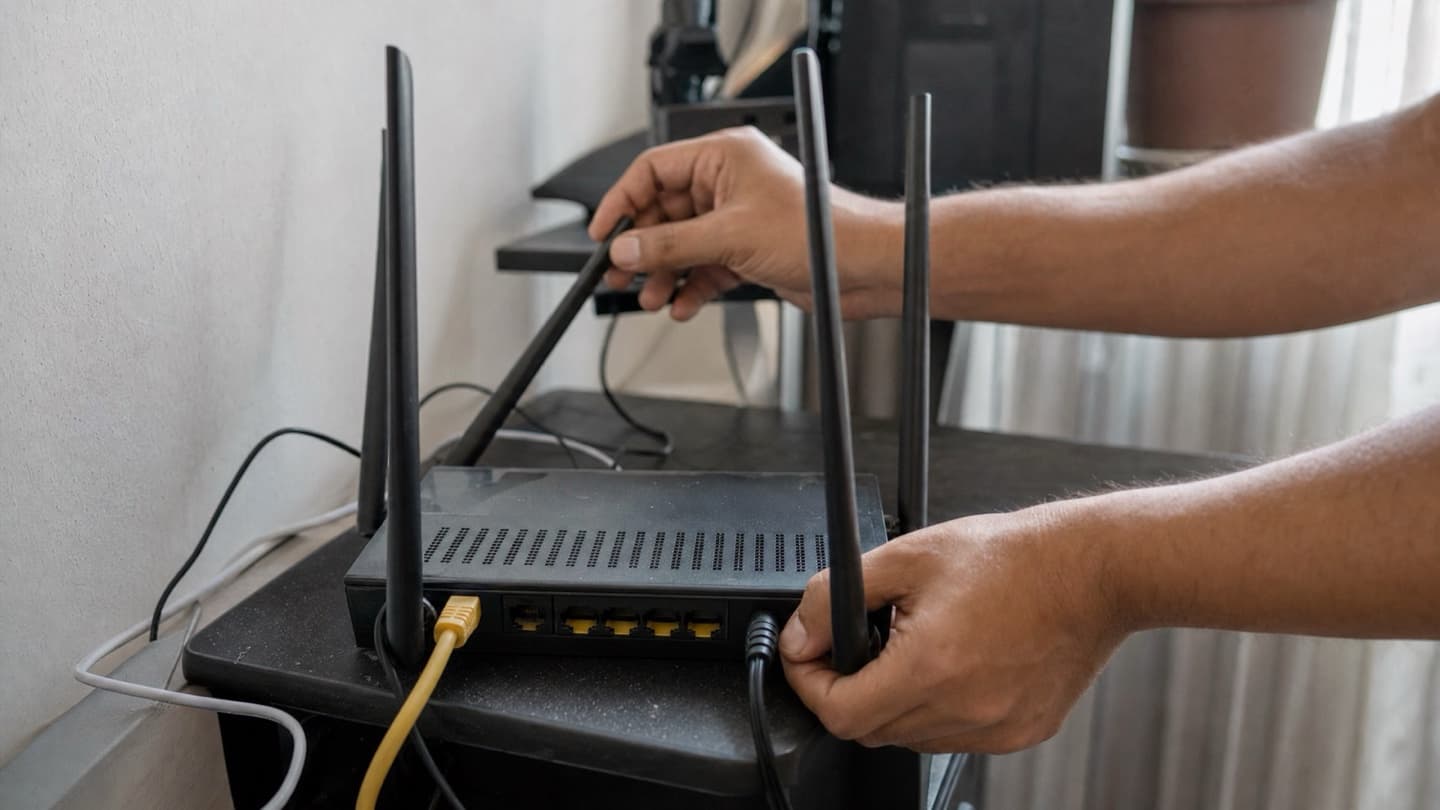
The free fix here is placement. Get the router up off the floor, out of cabinets and closets, and somewhere central and open. Not the basement corner, not behind the TV. Higher and more in the middle of the house covers more of it. If you can't move the router and one far room is always the problem, that's your sign you need a mesh node or extender out there.
Not up for crawling around with a laptop testing rooms? Our Wi-Fi and networking visits start by finding where the signal actually falls off, and we come to you.
2. The router just needs a restart
Routers are small computers, and like any computer they get bogged down after weeks of running. Memory fills up, connections pile up, and it starts dropping devices.
- Unplug both the router and the modem from power.
- Wait a full 30 seconds.
- Plug the modem back in first and let its lights settle.
- Plug the router back in and give it a couple of minutes to come up.
This clears more dropout problems than anything else on this list, which is why it's the first thing anyone will tell you to try. If a restart fixes it but the problem comes back every few days, that's a hint the router itself is struggling. More on that below.
3. Too many devices for the router to handle
Count what's actually connected. Phones, laptops, a couple of TVs, a thermostat, a doorbell, a printer, a game console, someone's tablet. A modern home easily runs 20 or 30 things at once. An older single-band router was never built for that load, and when it runs out of room it starts kicking devices off to cope.
4. Old firmware on the router, or an old driver on your computer
Two different pieces of software, same result. The router's firmware is its internal software, and manufacturers push updates that fix stability bugs. Log into the router (the address and password are usually on a sticker on the unit), look for a firmware or software update option, and run it. Some newer routers do this automatically through a phone app. On the computer side, the Wi-Fi adapter needs an up-to-date driver. If one device keeps dropping while everything else is fine, suspect its driver. If the whole network wobbles, suspect the router's firmware.
5. Interference from other stuff on the same channel
Wi-Fi shares the air with a lot of things. Microwaves, cordless phones, baby monitors, and Bluetooth all sit near the 2.4GHz band and can stomp on your signal. So can your neighbours. In an apartment or a tight infill you might have a dozen networks all crowded onto the same channel, and they trip over each other.
Most routers broadcast two networks, one on 2.4GHz and one on 5GHz. The 5GHz band is far less crowded and much faster, though it doesn't reach as far. For anything in the same room or nearby, connect it to 5GHz and a lot of interference drops away. If your router settings let you pick the Wi-Fi channel, switching off "auto" and choosing a quieter one is another free fix for crowded buildings.
Printers are the fussiest devices in a crowded band, by the way. If yours keeps showing offline while everything else hangs on, that's its own problem with its own fixes: see why printers fall off Wi-Fi first.
6. It's the modem or the internet provider, not your Wi-Fi
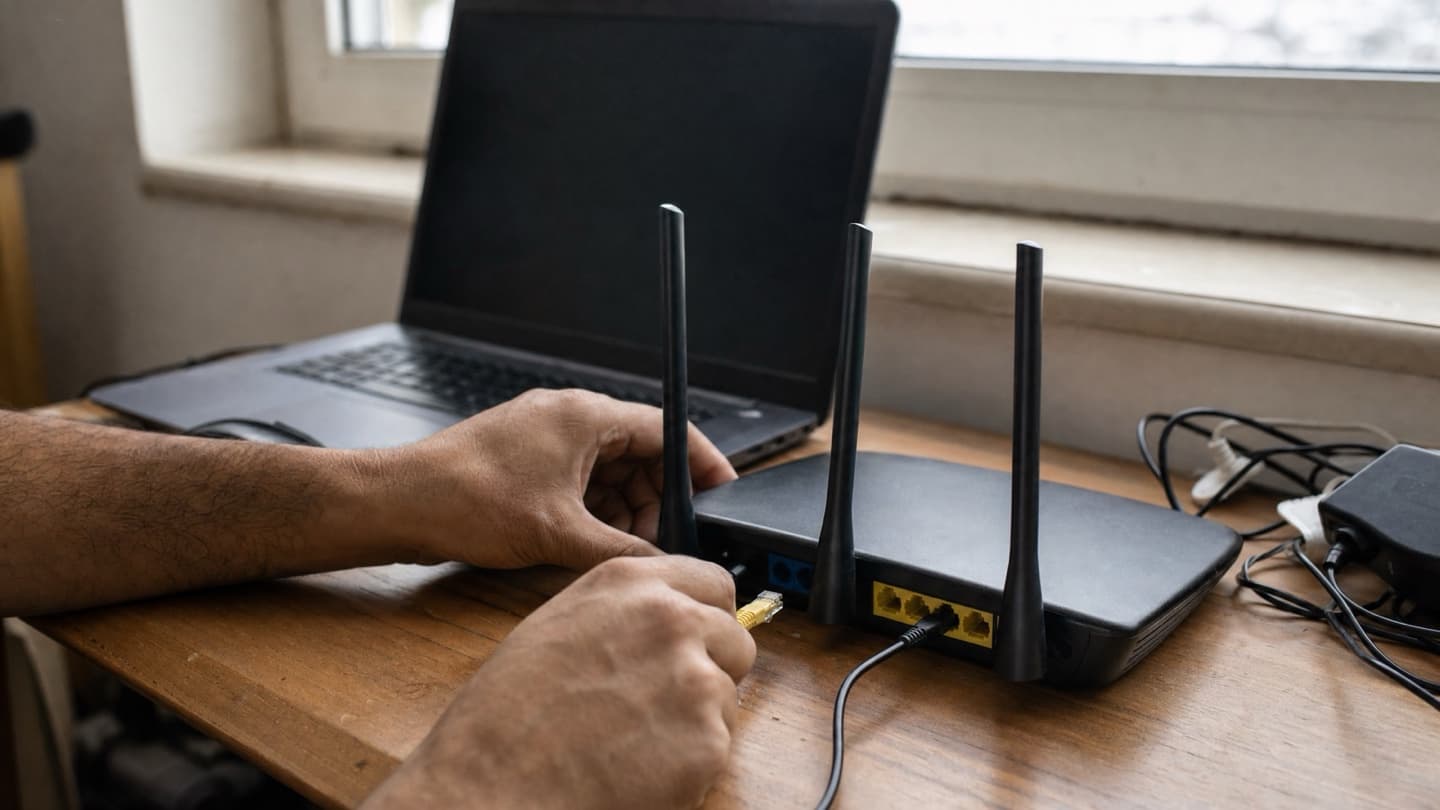
Not every "Wi-Fi problem" is Wi-Fi. If the drops also hit devices plugged in by ethernet cable, your wireless is fine and the trouble is upstream, either the modem or the connection coming into the house. Plug a laptop straight into the modem with a cable. If that still drops, it's a modem or provider issue, and no amount of router fiddling will fix it.
7. The router is simply worn out
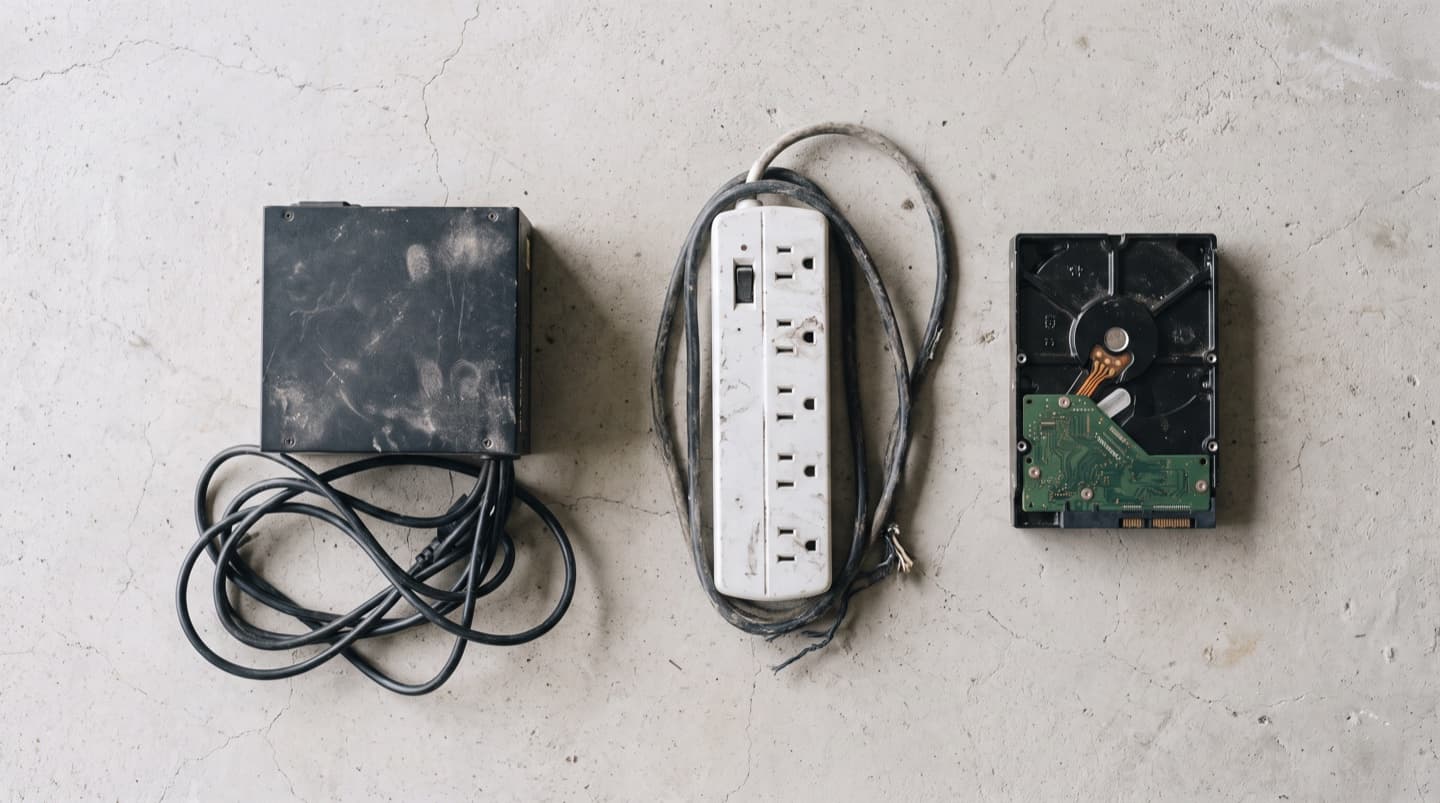
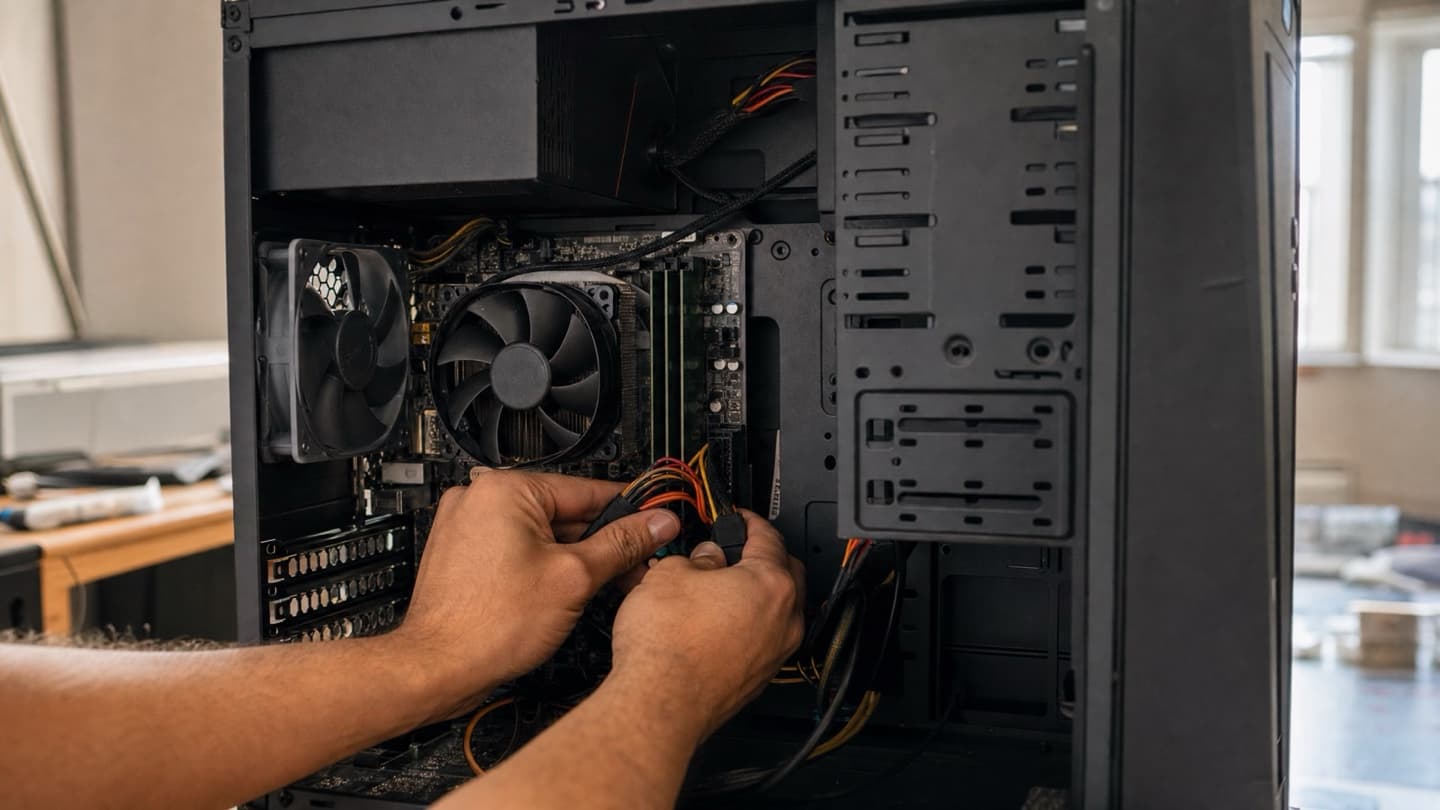
Routers don't last forever. Five or six years is a fair run, and past that they start dropping connections, slowing down, and rebooting on their own. If yours is that old, needs a restart every few days, and gets warm to the touch, it's likely near the end. Heat is a big one here. A router baking on top of a cable box or crammed in a cabinet with no airflow will act flaky long before its time.
Plug a laptop straight into the modem with an ethernet cable. If the connection still drops with the Wi-Fi out of the picture, the problem is the modem or the line coming into your house, and a new router won't help. Call your provider instead.
8. Windows is powering down the Wi-Fi adapter to save battery
This one catches a lot of laptop owners. To save power, Windows can switch off the wireless adapter when it thinks the connection is idle, and then it doesn't always wake back up cleanly. The connection drops for no reason, usually when the laptop's been sitting a moment.
If only your laptop drops and everything else in the house is fine, start here.
- Open Device Manager and expand Network adapters.
- Right-click your wireless adapter and choose Properties.
- Go to the Power Management tab.
- Uncheck Allow the computer to turn off this device to save power.
On a phone or tablet that keeps dropping, the fix is simpler: tell it to forget the network, then reconnect from scratch. That clears a stored setting that's gone stale.
Narrowing it down
Two questions sort most of this out. Does it drop on one device or all of them? One device points at that device's settings or driver. All of them points at the router, the modem, or the provider. And does it drop in one spot or everywhere? One spot is a coverage problem you can fix by moving the router or adding a mesh node. Everywhere is the hardware.
One device points at that device's settings. All of them points at the router, the modem, or the provider.
If you've worked through the list and it's still dropping, that usually means it's coverage or aging gear, and those need someone to test the actual signal around your place rather than guess.
Common questions
If one device drops and everything else in the house is fine, the problem lives on that device, not your network. On a Windows laptop, check the power management setting described above and update the Wi-Fi adapter's driver. On a phone or tablet, forget the network and reconnect from scratch. If it still drops after that, the device's wireless hardware itself may be failing.
Five or six years is a fair working life. Past that, routers start dropping connections, slowing down, and rebooting on their own. If yours is that old, runs warm, and needs a restart every few days to behave, it's telling you it's near the end. A router that's newer than that but still flaky is more likely a placement, interference, or firmware problem.
Only if coverage is actually the problem. Mesh shines in big or awkwardly shaped houses where one router was never going to reach everything, and the tell is drops that always happen in the same rooms. If the whole house drops at once, or a wired device drops too, mesh won't help because the fault is the router, the modem, or the line. Test before you buy.
Plug a laptop straight into the modem with an ethernet cable and use it that way for a while. If the connection still drops with the wireless out of the picture, the fault is the modem or the line coming into your house, and that's your provider's department. If the wired connection holds solid, the trouble is inside your Wi-Fi setup.
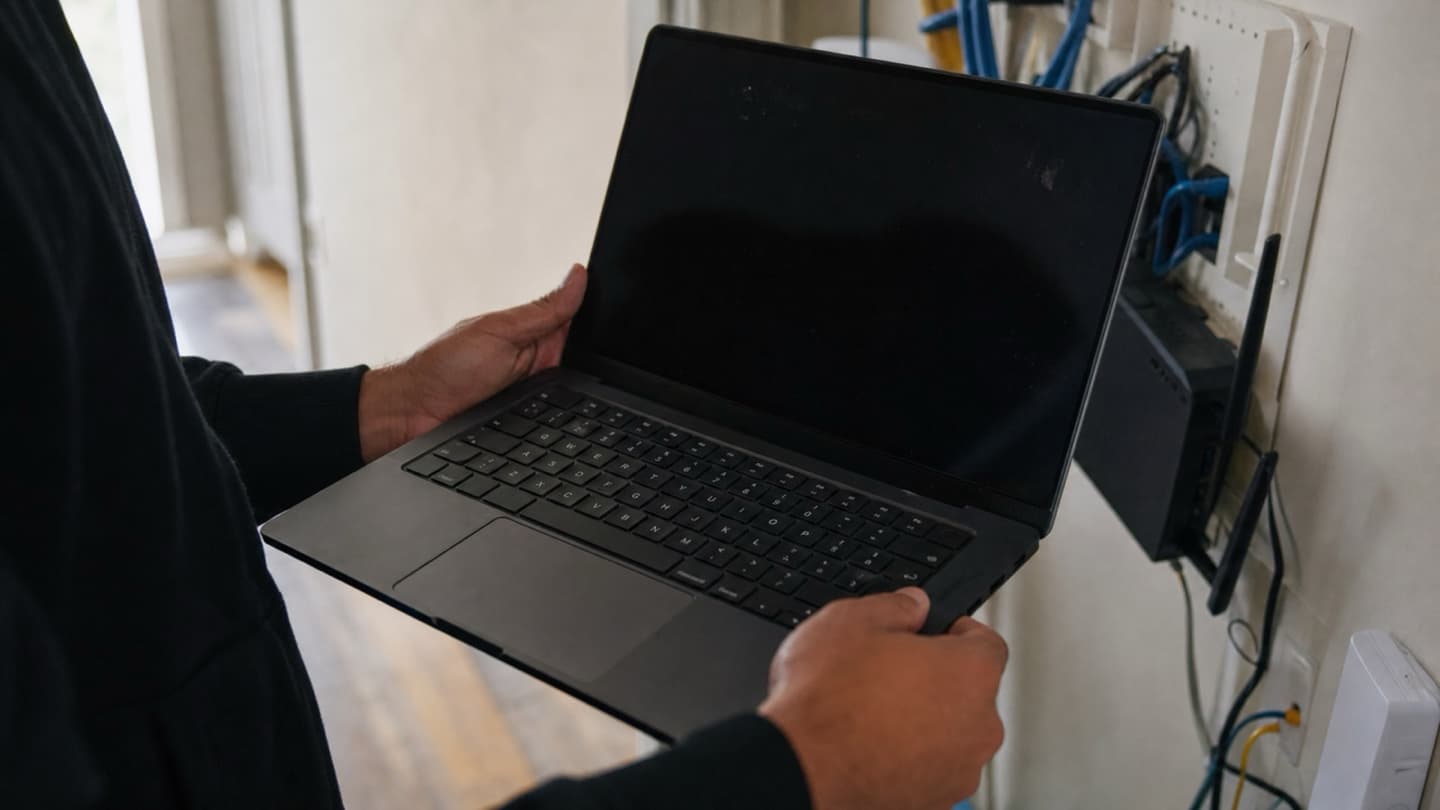
We test where the signal falls off, sort out placement or a mesh setup, and tidy the cables while we're at it. We come to you across Calgary, Airdrie, Cochrane, and Okotoks with on-site visits, so nothing has to leave the house.
That's usually coverage or tired gear, and both need testing in the actual room, not a guess. We map where the signal fades, fix placement or set up mesh, and give you a flat quote before any work.