A wireless printer that won't connect is one of the most common calls we get, and it's almost never a broken printer. Printers are needy about their Wi-Fi in ways laptops and phones aren't, so they're the first thing in the house to fall off the network and the last to come back. Here's why that happens and how to get it printing again.
- A wireless printer showing "offline" is almost always a network problem, not a dead printer.
- The classic cause is a new router or a changed Wi-Fi password, which the printer can't fix itself.
- Restart the printer, router, and computer in that order before anything else.
- Keep the printer on the 2.4GHz band and within decent range of the router.
- If it still drops after a driver reinstall, the network underneath it needs a proper look.
Why wireless printers drop off Wi-Fi more than anything else
A printer sits in a corner and gets used a few times a week. Between jobs it goes to sleep, and a sleeping printer on a weak or busy signal can quietly lose its spot on the network. Your phone reconnects the instant you pick it up. The printer just sits there showing "offline" until you go looking.
Two things make it worse than other devices. First, most printers cling to the 2.4GHz band, which is the older, slower, more crowded one. Second, the connection between your computer and the printer relies on drivers and a Windows service that both have to be working, so there are more places for the chain to break. When people assume the printer is dead, the real problem is almost always one of these:
- The printer lost its Wi-Fi connection and never got back on.
- Something changed on the network, like a new router or a new password.
- Weak signal where the printer lives.
- A driver or Windows update knocked the software side loose.
Not interested in fighting it yourself? Our printer setup and support visits get every device in the house printing and scanning, and if we can't get it working, you don't pay.
The one that catches everyone: you changed your router or Wi-Fi password
This is worth its own heading because it's so common and so confusing. Get a new router, switch internet providers, or change your Wi-Fi password, and everything in the house reconnects on its own. Except the printer. It stored the old network name and password internally and it's still looking for a network that no longer exists.
The printer won't fix this itself. You have to walk over to it and connect it to the new Wi-Fi by hand, using the buttons and little screen on the printer or the manufacturer's app. Until you do, it'll show offline no matter what you try from the computer.
The printer stored the old network name and password internally, and it's still looking for a network that no longer exists.
Get it back online, in order
Work down this list and stop when it prints.
1. Restart all three
Turn off the printer, the router, and the computer. Give it 30 seconds. Turn the router back on first and let its lights settle, then the printer, then the computer. This clears the most common cause on its own, and it costs you two minutes.
2. Reconnect the printer to Wi-Fi by hand
On the printer itself, go into the network or wireless setup menu, pick your Wi-Fi network, and enter the password. On many printers there's a Wi-Fi button you hold until it starts searching. This is the step that fixes a printer that fell off after any network change, and it's the one people skip.
3. Move the printer closer to the router, or the router closer to the printer
Printers tolerate weak signal badly. If the printer lives in a back office or a basement two walls away from the router, that's likely the whole problem. Move it closer as a test. If it connects fine nearby but drops in its usual spot, you've got a coverage problem, not a printer problem, and our guide to why Wi-Fi keeps disconnecting covers how to fix that side.
If your Wi-Fi has separate 2.4GHz and 5GHz networks with different names, connect the printer to the 2.4GHz one. It reaches farther through walls, and most printers are happier on it. The faster 5GHz network sounds better but doesn't travel as well, which is the opposite of what a printer in a far room needs.
4. Clear the stuck print queue
Sometimes the printer's connected fine but Windows has jammed. Jobs pile up "pending" and nothing moves. Open Settings > Bluetooth & devices > Printers & scanners, open your printer, and cancel everything in the queue. If that doesn't clear it, restart the Print Spooler: type "services" in the Start menu, open Services, find Print Spooler, right-click it, and choose Restart.
5. Update or reinstall the driver
The driver is the software that lets Windows talk to the printer, and a Windows update can quietly replace it with the wrong one or break it. If the printer's on the network but the computer still can't see it, remove the printer from Printers & scanners, download the current driver from the manufacturer's site (not a random driver-updater tool), and add it back fresh.
When the scanner stops but printing still works
All-in-one machines love to do this: printing is fine, but scanning does nothing. It's a separate piece of software from the printing side, so it breaks separately, usually after a Windows update swaps a driver or changes a permission. Reinstalling the scanner software from the manufacturer, the same way as the printer driver above, is what fixes it most of the time. If Windows is throwing other odd behaviour at the same time, the update may have broken more than the scanner, and that's worth looking at more broadly.
Office printers are almost always a network problem
If a shared office printer keeps dropping for everyone, or works for one desk and not another, that's rarely the printer. It's shared-printer permissions, an IP address that shifted, or a network that isn't stable enough to keep everyone connected. A printer with a fixed IP address and a network set up to hold it steady stops most of this. A stable business network also quietly fixes the file-sharing and connection hiccups that tend to show up alongside the printer trouble.
Keeping it from happening again
A few habits prevent most repeat visits:
- Set the printer to a fixed IP address so it stops moving around
- Keep it on 2.4GHz and within decent range of the router
- Update the printer's firmware once in a while
- Use the real manufacturer driver, not a third-party updater
- When you change routers or passwords, expect to reconnect the printer by hand
Common questions
"Offline" means your computer can't reach the printer over the network, not that the printer is broken. Usually the printer lost its Wi-Fi connection while asleep, or the network changed underneath it. Restart the printer, router, and computer in that order, and if it still shows offline, reconnect the printer to Wi-Fi by hand from its own menu.
Because the printer stored your old network name and password internally, and it's still looking for a network that no longer exists. Everything else in the house reconnects itself, but the printer has to be walked over to and joined to the new Wi-Fi by hand, using its buttons and screen or the manufacturer's app. Until you do that, nothing you try from the computer will help.
Put it on 2.4GHz. That band reaches farther and gets through walls better, which matters more for a printer parked in a far room than raw speed does. The 5GHz band is faster but fades sooner, which is the opposite of what most printers need. Some printers only support 2.4GHz anyway.
Scanning runs on separate software from printing, so it breaks separately, usually after a Windows update swaps a driver or changes a permission. Reinstalling the scanner software from the manufacturer's site fixes it most of the time. If it never worked at all, it likely just wasn't set up when the printer was.
When it's worth calling someone
If you've reconnected it, moved it closer, cleared the queue, and reinstalled the driver and it still won't stay on, the trouble is usually the network underneath it, not the printer. Weak coverage where the printer lives, an unstable connection, or an office setup that keeps losing devices all need someone to test the actual signal and settings rather than guess from the computer.
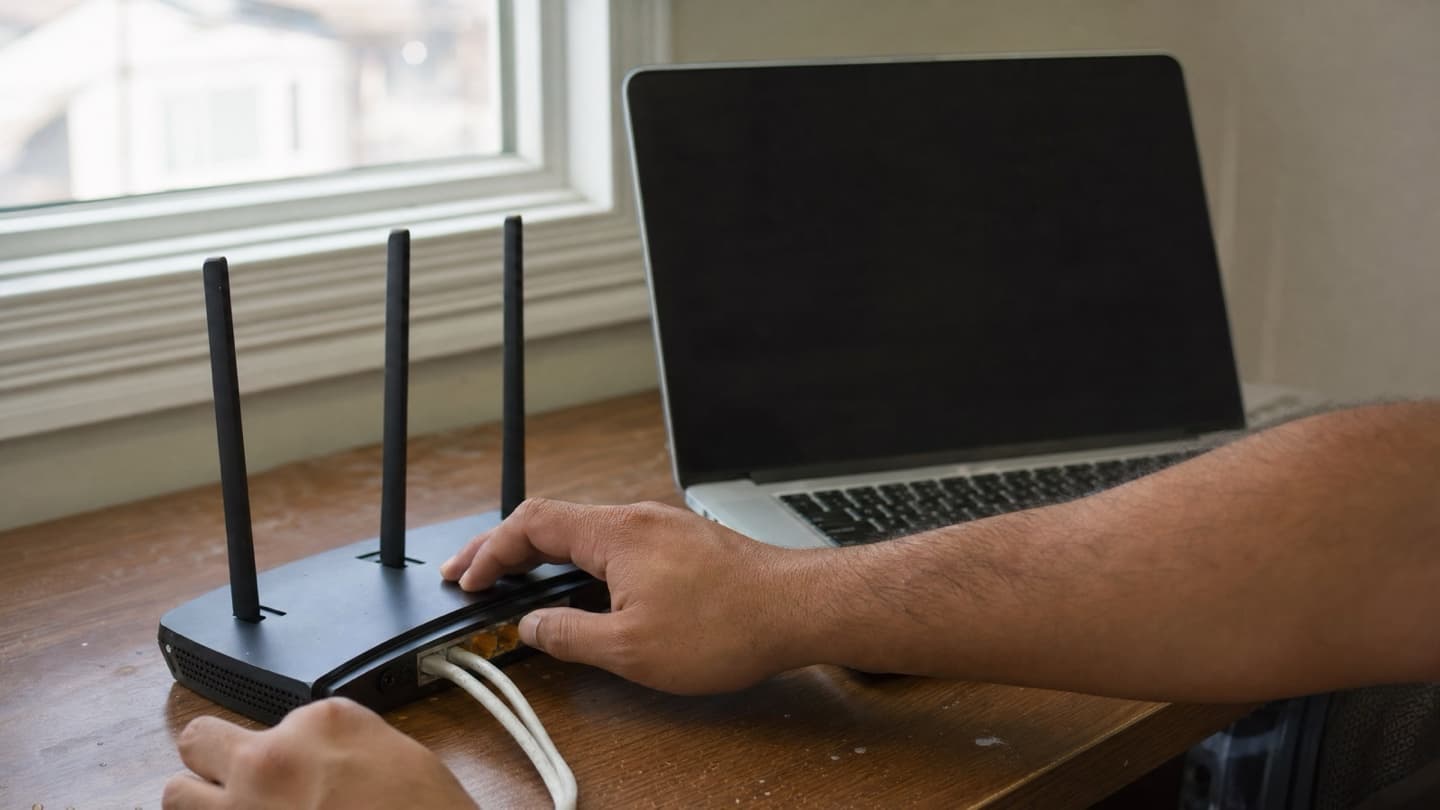
That's the sort of thing we sort out on a visit: get the printer, the scanner, the computers, and the Wi-Fi all talking to each other and staying that way.
We come to you, test the signal where the printer actually lives, and set it up with a fixed address so it stops falling off. Every laptop and phone in the house printing and scanning before we call it done. No fix, no fee.
See printer setup and support for everything a visit covers.