Drives fail in a lot of ways, and each one tells you something different about how much time you have. Here's what every warning sign actually means, and the exact move to make before the data is gone.
- Back up before you troubleshoot. Copying files is safe. Restarting, running repair tools, or "just checking one more time" often isn't.
- Clicking means a spinning drive is failing mechanically. Power it off.
- SSDs usually fail suddenly and silently, so a backup is your only real warning.
- Deleted files are sometimes recoverable, but only until new data overwrites them. Every minute of use lowers the odds.
Why a failing drive is worse than most computer problems
Most computer problems are annoying but reversible. A slow machine speeds up. A crash reboots. A virus gets removed. A failing drive is different because it takes your data with it, and data doesn't come back on its own.
The drive is where your photos, documents, and the whole operating system live. When it goes, all of that goes at once. That's why the instinct to keep poking at it is exactly the wrong one.
Read the sign, back up, then troubleshoot.
Not planning to deal with it yourself? Data recovery starts with a straight read on your odds, and we come to you across Calgary, usually same day.
Clicking or grinding: mechanical failure in progress
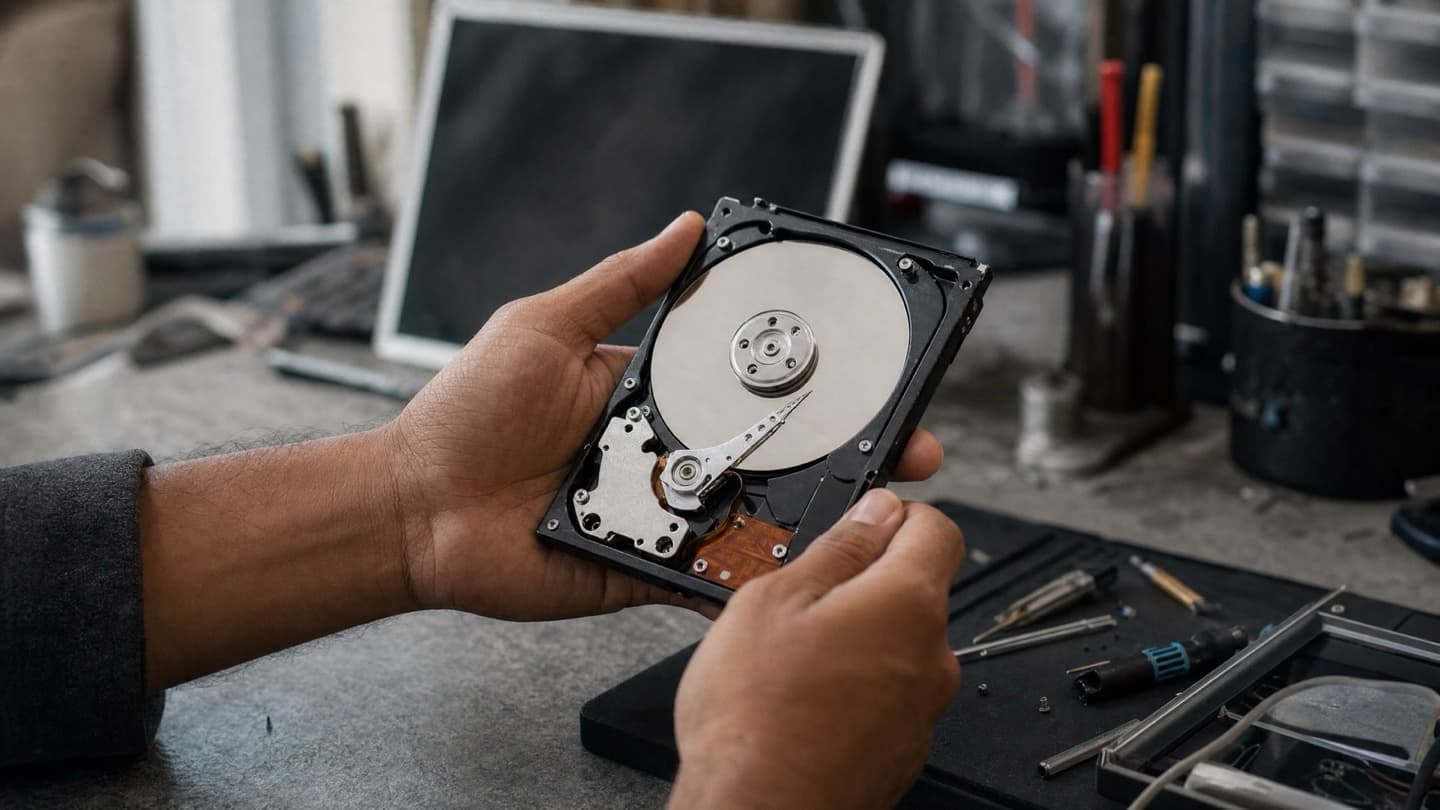
This one is a spinning hard drive, not an SSD. The clicking is usually the read/write head trying to find data and failing, resetting, and trying again. Grinding can mean the platters or the motor. Either way, physical parts are wearing against each other while the drive runs.
What it means: the drive is failing right now, and the damage gets worse the longer it spins.
What to do: power it off and leave it off. Don't restart hoping it clears up. Don't run recovery software, because that keeps the drive spinning for hours. If the files matter, this is a case for data recovery, where the drive gets opened in a controlled environment and imaged once, carefully, instead of hammered by repeated boot attempts.
On a mechanical drive, "I'll just grab my files first" is how a recoverable drive becomes a dead one. If it clicks, stop.
SSD not detected: sudden and usually silent
SSDs don't click. They have no moving parts, which is why they're faster and tougher against drops. The trade-off is that when they fail, they tend to fail all at once, with little warning. One day the drive is in BIOS, the next it isn't, and Windows won't boot.
Common causes are a dead controller chip, corrupted firmware, a loose connection, or unstable power. Some of those are fixable, some aren't, and you can't tell which from the outside.
What to do: if the SSD still shows up at all, back it up immediately, because that window may not last. If it's already gone from BIOS, don't keep power-cycling it. Get it diagnosed. When the drive itself is dead but the data matters, recovery is a specialist job. If the drive is fine and you just need a replacement, a modern SSD is a straightforward hardware upgrade.
Freezing and slow file access: the drive is retrying
A healthy drive reads data on the first try. A failing one hits a bad spot, retries, retries again, and your whole system hangs while it waits. That's why failing drives so often show up as freezing, not as an error message. The computer isn't broken. It's stuck waiting on storage.
What it means: if freezes cluster around opening files or transferring data, and they're getting more frequent, suspect the drive.
The honest caveat: slow and freezy has other causes too. Not enough memory, too many startup programs, or just an old machine will all feel similar. So this sign is strongest when it's new and getting worse, and weakest when the computer has always been a bit sluggish. When in doubt, a diagnosis sorts drive failure from the ordinary slowdowns.
Corrupted or missing files: bad sectors spreading
Files that won't open, photos that come up scrambled, documents that disappear without you deleting them. This is often bad sectors, small parts of the disk that can no longer hold data reliably. A drive can limp along with a few, but if the corruption is spreading week to week, the drive is deteriorating.
What to do: back up the files that still open, right now, and prioritize the ones you can't replace. Don't wait to see if it gets worse. It gets worse.
SMART warnings and scan-and-repair prompts
Windows nagging you to scan and repair a drive on every startup, or a SMART warning at boot, is the drive itself telling you it's failing. SMART is the drive's own health report, built into the hardware. It doesn't cry wolf often.
The same goes for a drive that comes and goes: shows up in Windows, then vanishes, then reappears after a restart. An intermittent drive is not a drive that's mostly fine. It's one that's failing and hasn't finished yet.
What to do: believe the warning and back up now, while the drive is still in a cooperative mood. This is the sign people most often ignore, because the machine still works. That's exactly the window in which a backup is still easy.
Windows won't boot: storage failing under the OS
Boot loops, black screens, "automatic repair" that never fixes anything, "no operating system found." Because Windows lives on the drive, a failing drive often shows up first as a machine that won't start.
What to do, and this is the important part: do not sit there restarting. Each failed boot is the machine hammering a drive that's already struggling. If your files are backed up, fine, a reinstall or a new drive fixes it. If they aren't, stop restarting and get the drive imaged before anything else. Repeated boot attempts are one of the most common ways people lose data that was recoverable an hour earlier.
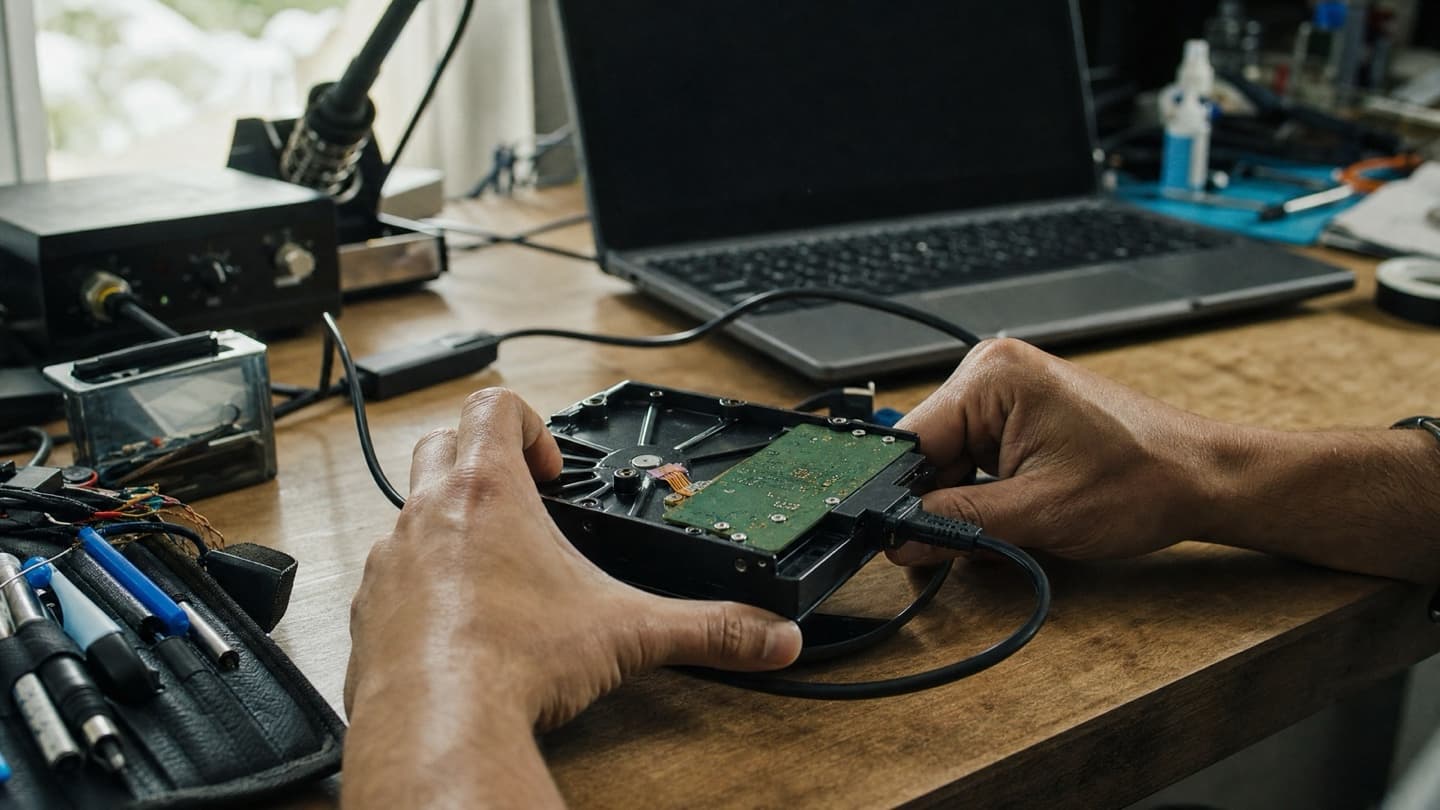
Can you recover deleted files?
Sometimes, yes. When you delete a file, the data usually isn't wiped immediately. The space is just marked as free. Until something new gets written there, the file often still physically exists and can be pulled back.
The catch is that "something new" is being written constantly. Windows updates, browsing, even just running the computer writes to the drive and can land on top of your deleted file. So the answer is: recoverable for now, less recoverable every minute you keep using the drive. If you just deleted something important, stop using that drive and don't install recovery tools onto it. The full playbook for that first hour is in what data recovery can and can't get back.
What actually causes drives to fail
- Age and wear. Drives don't last forever, and spinning drives especially have a shelf life.
- Heat. Excess heat shortens the life of both HDDs and SSDs, so a laptop that runs hot is quietly aging its own drive.
- Physical shock. Dropping a laptop while a spinning drive is running is a classic killer.
- Sudden power loss. A hard cut mid-write can corrupt data or damage the drive.
- Manufacturing defects. Some drives are just born to fail early.
You can't control all of these, but heat and backups are the two you can, and they're the two that matter most.
HDD failure vs SSD failure, side by side
| Spinning HDD | SSD | |
|---|---|---|
| Warning noise | Clicking, grinding | Silent, no moving parts |
| How it fails | Gradual, you get warning | Sudden, often no warning |
| What breaks | Mechanical parts | Controller or memory chips |
| Your early warning | Sounds and slowdowns | Really just your backup |
The practical lesson: on a spinning drive, your ears are an early-warning system. On an SSD, they aren't, so a current backup is the only warning you'll get.
The mistake almost everyone makes
The big one: "if it still works sometimes, it's fine." It isn't. Intermittent failure means the drive is already breaking down and hasn't finished. A drive that works one boot in three is not two-thirds healthy. It's a drive that's failing, and the times it works are borrowed.
The others we see constantly: running a clicking drive to grab one more file, restarting a machine ten times hoping it boots, and pointing recovery software at the failing drive itself. All three feel productive. All three can make the data harder or impossible to get back.
What to do, in order
Back up first, then work out the cause. The order matters more than anything else here.
- Copy anything you can't replace to another drive or the cloud today, before you touch anything else.
- If the backup went fine and the drive seems stable, you likely caught it early and a replacement drive sorts you out.
- If the drive is clicking, disappearing, or already won't let you copy files, stop using it and ask about recovery.
Everything else can wait. Your photos can't.
How to not be here again
- Back up automatically, not "when you remember." A drive plus a cloud copy covers most people.
- Replace aging drives before they fail, especially old spinning drives past five or six years.
- Keep the machine cool. Clean the fans, don't run a laptop smothered on a couch cushion.
- Watch drive health. SMART warnings and repeated scan-and-repair prompts are the drive telling you it's tired.
A backup habit costs you a little time and a cheap drive. Recovery, when it's even possible, costs a lot more than that.
When it's worth calling someone
If the drive is clicking, gone from BIOS, or already refusing to let you copy files, don't keep trying on your own. That's the point where DIY tends to cost you the data. If you're just not sure whether the slowness and freezing is a dying drive or something ordinary, that's a fine reason to get it looked at too. The price is agreed before any work, and if it turns out the drive is fine and you only needed a replacement or upgrade, you'll hear that. We'd rather tell you the drive is fine than sell you a recovery you don't need. If you want the numbers first, here's how visits are priced.
Common questions
There's no fixed number, but spinning drives past five or six years are living on borrowed time, and the risk climbs with heat, drops, and heavy use. SSDs generally last longer mechanically because nothing moves, but they still wear out and still fail. Age alone is a good enough reason to replace a drive before it forces the issue.
Frequently, yes, but it's the situation where what you do next matters most. Clicking means mechanical damage, and every extra minute of spinning makes recovery harder. A drive that was powered off at the first click has far better odds than the same drive after ten more boot attempts. Power it off and get it assessed before anything else.
Usually very little. Because there are no moving parts, there's no clicking or grinding to hear, and many SSDs go from working to undetected in one restart. SMART data sometimes flags trouble early, but the only warning you can rely on is a backup that already exists.
Not before you've backed up. Scan-and-repair tools do a lot of reading and writing, which is exactly the workload a struggling drive can't handle, and on a mechanically failing drive they can finish it off. Copy your files somewhere safe first. If the drive is clicking or dropping out, skip the tools entirely and get it looked at.
You get one price before anyone touches the drive, so you'll know whether this is a simple backup or a real recovery job first.