Your game was running fine, then the frames tanked, or the whole thing froze, or the screen went black and the PC rebooted itself. Almost always the culprit is heat, drivers, or power, not a dying graphics card. Here's how to tell which one, and what actually fixes each.
- Most "my GPU is dying" crashes are really heat or a bad driver.
- Frames that start smooth and drop after a few minutes point straight at thermal throttling.
- Random black-screen reboots under load usually mean the power supply, not the GPU.
- Dust and old thermal paste undo more gaming rigs than worn-out hardware does.
First, look at the timing
When it happens tells you most of what you need to know.
Fine at first, then frames drop after five or ten minutes? That's heat. The card or CPU hits its temperature limit and slows itself down on purpose to avoid damage. That slowdown is thermal throttling, and it's the single most common cause of "my FPS keeps dropping."
Full black screen and an instant reboot, usually right when a fight kicks off or a scene loads? That points at power. A tired or undersized power supply can't deliver the spike the GPU asks for, so the system just drops.
Stutters and hitches that come and go, especially in open-world games? That's usually a driver, a background process, or an old hard drive feeding the game too slowly.
Crash to desktop with an error, or a freeze you have to hold the power button to escape? Could be a driver, RAM, or an overheating card. Keep reading.
Rather not open the case yourself? We come to you across Calgary, usually same day, and if we can't fix it, there's no fee.
Heat and thermal throttling
Under load a modern GPU runs hot, and a CPU right alongside it. When either passes its limit, it throttles. Frames fall, the game stutters, and if it gets bad enough the machine shuts off to protect itself.
Two things drive this, and both are fixable.
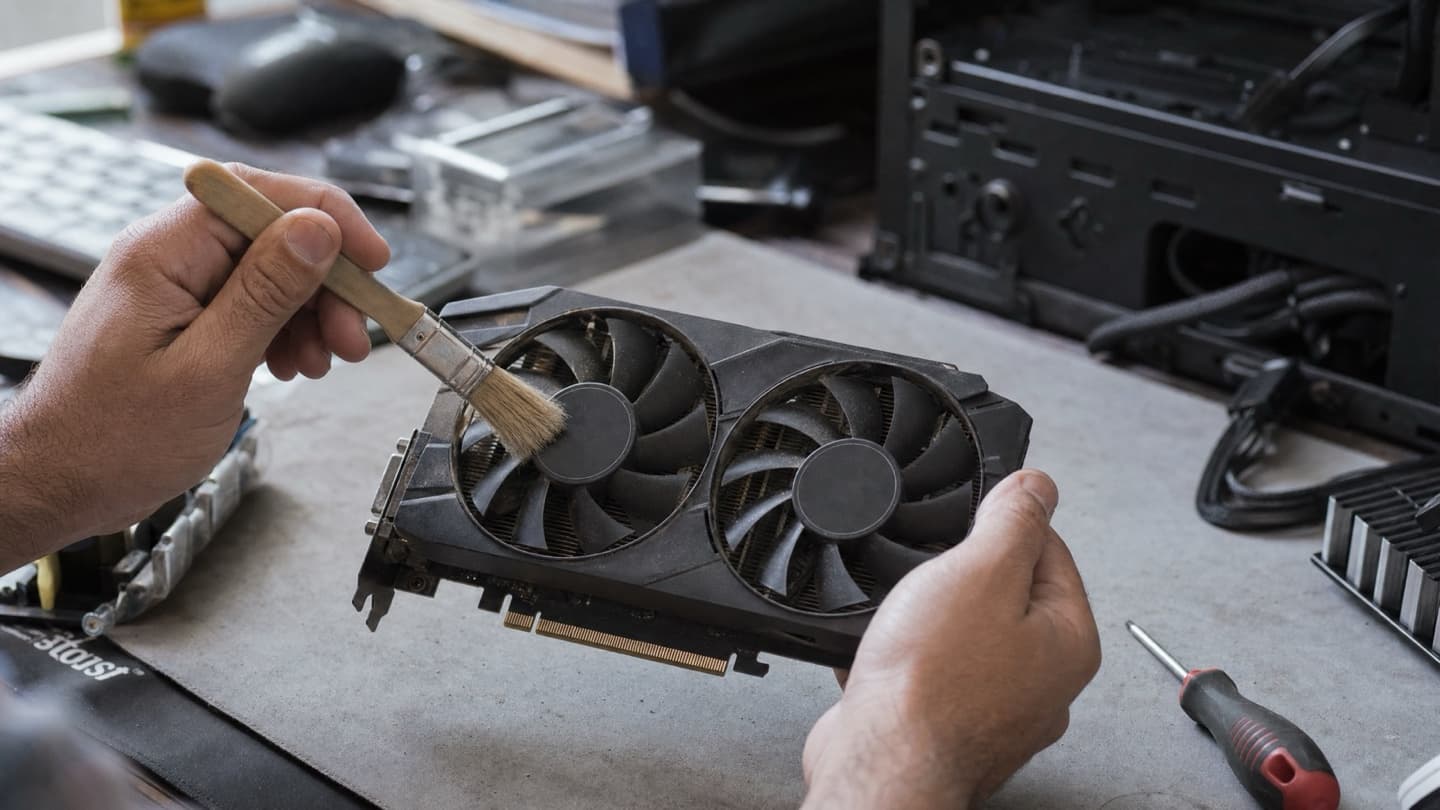
Dust is the first. Fans and heatsinks pack full of it over a year or two, and it chokes airflow. Homes with pets fill up faster. A clogged card runs ten to twenty degrees hotter than a clean one for no other reason.
Dried thermal paste is the second. The paste between the chip and its cooler goes hard and stops moving heat after a few years. Fresh paste on the CPU, and repaste on an older GPU, brings temperatures back down noticeably.
Grab a free tool like HWiNFO or MSI Afterburner and watch your GPU and CPU temperatures while you play. If the card sits up near 85 C and the CPU is pushing past 90 C when the frames drop, heat is your answer. A cleaning and fresh paste is the fix, not a new card.
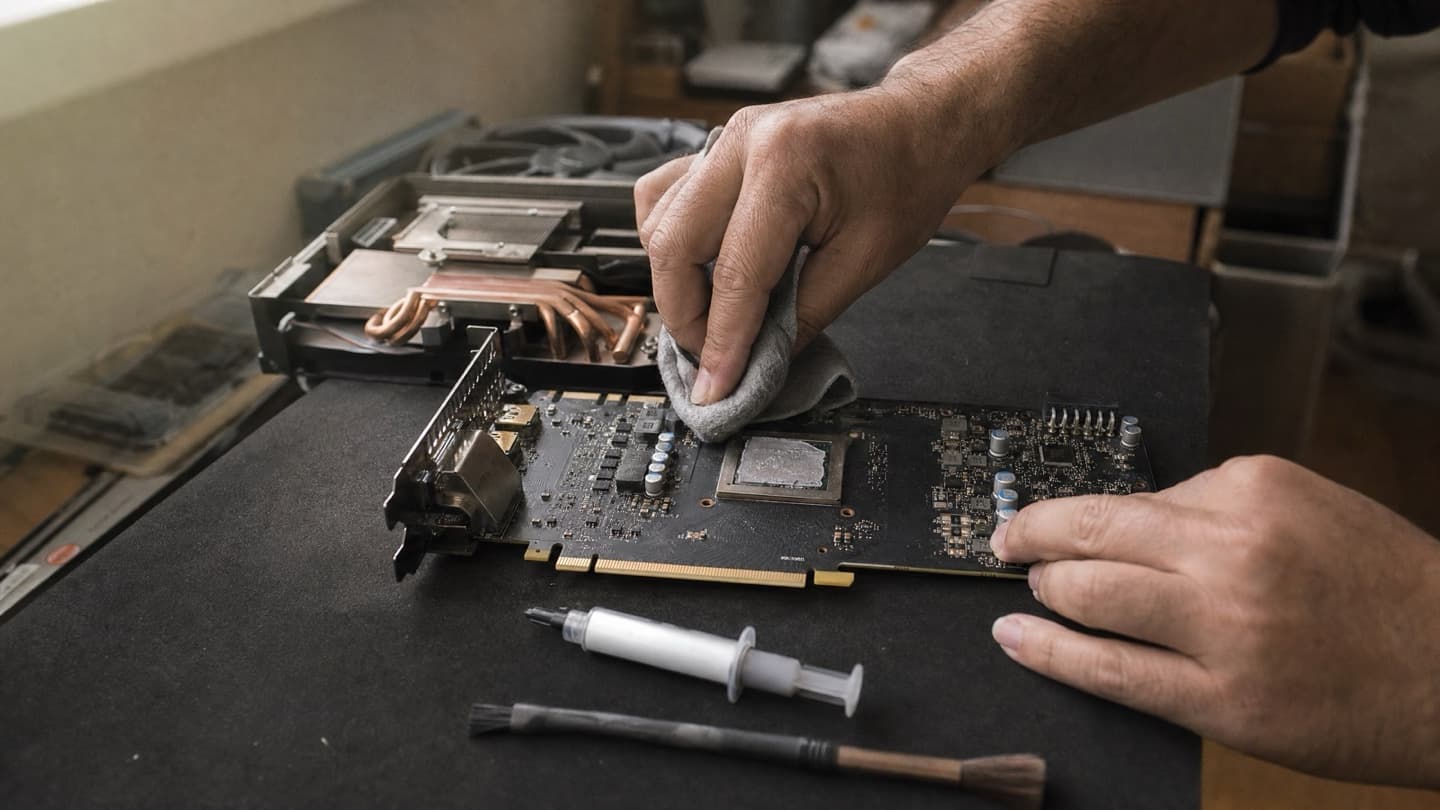
A PC that powers off mid-game is protecting itself from heat. Every session you push through it is stress on the card and CPU. Clean it out or get it looked at before you keep gaming on it.
Drivers
Graphics drivers cause more stutters and crashes than people expect, especially right after a big game update or a Windows update.
Get them from the source, not from Windows Update, which is usually behind. Go straight to Nvidia, AMD, or Intel and grab the current driver for your exact card. If a recent driver made things worse, a clean reinstall with DDU (Display Driver Uninstaller) between versions clears out the leftovers that cause trouble.
If your crashes started the same week as a driver update, roll back to the previous version and see if it settles. That alone solves a lot of "suddenly unstable" cases.
Power
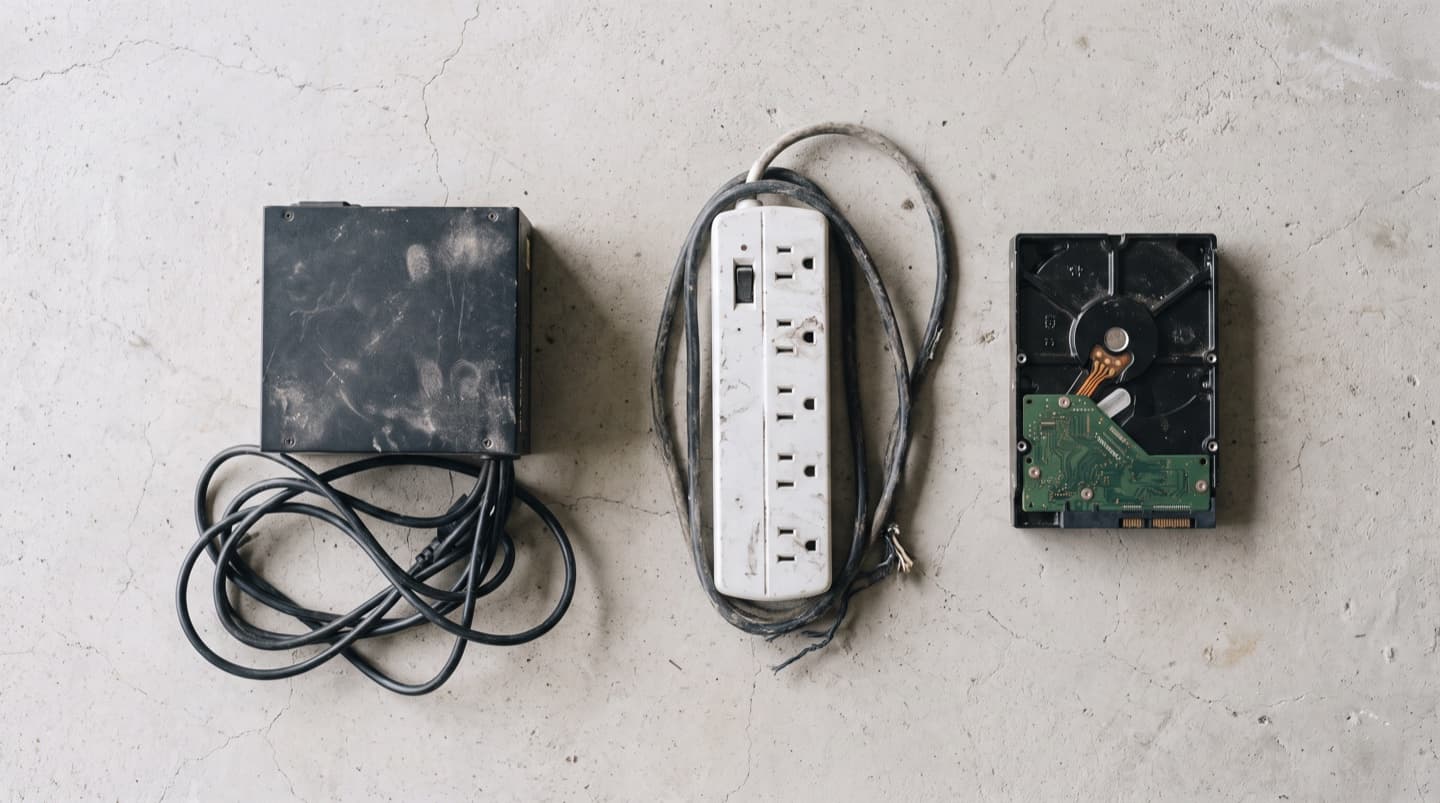
The power supply is the part people forget, and a weak one causes the ugliest symptoms: instant black screens, reboots with no warning, crashes that only hit during the most demanding moments.
Modern graphics cards pull hard and pull in spikes. If your supply is old, cheap, or barely rated for the card, those spikes are more than it can hand over, and the system drops to protect itself. Adding a hungrier GPU to a system with the original budget supply is a classic way to trigger this.
You can't fix a marginal power supply by tweaking settings. It needs the right wattage and a decent unit. If your crashes are the sudden-reboot kind and the temperatures look fine, this is where to look. And if the machine reboots on its own outside games too, the computer keeps restarting guide covers the wider diagnosis.
RAM
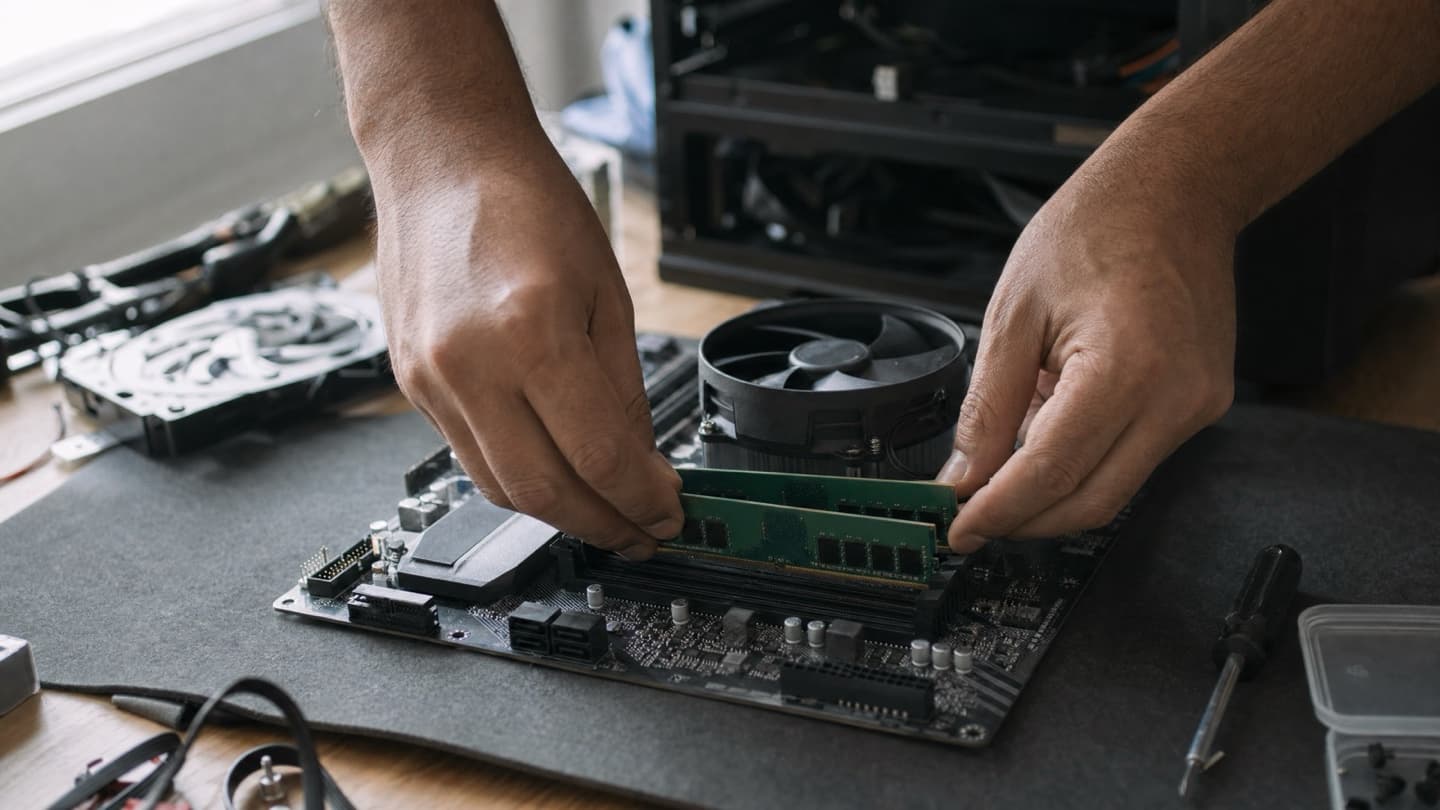
Not enough memory shows up as stutter and hitching, particularly if you game with a browser, Discord, and a dozen other things open. Modern titles ask for 16 GB as a floor now, and heavier games are happier with 32 GB.
Open Task Manager, click Performance, and watch Memory while you play. If it's pinned near 100 percent when the game hitches, you're out of headroom. A RAM upgrade is cheap and makes an immediate difference here.
Random freezes and crashes with no clear pattern can also be a genuinely faulty stick. Windows has a built-in Memory Diagnostic, or MemTest86 for a thorough check. Worth a run if nothing else adds up, and the computer freezing randomly guide goes deeper on that kind of no-pattern lock-up.
A slow drive feeding the game
If textures pop in late, levels take forever to load, or open-world games stutter as you move through them, the storage might be the bottleneck. A game living on an old spinning hard drive can't feed data fast enough.
Moving that game to an SSD fixes loading times and a lot of the traversal stutter. It won't raise your average frame rate, but it smooths out the hitches that come from waiting on the disk.
The quick pass, in order
- Watch GPU and CPU temperatures while you reproduce the crash. Heat is the most likely single cause.
- Note the timing. Slow fade in frames means heat. Instant black-screen reboot means power.
- Update graphics drivers from Nvidia, AMD, or Intel directly. Roll back if a recent one broke things.
- Clean out the dust and, on an older machine, refresh the thermal paste.
- Check RAM usage in Task Manager and move games off any old hard drive onto an SSD.
What most people get wrong
The instinct is to blame the GPU and start pricing a new one. In practice, the card is usually fine. It's overheating because it's caked in dust, or it's being starved by a weak power supply, or a driver went sideways. Sorting the real cause is almost always cheaper than a new card, and often it's a cleaning and a repaste.
Sorting the real cause is almost always cheaper than a new card, and often it's a cleaning and a repaste.
If you've been through the list and it's still crashing, or you'd rather not open the case yourself, we can find out what's actually wrong. Any part comes with one price agreed before work starts, and if the honest answer is that a part isn't worth replacing on your setup, we'll tell you that.
We'll check temperatures, power, and drivers, then tell you exactly what's causing it and what the fix is worth before you buy a single part.
Common questions
Because games push heat and power draw far past normal use. That extra load exposes overheating, a weak power supply, or a marginal driver that everyday tasks never stress.
Almost certainly thermal throttling. The card or CPU hits its heat limit and slows itself down. Check temperatures while you play, then clean out dust and refresh thermal paste.
That pattern usually points at the power supply, especially if temperatures look fine. A weak or undersized unit can't deliver the spikes a modern card demands under load.
Not your average frame rate. It does fix long load times and the stutter that comes from an old hard drive feeding the game too slowly, which feels smoother in open-world titles.
Usually not. Overheating, dust, a tired power supply, or a bad driver cause most crashes. Rule those out first, and get the card properly tested before you spend on a new one.