A dead or damaged screen makes an otherwise fine computer useless, which is why it feels urgent. But "the screen is broken" covers a lot of different problems, and some of them aren't the screen at all. Here's how to read what your display is actually doing, on a laptop or an external monitor, and what's worth fixing versus not.
- Plug into a second display first. It decides half of these cases in one test.
- Cracks and ink-blots mean a new panel. You can't repair a cracked LCD, only swap it.
- A black screen with the computer clearly running is often the backlight, not the panel.
- Laptops need a matched panel; external monitors are often a board fault, not the screen.
- A free diagnosis tells you whether the fix is worth it before you spend anything.
The screen isn't always the problem
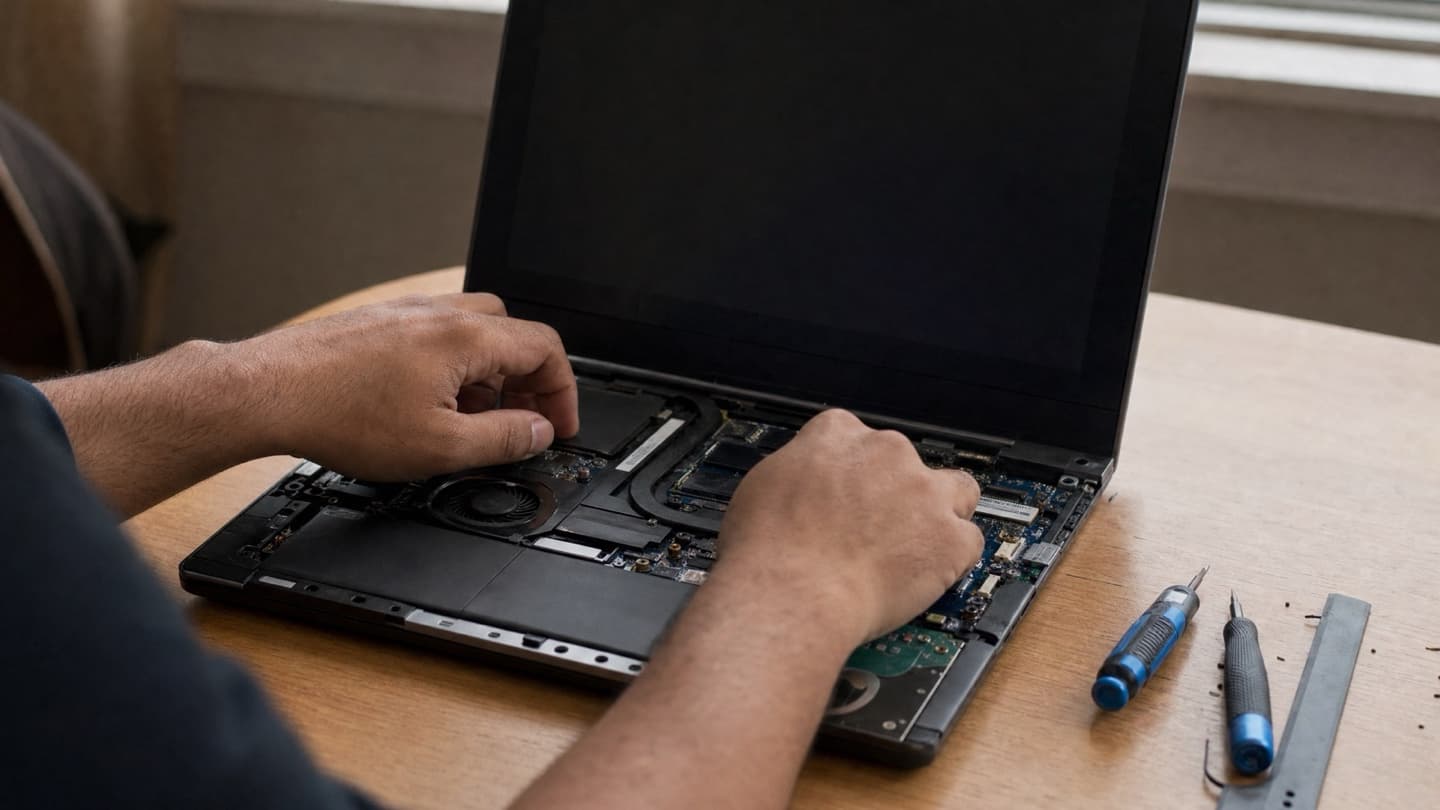
This trips up a lot of people, and it's worth understanding before you pay for anything. Plenty of "broken screen" calls turn out to be something behind the screen: a loose display cable, a failing graphics chip, a backlight that's gone while the panel's fine, or a computer that isn't booting at all and so has nothing to show.
The quick way to narrow it: plug into a second display. On a laptop, connect an external monitor. On a desktop, swap the monitor or the cable. If a known-good screen shows a clean picture, the screen you were worried about (or its cable) is the culprit. If the second screen is also blank, the trouble is upstream in the computer, and no new panel fixes that. That one check decides half of these cases.
What your screen is doing, and what it means
Screen problems fall into a handful of patterns. Here's how to tell them apart.
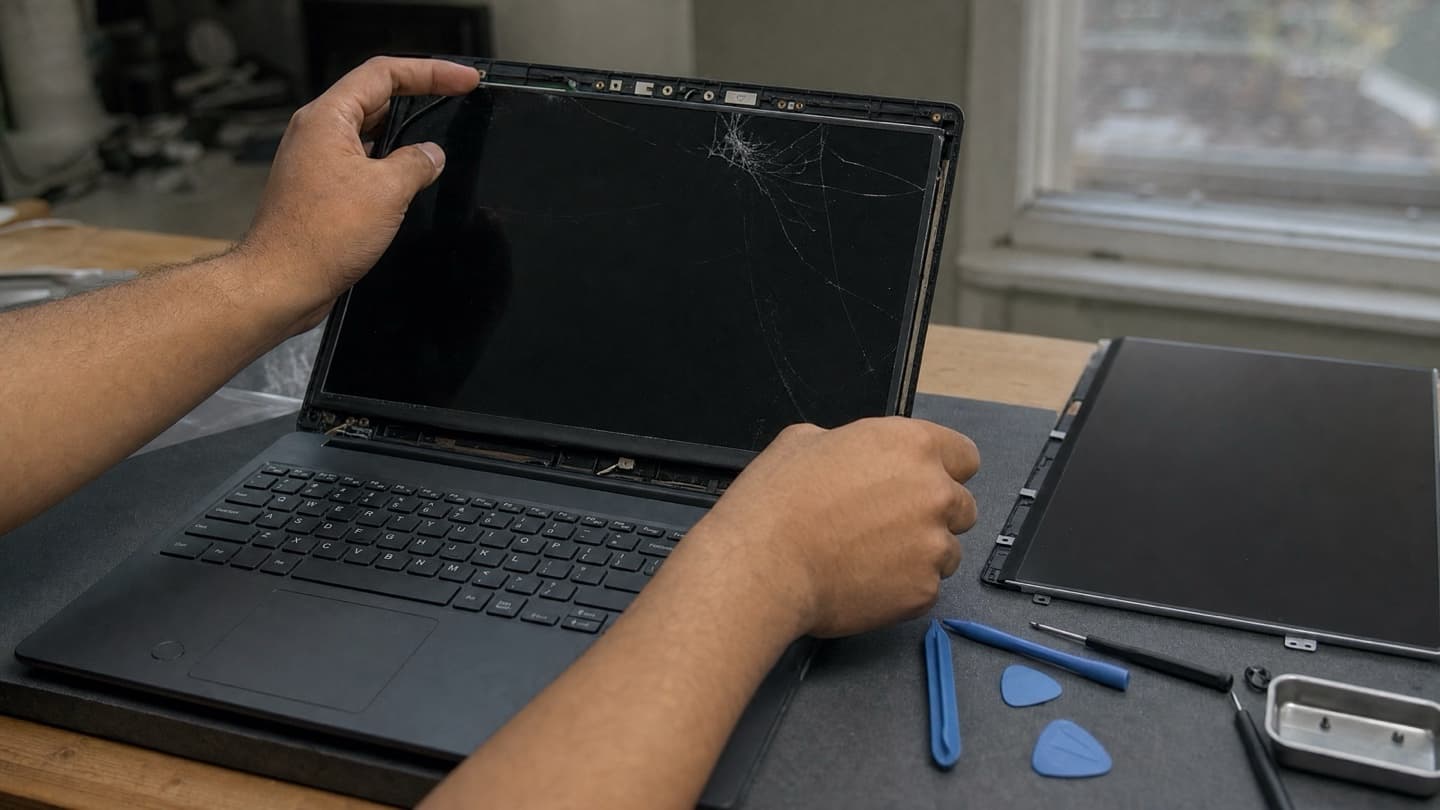
Cracks and ink-blots. The obvious one, and almost always physical. A cracked laptop panel, a spreading black or rainbow bloom, a shattered image. The LCD is done and gets replaced. You can't repair a cracked panel, only swap it.
Flickering. Could be the panel, could be a loose ribbon cable behind it, could be a refresh-rate setting or a driver. Because the causes range from a free software tweak to a new panel, this is one you test before you replace.
Black screen with the computer clearly running. Fans going, sounds playing, no picture. That's the backlight, the panel, the cable, or the graphics, in some order. A dead backlight is a favourite here: shine a flashlight at the screen at an angle, and if you can just make out a faint desktop, the panel's alive and the backlight isn't.
Dead or stuck pixels. Dead ones sit black. Stuck ones glow a fixed red, green, or blue. A couple of stray pixels usually isn't worth fixing and often isn't fixable short of a new panel. A growing cluster means the panel's failing and replacement's on the table.
Dim display. If the picture's there but faint, the backlight's fading. On modern laptops that's a panel job. On some older laptops it's an inverter, which is a smaller fix.
Lines through the image. Vertical or horizontal lines usually mean an internally cracked LCD, a bad cable, or a graphics fault. The external-monitor test sorts hardware from the rest. Lines that show on the second screen too point at the graphics, not the panel.
If your laptop screen is cracked but the picture's still fine, don't leave it. The glass is the outer layer. The LCD underneath is what shows the image, and pressure through the crack can push it from working to dead ink creeping across the display. Much cheaper to handle while it still lights up.
Laptops and monitors aren't the same job
They break differently and they get fixed differently.
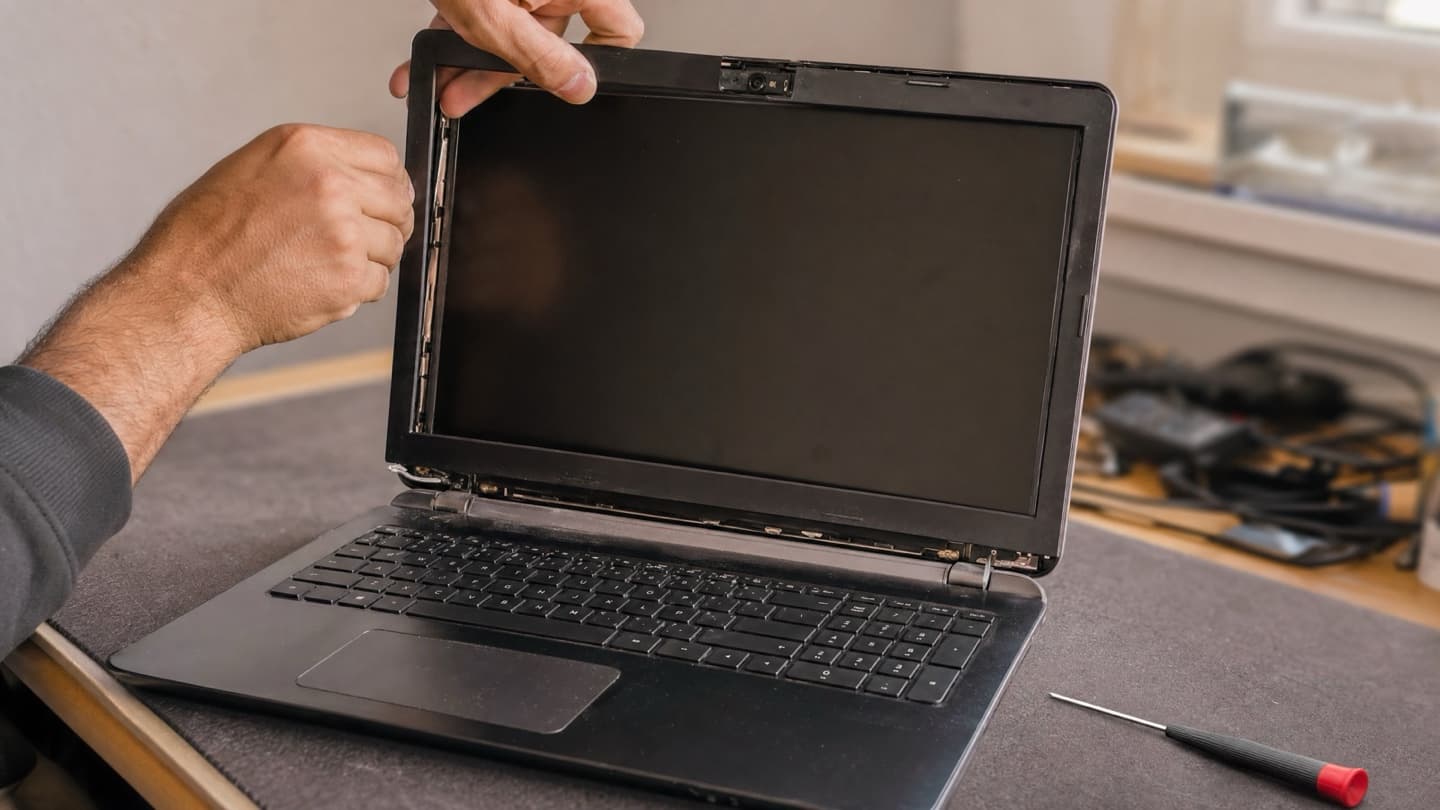
On a laptop, the screen is a bonded part of the lid, so most fixes mean replacing the whole panel, matched to your exact model. Cracks, lines, backlight failure, dead panels, that's usually a panel swap.
On an external monitor, it's a standalone box with its own power board and controller. A monitor that won't turn on or flickers is often a bad board or power stage rather than the panel, and sometimes that's repairable without touching the display. But because a plain monitor is cheap to replace, the fix only makes sense when it's a nicer one, a big high-refresh gaming screen or a colour-accurate display, where a new panel or board beats buying another.
Touchscreens are their own thing again. The touch layer, the digitizer, is often separate from the display, so sometimes only that's replaced. On bonded assemblies the whole unit goes together. MacBooks and other laminated Retina-style displays are the specialist end, pricier parts, more careful work.

What's actually worth fixing
Not every damaged screen is worth repairing, and the point of a diagnosis is to tell you which side of the line yours is on.
Worth fixing, as a rule:
- The device is reasonably current, under five years or so.
- The damage is the screen only, and the rest of the machine is healthy.
- The repair is a sensible fraction of what the device is worth.
Lean toward replacing the device when:
- The repair gets close to the cost of a decent new one.
- There are other problems piling up, a tired battery, a failing drive, general slowness.
- It's an old cheap monitor, where a new one costs about the same as the fix.
That last calculation is the whole game, and it's why a free diagnosis matters more than a price list.
We check whether it's genuinely the screen, tell you what the fix runs, and say plainly if it isn't worth it. We'd rather tell you to save your money than sell you a repair that doesn't make sense. For laptop and computer screens specifically, our screen repair page has the detail.
We run the second-display test, tell you whether it's the screen, the cable, or the backlight, and give you a flat quote before any work. Diagnosis is free.
Getting a screen looked at in Calgary
We're mobile across Calgary and the towns around it, so this can happen at your place or ours. Diagnosis is free, and you get a flat quote before any work. Tell us the make and model and what the screen's doing, and we'll tell you whether it's the panel, the cable, the backlight, or something behind all three, before you spend anything.