Wi-Fi that drops mid-call or mid-game doesn't need a lecture on how routers work. You want it to stop. So here's a fix-it list you can run top to bottom, ordered on purpose: fastest and most likely first, bigger jobs last. Do them in order and stop when it's fixed.
- Restart the router first. It clears more drops than anything else, and it takes 30 seconds.
- Figure out whether one device drops or all of them. That single question decides where to look.
- Most fixes here are free: restart, reposition, update firmware, change the Wi-Fi channel.
- Buying a mesh system or replacing the router is the last resort, not the first move.
1. Restart the router (and the modem)
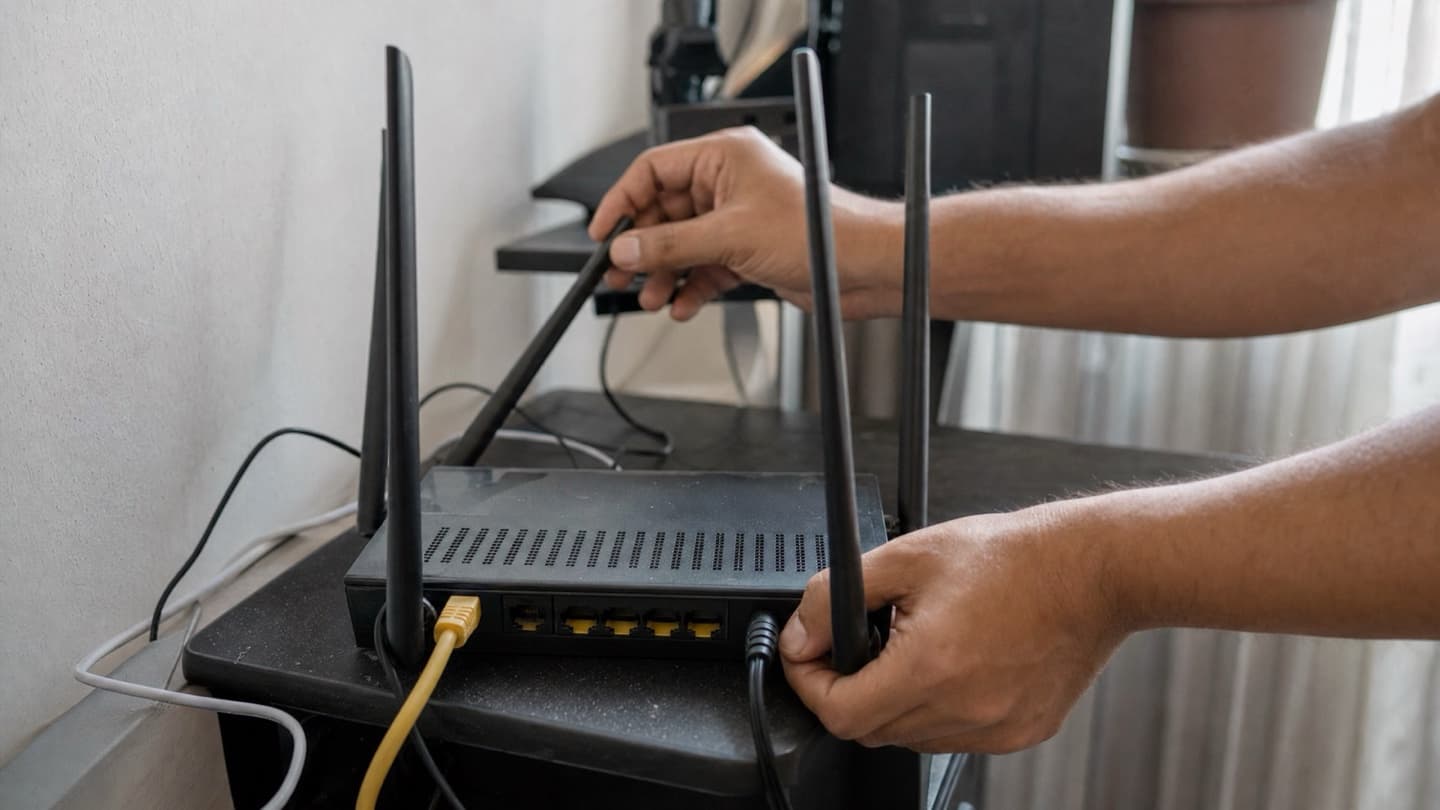
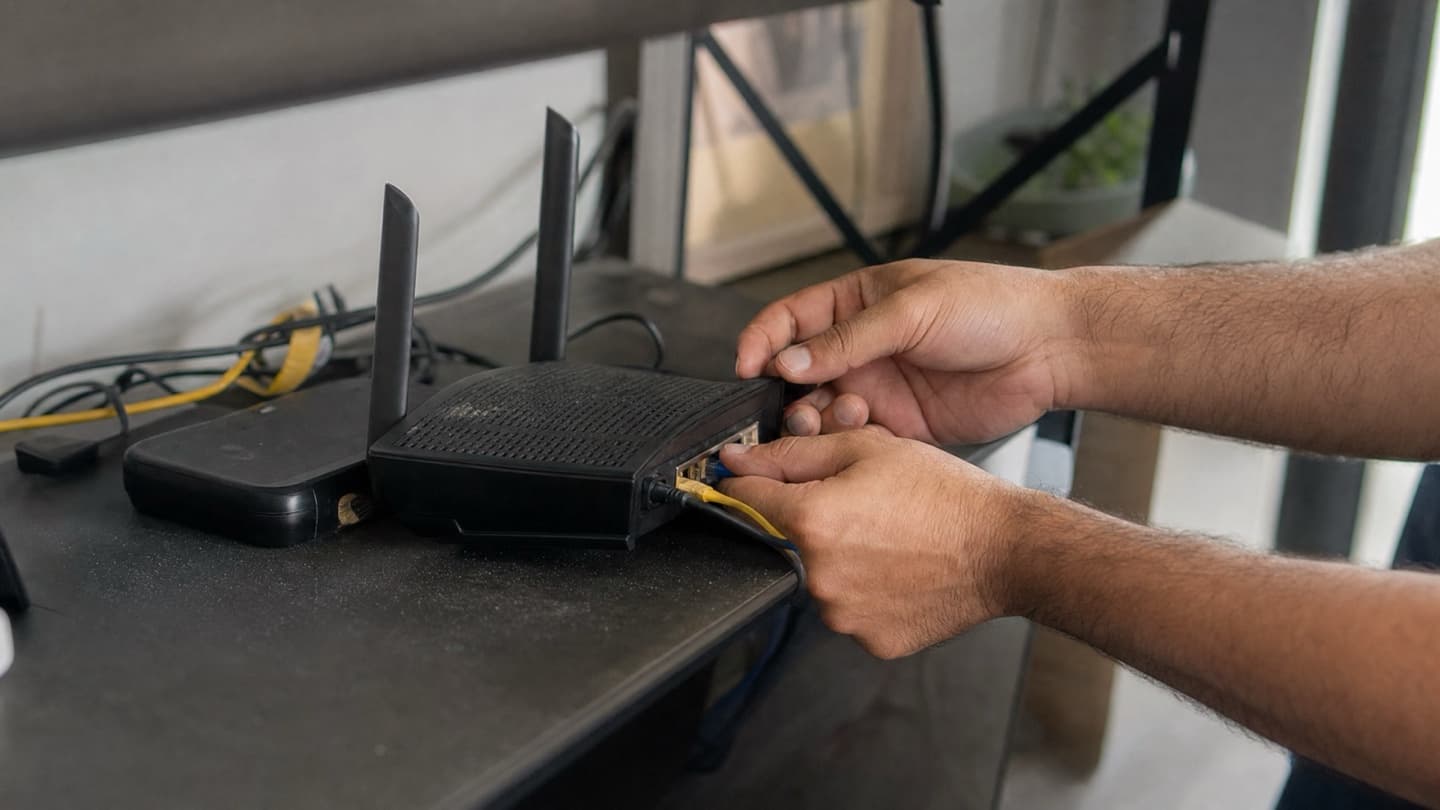
Unplug both, wait 30 seconds, plug the modem back in first, wait for its lights to settle, then the router. Give it a couple of minutes. This is the single most effective thing on the list, which is why it's first. A router that's been running for weeks fills up and starts dropping devices, and a cold restart clears it out.
If this fixes it but the drops come back within a few days, note that. It points at aging hardware, which is step 7.
2. Work out if it's one device or all of them
This is the most useful minute you'll spend. Look at whether the whole house drops or just one gadget.
- One device drops, the rest are fine. The problem is on that device, not your network. Skip to step 6.
- Everything drops at once. It's the router, modem, or your internet provider. Keep going in order.
Do this before you change anything else. It stops you fixing the router when the actual problem is a laptop.
3. Move the router, or move the device closer
Signal weakens with distance and dies through walls. If the drops always happen in the same room, that room is a dead zone, not a hardware fault.
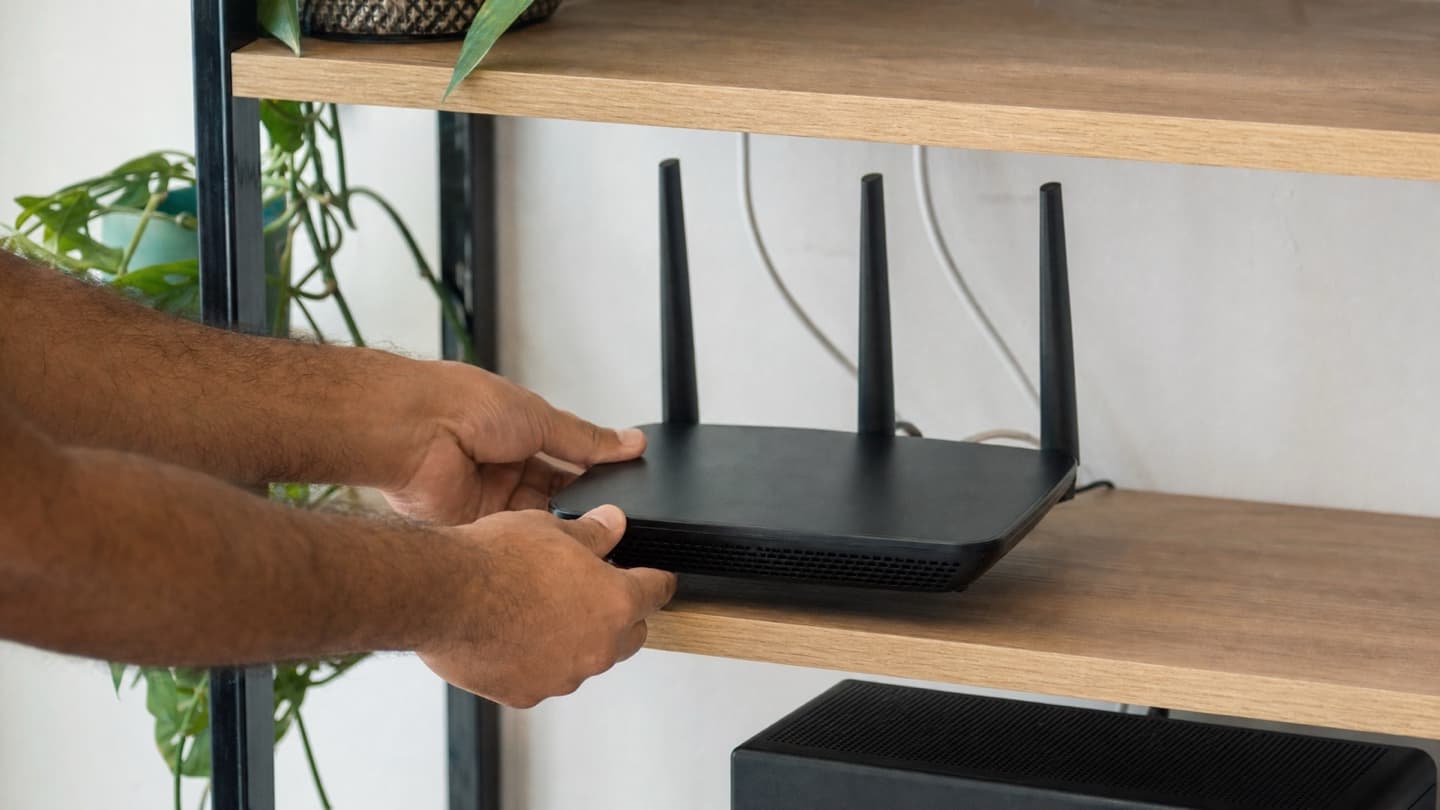
Get the router up off the floor, out of cabinets and closets, and somewhere central and open. Not the basement corner, not behind the TV. Higher and more in the middle of the house covers more of it. If you can't move the router and one far room is always the problem, that's your sign you need a range extender or a mesh node out there.
4. Switch to the 5GHz network
Most routers broadcast two Wi-Fi networks, one ending in something like "-5G." That 5GHz band is much less crowded than the older 2.4GHz one, so it drops far less often for anything reasonably close to the router. The trade-off is it doesn't travel as far. For devices in the same room or nearby, connect them to the 5GHz network and a lot of interference-related drops just stop.
If your router settings let you pick the Wi-Fi channel, switch off "auto" and choose a specific one. In apartments and tight infills, everyone's stuck on the same few channels and they trip over each other. Moving to a quieter channel is a free fix for interference drops.
5. Update the router's firmware
Firmware is the router's own software, and manufacturers push updates that fix exactly this kind of stability bug. Log into the router (the address and password are usually on a sticker on the unit), look for a firmware or software update option, and run it. Some newer routers do this automatically through a phone app. It's a five-minute job that fixes a surprising number of nagging drops.
6. Fix the one device that keeps dropping
If step 2 told you it's a single device, here's where to look.
On a Windows laptop, the usual culprit is a power setting that switches the Wi-Fi adapter off to save battery, and it doesn't always wake back up. Open Device Manager, expand Network adapters, right-click your wireless adapter, choose Properties, open the Power Management tab, and uncheck Allow the computer to turn off this device to save power. While you're in there, updating the adapter's driver is worth a shot too.
On a phone or tablet, tell it to forget the network and reconnect from scratch. That clears a stored setting that's gone stale.
7. If it's still dropping, look at the hardware
You've restarted, repositioned, updated, and checked the device. If it's still going, the gear is probably the problem.
Routers wear out. Five or six years is a decent life, and past that they drop connections, slow down, and reboot on their own. If yours is that old, runs warm, and needs a restart every few days, it's near the end. And if you've got a big or awkwardly shaped place, a single router was never going to cover it no matter how new it is. That's what a mesh system is for: a few units spread around the house handing devices off cleanly as you move between them.
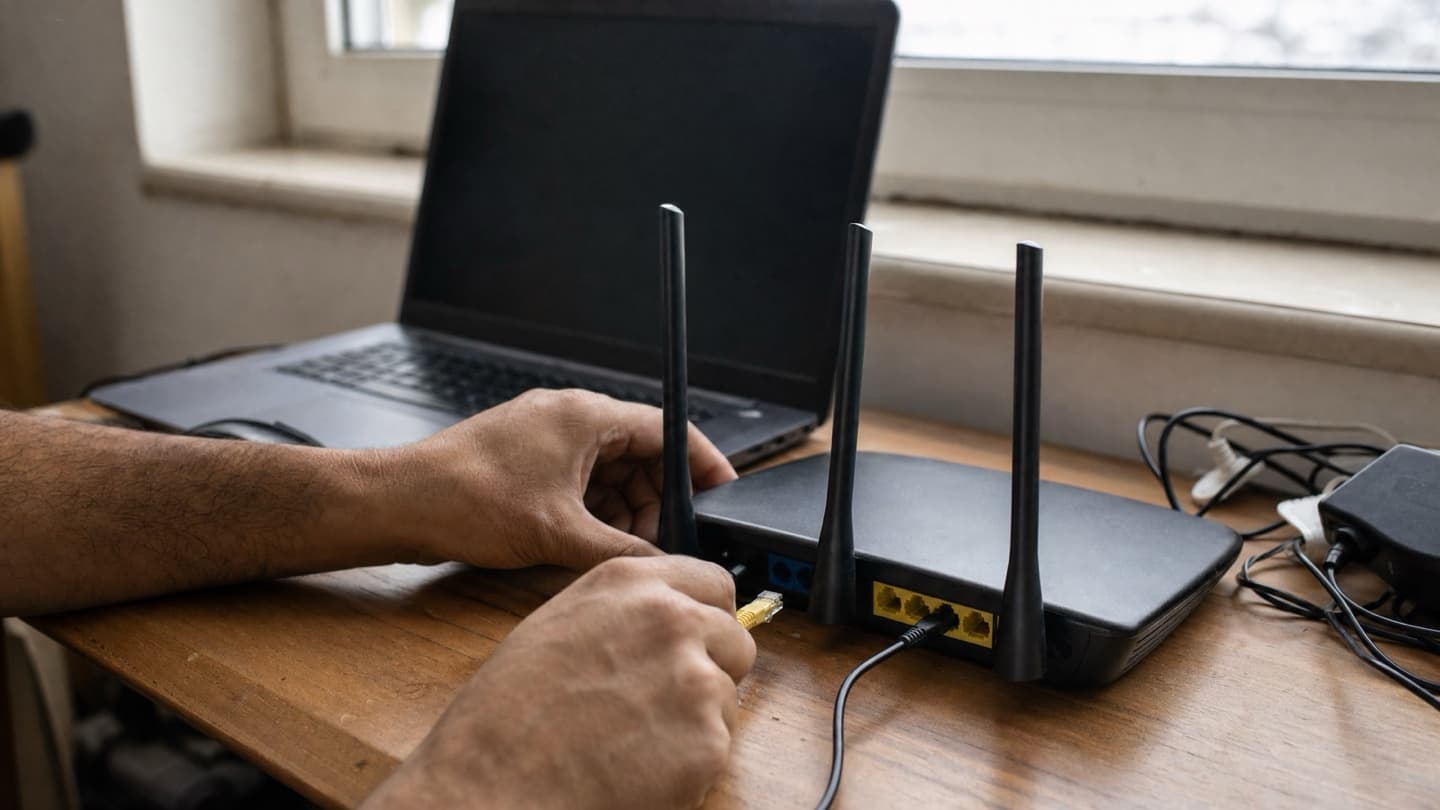
Before you buy anything, plug a laptop straight into the modem with an ethernet cable. If the connection still drops with the Wi-Fi out of the picture, the problem is the modem or the line coming into your house, and a new router won't help. Call your provider instead.
When it's worth calling someone
If you've run the whole list and it's still dropping, the answer is usually coverage or worn-out gear, and both are hard to judge by guessing. Somebody has to actually test where the signal falls off around your place and whether the router's still up to the job.
We measure the real signal room by room, sort out placement or set up mesh properly, and tidy the cabling on the way out.
Diagnosis is free and you get a flat quote before any work starts, so you'll know what it takes to fix it before you commit.
We come to you, measure the signal room by room, and either fix the placement or set up mesh so it covers the whole house. You'll know the cause before anything gets quoted.
If you'd rather stop fighting it, have a look at our Wi-Fi and networking help.