Your Windows 11 machine has slowed to a crawl and you'd rather not buy a new one. Good instinct. Most of what makes a PC feel slow is stuff you can turn off, clear out, or clean up in an afternoon, no new parts and no download-this-tool nonsense. Here are nine fixes we actually use, easiest first.
- Startup bloat and a nearly-full drive are the two things that slow most PCs down. Both take minutes to fix.
- Windows 11 needs headroom: leave the C: drive some free space and don't run it on empty RAM.
- If it's still slow after all nine, the drive itself is usually the culprit. That's a parts question, not a settings one.
1. Cut the startup apps
Every program that launches with Windows is fighting for your CPU and memory before you've even opened anything. Discord, Spotify, Adobe helpers, game launchers, cloud sync tools. Half of them you don't need running the second you sit down.
Open Task Manager (right-click the Start button), go to the Startup apps tab, and disable anything you don't need immediately at boot. Your antivirus and OneDrive can stay. Steam and Discord can wait until you actually open them.
This is the single fastest win. Reboot after and you'll feel it.
2. Free up space on the C: drive
Windows needs elbow room to breathe. Updates, temp files, and virtual memory all live on your system drive, and when it's nearly full everything gets sluggish and updates start failing.
Settings, then System, then Storage. Turn on Storage Sense so Windows clears temp files on its own. While you're there, run the cleanup recommendations it offers and uninstall the big apps you forgot you had. Aim to keep a decent chunk of the drive free, not scraping the bottom.
3. Turn off the eye candy
Windows 11's animations look nice and cost you a little responsiveness. On an older machine, turning them down makes menus and windows feel snappier right away.
Search "adjust the appearance and performance of Windows," pick "Adjust for best performance," then tick "Smooth edges of screen fonts" back on so text still looks fine. Everything else off.
4. Kill background apps you're not using
Some apps keep running and phoning home even when they're closed. Settings, then Apps, then Installed apps. Click the three dots next to an app, choose Advanced options, and set "Let this app run in the background" to Never for the ones that don't need it.
Weather, Xbox, random store apps, the stuff you never open. Leave anything you rely on for notifications alone.
5. Check what's actually eating the CPU
Back in Task Manager, click the CPU column to sort by usage. Sometimes one runaway process is chewing up everything. A stuck Windows update, a browser tab gone rogue, some updater checking for updates on a loop.
If you don't recognize a process, look it up before you kill it. Ending the wrong system process can crash Windows or a program you had open.
6. Trim your browser
For a lot of people the "slow PC" is really a slow browser. Twenty tabs open, a pile of extensions, each one holding memory.
Close the tabs you're done with. Go through your extensions and remove the ones you don't use, especially toolbars and "coupon" or "shopping" helpers. Clear the cache now and then. A browser restart once a day does more than you'd think.
7. Let Windows Update finish, then reboot
Right after a big update, Windows runs indexing and cleanup in the background, and it feels slow for a while. That's normal and it passes.
The fix is boring: let updates install fully, then restart properly. Settings, then Windows Update, install what's pending, reboot. A PC that's been "asleep" for three weeks straight instead of shutting down carries all that baggage forward. Give it a real restart.
8. Update your graphics driver
An outdated or generic display driver causes stutter, lag, and choppy video. Windows Update handles most drivers fine, but the graphics one is worth getting straight from the source: Intel, AMD, or NVIDIA's own site, matched to your card.
Skip the "driver updater" tools that promise to scan and fix everything. They're mostly junk, and some are worse than junk. Manufacturer site or Windows Update, nothing else.
9. Clean the dust out
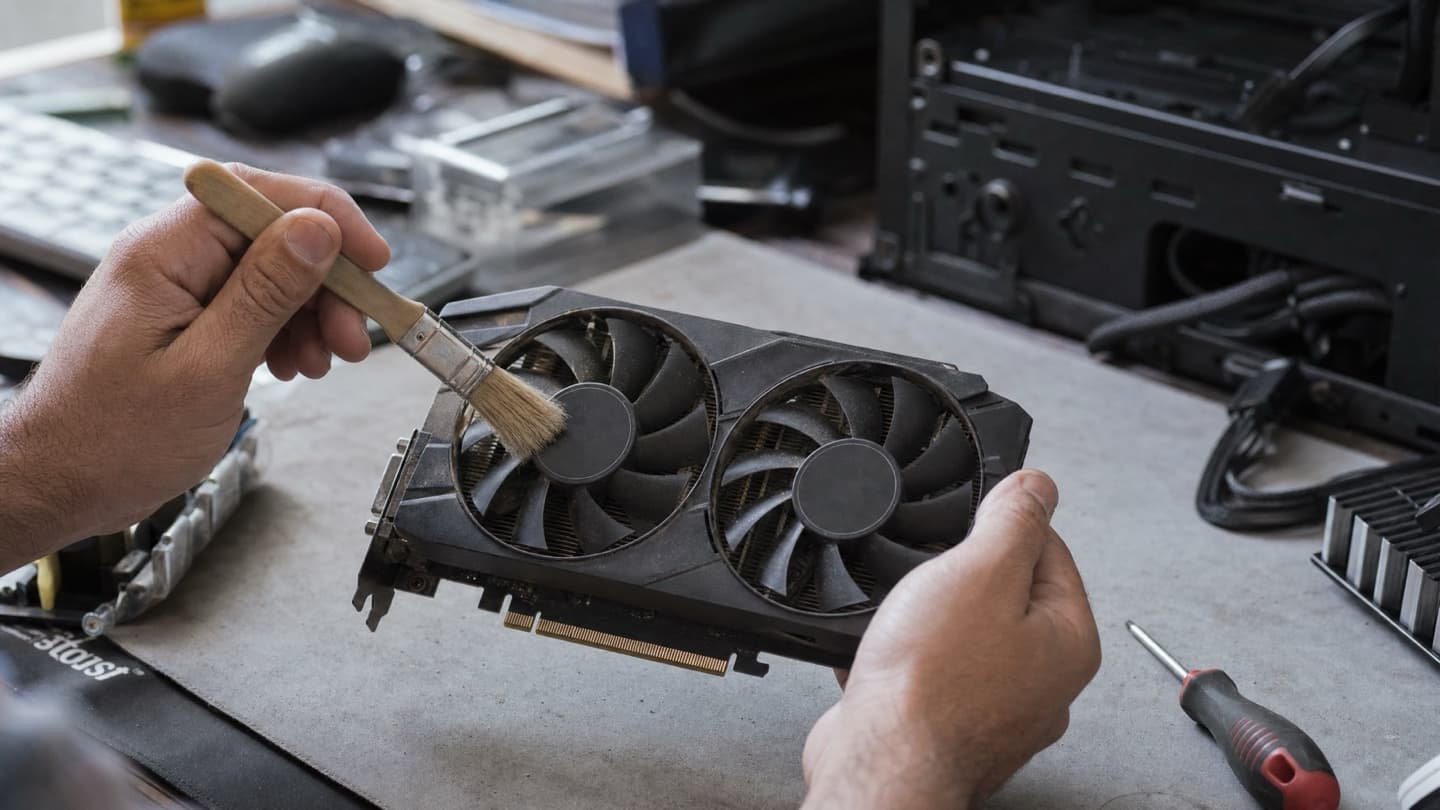
This one's physical. If your laptop fans are always roaring or the bottom gets hot, it's probably throttling itself to avoid overheating, and a throttled CPU is a slow CPU. Dust in the vents and old, dried-out thermal paste are the usual causes.
A can of compressed air on the vents helps. A proper clean and repaste helps more, and on a laptop it's fiddly enough that most people would rather hand it off.
Start with 1 and 2. They fix the most, cost nothing, and take ten minutes. Only work down the list if the machine still drags.
Still slow after all nine?
Then it's usually the hardware, not the settings. The two big ones:
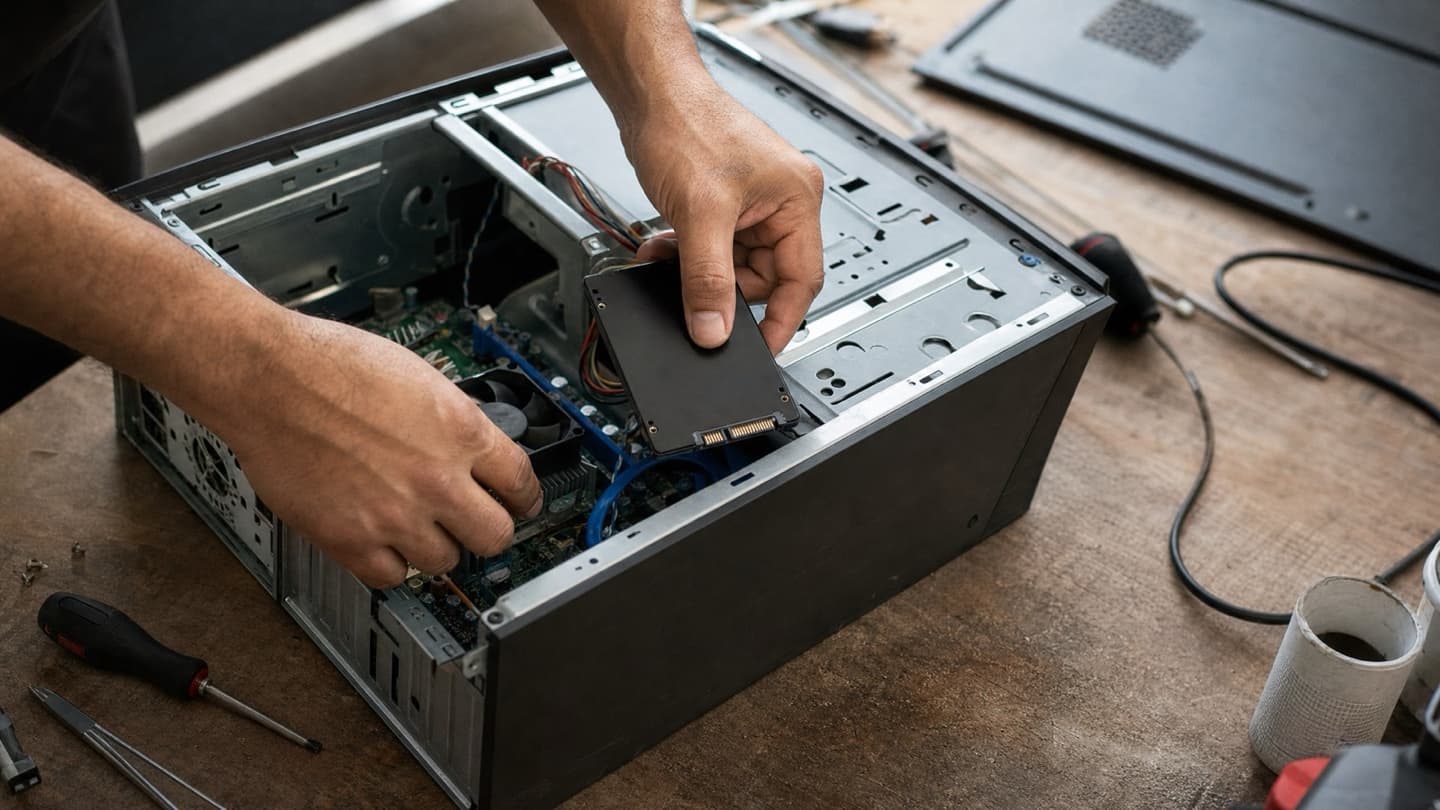
The drive. If your PC still runs on an old spinning hard drive, that's almost certainly your bottleneck, and no amount of tweaking fixes it. Swapping to an SSD is the single biggest speed jump an older machine can get. Boot times drop from minutes to seconds. If you want the detail, we wrote up the SSD side of this separately.
Swapping to an SSD is the single biggest speed jump an older machine can get.
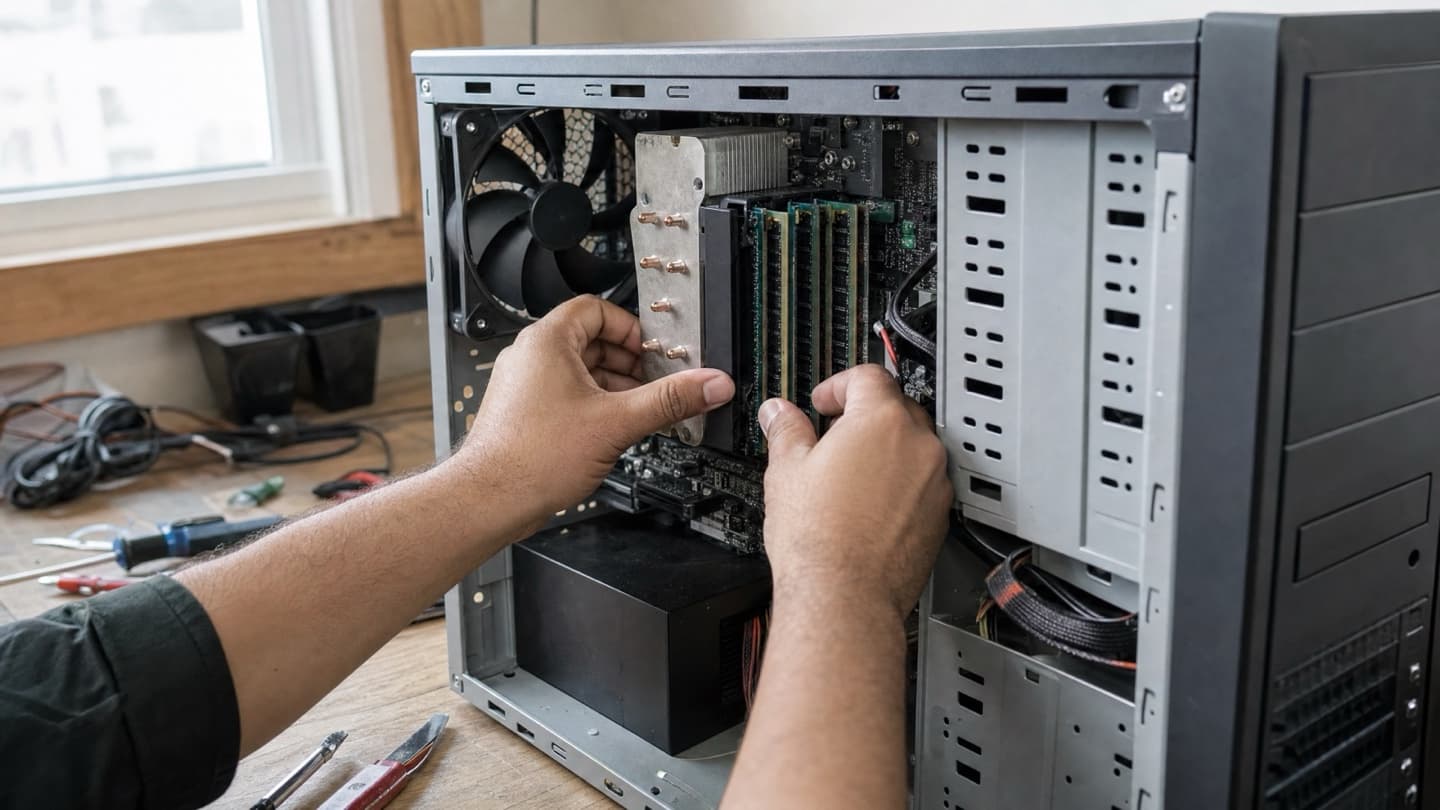
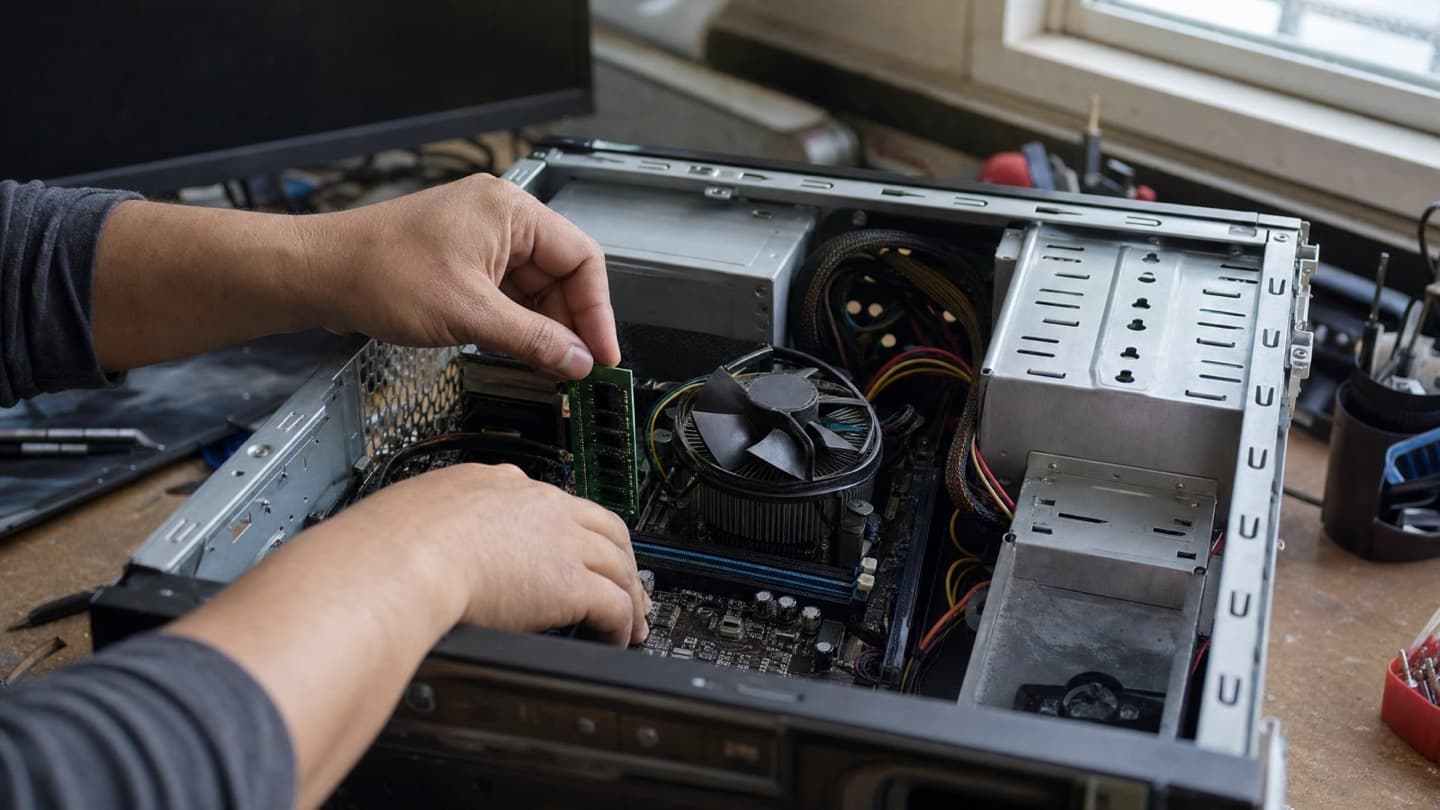
The memory. If you're sitting on 8 GB and constantly juggling browser tabs and a couple of apps, you'll feel it. 16 GB is the comfortable spot for Windows 11 now. We got into how much RAM you actually need if you're not sure.
Both are cheap upgrades relative to a new computer, and both make a years-old machine feel new again.
We'll tell you what's actually slowing your machine down before you spend a cent. Diagnosis is free.
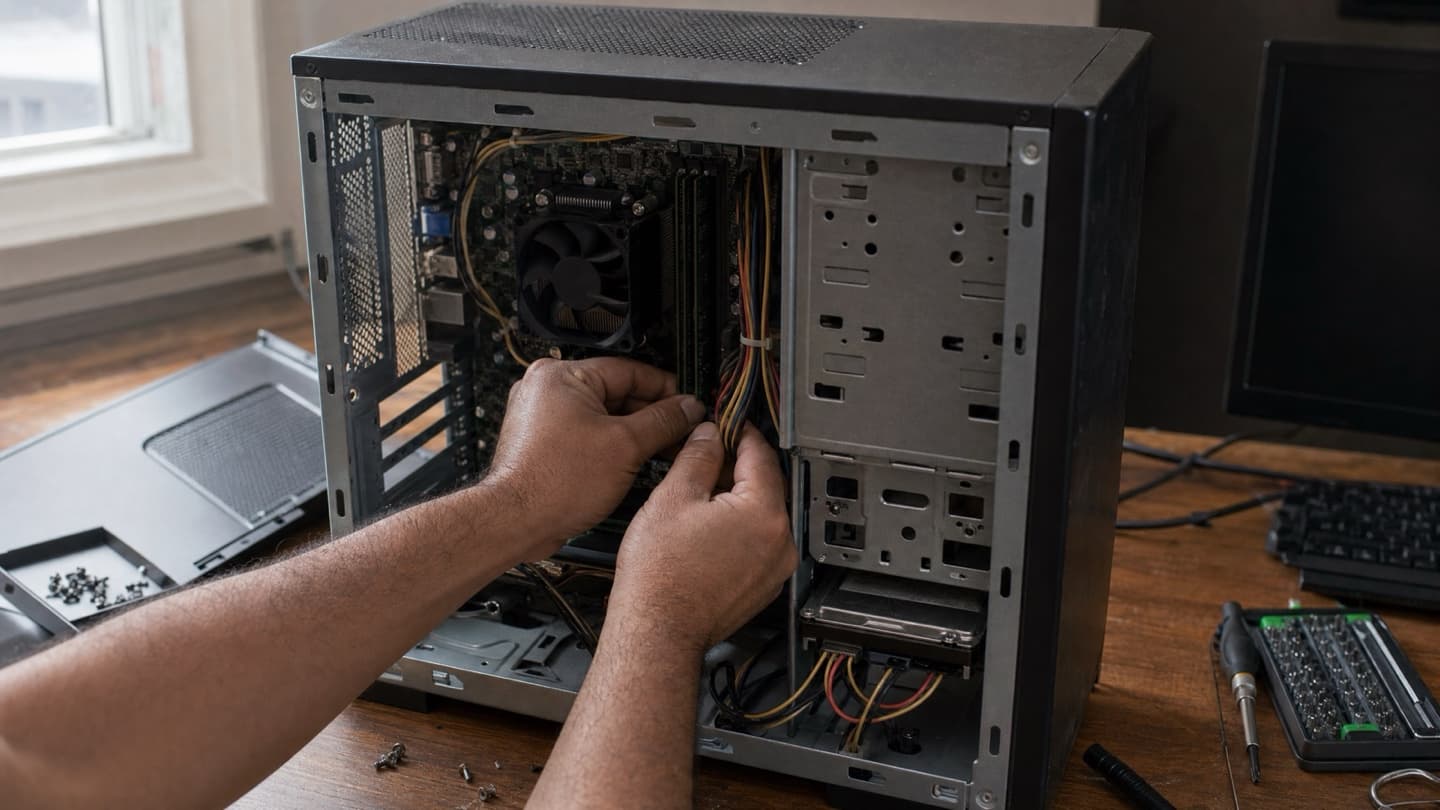
If you've run through the list and something still feels off, crashes, random freezes, a drive making noises it shouldn't, that's worth a proper look. Our hardware and upgrades service exists for exactly the "it's slow and I've tried everything" case, and we'd rather tell you the fix is one cheap part than sell you a whole overhaul you don't need.