
Your phone nags you when its battery is tired. Your laptop mostly doesn't. It quietly keeps a record of how much charge the battery can still hold compared with the day it was new, and unless you go looking, the first sign you get is a machine that dies at 30 percent in the middle of something. The numbers are free to read on both Windows and Mac, and they settle the question of whether you need a new battery or something else is eating your charge.
- Every laptop tracks two capacities: what the battery was designed to hold and what it holds now. The gap between them is the wear.
- On Windows, one command builds a full battery report. On a Mac, it's two clicks in System Settings.
- Around 80 percent of original capacity is the usual point where people start noticing, and where Apple rates its batteries as consumed.
- A healthy battery that drains fast is a software or heat problem. A new battery won't fix it.
- A swollen battery is a different situation entirely. Stop charging it and get it out.
What "battery health" actually means
A lithium battery loses a little of its capacity every time it's used. That's chemistry, not a fault. The laptop keeps track of it as two numbers:
- Design capacity is what the battery held when it left the factory.
- Full charge capacity is what it holds now when the laptop says 100 percent.
Divide the second by the first and you have the battery's health. A laptop that reads 100 percent on the screen but has a full charge capacity at 60 percent of design is giving you a little over half the runtime it used to. The percentage on the taskbar never tells you that, because it's a percentage of what's left, not of what it started with.
The other number worth knowing is the cycle count. One cycle is a full battery's worth of use, not one plug-in. Run it down by half today, charge it, run it down by half tomorrow, and that's one cycle. That's why a laptop that lives plugged in on a desk can have a healthy battery after five years while one carried to class every day is worn out in two.
How to check on Windows
Windows has a built-in battery report that almost nobody knows about. It takes about a minute.
- Right-click the Start button and open Terminal (or Command Prompt on older machines).
- Type
powercfg /batteryreportand press Enter. - Windows tells you where it saved the file, usually your user folder, as
battery-report.html. - Open that file in any browser.
Near the top, under Installed batteries, you'll find the two numbers that matter: Design capacity and Full charge capacity, both in mWh, plus the Cycle count. Further down, the Battery capacity history shows how full charge capacity has fallen over time, and Battery life estimates compares how long it lasts now with how long it lasted at design capacity.
Some laptops leave the cycle count blank. That's the manufacturer not reporting it, not a fault. The two capacity numbers are the ones to trust.
Many laptops come with the manufacturer's own support app, and most of those include a battery health check. If yours has one, it's worth a look alongside the Windows report. When the two disagree, the capacity numbers in the Windows report are the plainer evidence.
How to check on a Mac
Apple makes this easier. Open System Settings, click Battery in the sidebar, and look at Battery Health. It will say Normal, or Service Recommended when the battery holds noticeably less than it did new. Click the small info button beside it for more detail, which on recent Macs includes the maximum capacity as a percentage.
For the cycle count, hold Option, click the Apple menu, choose System Information, then Power under Hardware. Apple publishes the maximum cycle count for each model, and for every MacBook Air and MacBook Pro of the last decade or so it's 1,000 cycles. Apple designs its batteries to keep up to 80 percent of their original capacity at that point.
Reading the numbers honestly
Here's roughly what the health figure means day to day. These are general bands, not a manufacturer spec, and how much it bothers you depends on how you use the machine.
| Health | What it feels like | Worth doing |
|---|---|---|
| 90 percent and up | Close to new | Nothing |
| 80 to 90 percent | Shorter days, mostly unnoticed | Nothing yet, unless you rely on it unplugged |
| 60 to 80 percent | Noticeably shorter, sudden drops near the end | Replace if you carry it anywhere |
| Under 60 percent | Barely leaves the charger | Replace, or accept it's a desktop now |
The figure that should get your attention isn't on the table: a laptop that shuts off suddenly at 20 or 30 percent. That's a worn cell that can't hold its voltage when the machine asks for power, and it's a reliable sign the battery, not the laptop, is the problem.
When the battery isn't the problem
This is where checking first saves money. If the report says the battery is healthy and the laptop still drains fast, a new battery will drain just as fast. The usual causes are:
- A background process or browser tab keeping the processor busy
- Screen brightness turned up and left there
- A machine running hot because its vents are clogged, which burns charge and ages the battery faster
- A power plan set to maximum performance
Heat is the big one. A laptop that runs hot is spending charge on its fans and wearing its battery out at the same time. If yours sounds like a hair dryer doing light work, start with laptop overheating fixes before you buy anything.
The same logic applies to a laptop that says "plugged in, not charging". The battery is only one of four possible causes, along with the charger, the charging port and the charging circuit on the board, and the charger is the most common of those. Testing each one separately is the only way to avoid paying for a battery you didn't need. Not sure which you're dealing with? We'll test it before quoting anything, and it's no fix, no fee.
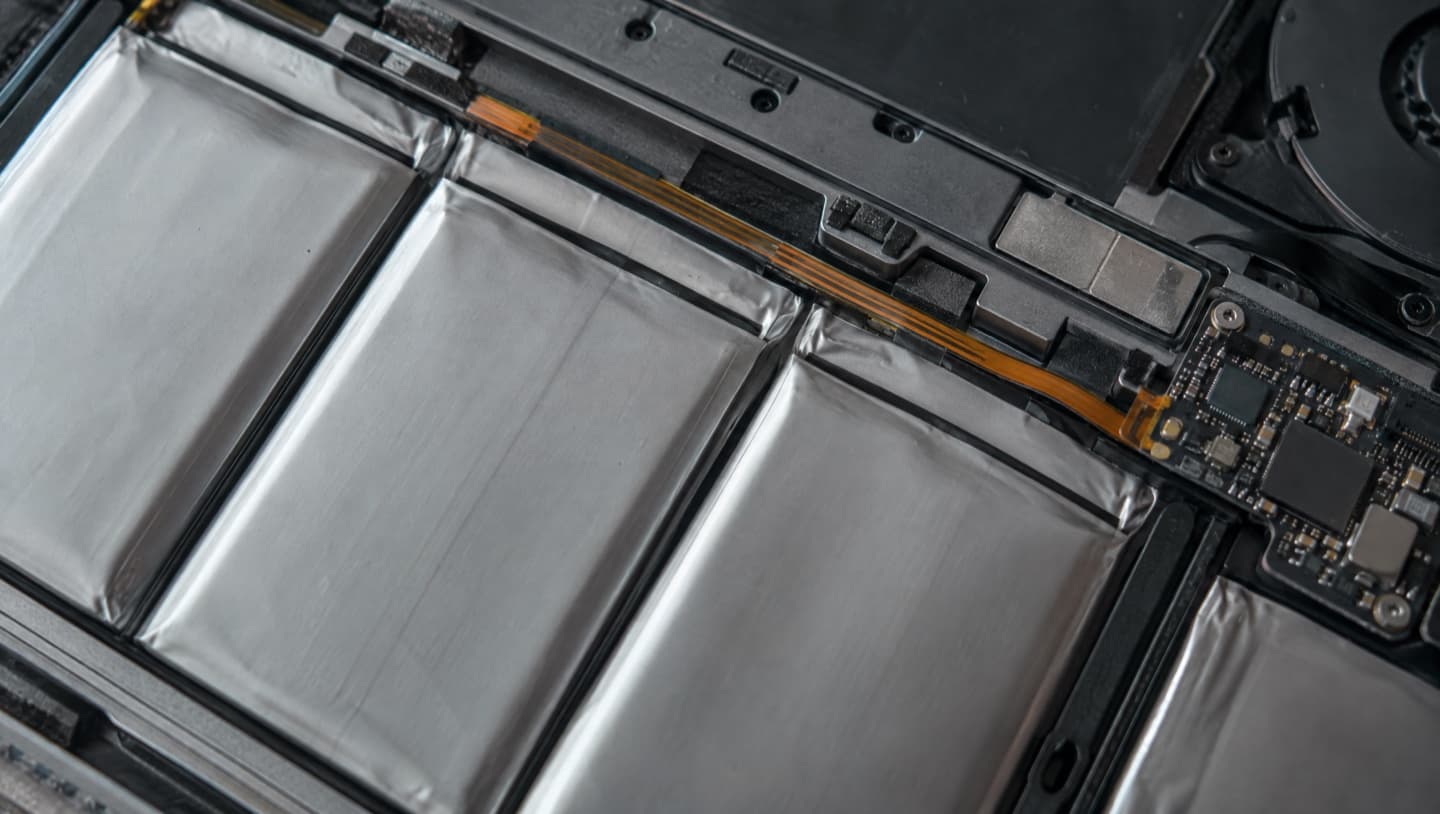
If the trackpad has lifted, the laptop rocks on a flat table, or the lid no longer closes flush, the battery is swelling. Stop charging it, shut it down, and keep it off beds and sofas. Don't press on it and don't try to prise it out yourself. A swollen lithium cell can vent or catch fire, and it's the one battery problem worth treating as urgent.
Is a new battery worth it?
Usually, yes, on a machine that's otherwise fine. A worn battery is one of the cheaper repairs a laptop can need, and it turns a laptop that has become a desktop back into one you can take to a meeting.
It's a harder call when the battery is one of several things going at once: a cracked hinge, a failing drive, a machine that was slow before the battery went. That's three repairs pretending to be one, and on an older laptop the honest answer can be that the money is better spent elsewhere. We'd rather tell you a repair isn't worth it than sell you one that isn't.
Two things to know before you buy one yourself:
- Cheap batteries are often cheap for a reason. A lot of very low-priced laptop batteries online are under-specified or missing their protection circuitry. In something that sits on your lap, that's a poor trade.
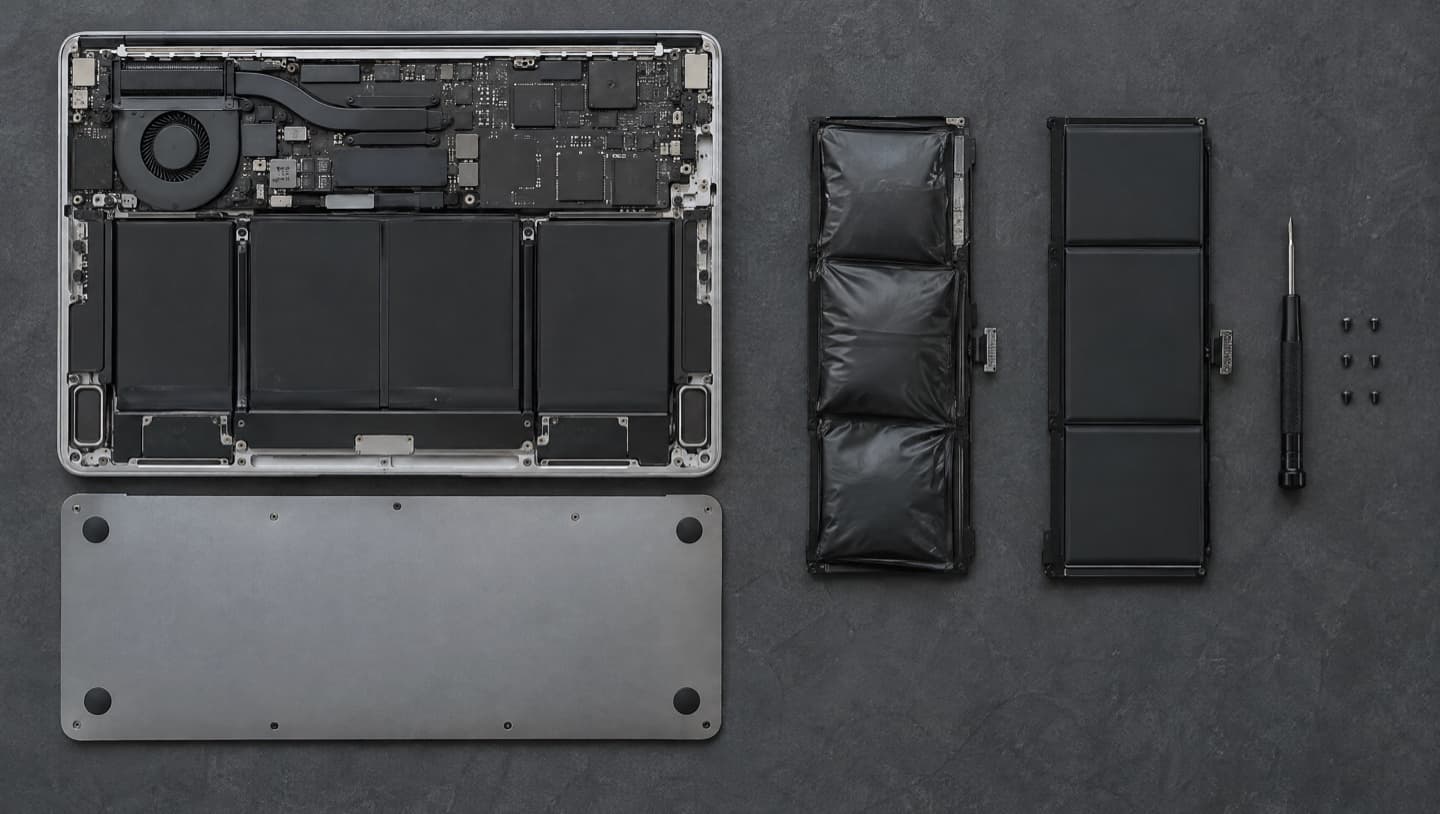
- Many modern batteries are glued in. Thin laptops, Surface devices and every recent MacBook have adhered batteries that need heat and patience to remove without puncturing them. It's bench work, not a screwdriver job.
Making a battery last longer
None of this is complicated, and it applies just as much to a brand new battery:
- Keep it cool. Heat ages a lithium cell faster than anything else.
- If the laptop mostly stays plugged in, turn on its charge limit setting if it has one. On a Mac, leave optimized battery charging switched on.
- Top up during the day rather than running it to zero.
- Skip the monthly "run it flat to calibrate" routine. That advice is left over from older battery chemistry and does modern cells harm.
Running it on a bed or a couch is the quiet killer. The fabric blocks the vents, the machine heats up, and both the battery and the processor pay for it.
Common questions
Open Terminal or Command Prompt, type powercfg /batteryreport and press Enter. Windows saves a battery report as an HTML file, usually in your user folder. Open it in a browser and compare the design capacity with the full charge capacity. The gap between them is how much the battery has worn.
Most people start to notice at around 80 percent of the original capacity, and that's the point Apple rates its batteries as consumed. Below about 60 percent the laptop barely leaves the charger. If the machine shuts off suddenly at 20 or 30 percent, replace it regardless of what the number says.
It varies by manufacturer. Apple rates every recent MacBook Air and MacBook Pro for 1,000 cycles, designed to keep up to 80 percent of capacity at that point. Windows laptops vary more, and some don't report a cycle count at all, so the capacity numbers in the battery report are the better guide.
Something other than the battery is using the charge. A busy background process, high screen brightness, a performance power plan, or a laptop running hot with blocked vents are the usual causes. A new battery won't help in any of those cases, and heat will wear the new one out faster too.
A worn battery is safe, just short-lived. A swollen one is not. If the trackpad has lifted, the case bulges, or the lid won't close flush, stop charging it, shut it down, and have the battery removed rather than trying to do it yourself.
It's fine, but sitting at 100 percent for months is harder on a lithium cell than living in the middle of its range. If your laptop has a charge limit setting, turn it on for a machine that mostly stays on a desk.
When it's worth calling someone
If the report says the battery is worn and you'd like it replaced, or it says the battery is fine and you still can't get through an afternoon, that's the point to have it looked at. We test the battery, the charger and the port separately so you only pay for the part that's actually failed, and you get one price with the visit included before anything is done.
We come to you across Calgary and out to Airdrie, Chestermere, Cochrane and Okotoks, or book a time at the bench in West Springs. Glued batteries and swollen cells come to the bench. Price agreed before any work, and no fee if we can't fix it. Here's how visits are priced.