Most small offices didn't design their network. It happened. The internet provider dropped off a router, someone plugged it in wherever the jack was, and every laptop, printer and phone since has been added one at a time. It works well enough until the Wi-Fi dies at the back of the building, the connection drops at the same time every afternoon, or the printer vanishes for everyone at once. Those are the calls we get most from businesses, and a faster internet plan fixes almost none of them. Setup does, which means they can be fixed once and stay fixed.
- A faster internet plan rarely fixes a small office network. Placement and setup usually do.
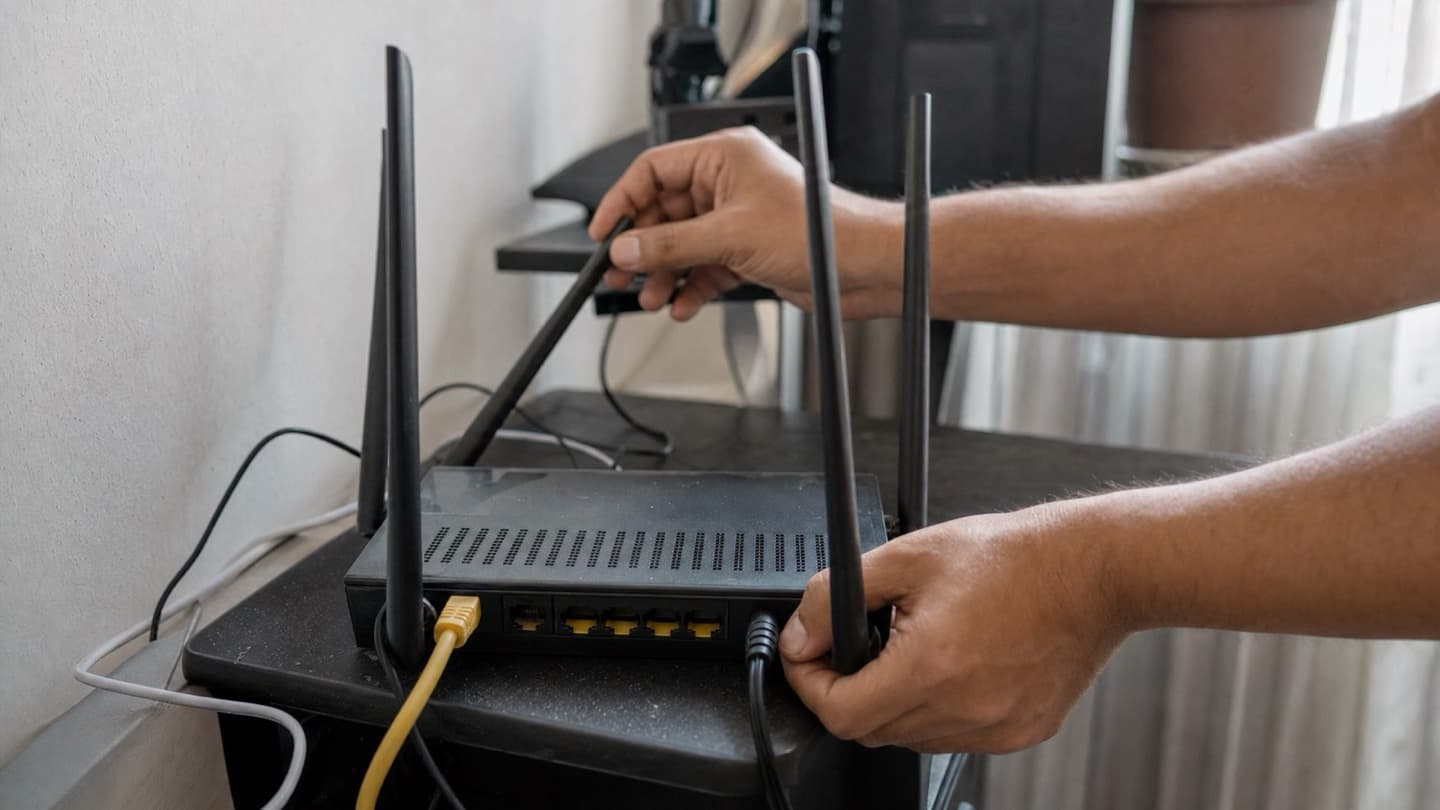
- The router your provider supplied is fine as a modem. It's often the wrong thing to run the whole office's Wi-Fi from a closet corner.
- Anything that doesn't move, like a desk, a till or a printer, should be on a cable, not Wi-Fi.
- Give the printer a permanent address and most "printer offline" calls stop.
- Write it all down. The network nobody can explain is the one that takes a whole afternoon to fix.
Start with where things are, not how fast they are
The instinct when the office Wi-Fi is bad is to call the provider and pay for a faster plan. If the signal can't reach the back room, a faster plan delivers the same weak signal to the back room, just more expensively.
Walk the space first. Where does the internet come in? Where are the people who complain? What's between the two: walls, a kitchen, a stairwell, a server closet with a metal door? In most small offices the answer to bad Wi-Fi is one of these:
- The router lives in a closet, a cabinet or behind the reception desk, which smothers its signal before it gets anywhere
- One router is trying to cover a space that needs two or three access points
- Everything is on Wi-Fi, including machines that never move
- Several devices are fighting over the same crowded channel
A plan for the floor plan fixes this, and it's a one-time job. If you'd rather not be the person crawling under desks to figure it out, we come to your premises across Calgary, look at how the office actually works, and give you a plan and a price before any work starts.
Wi-Fi: access points placed for the floor plan
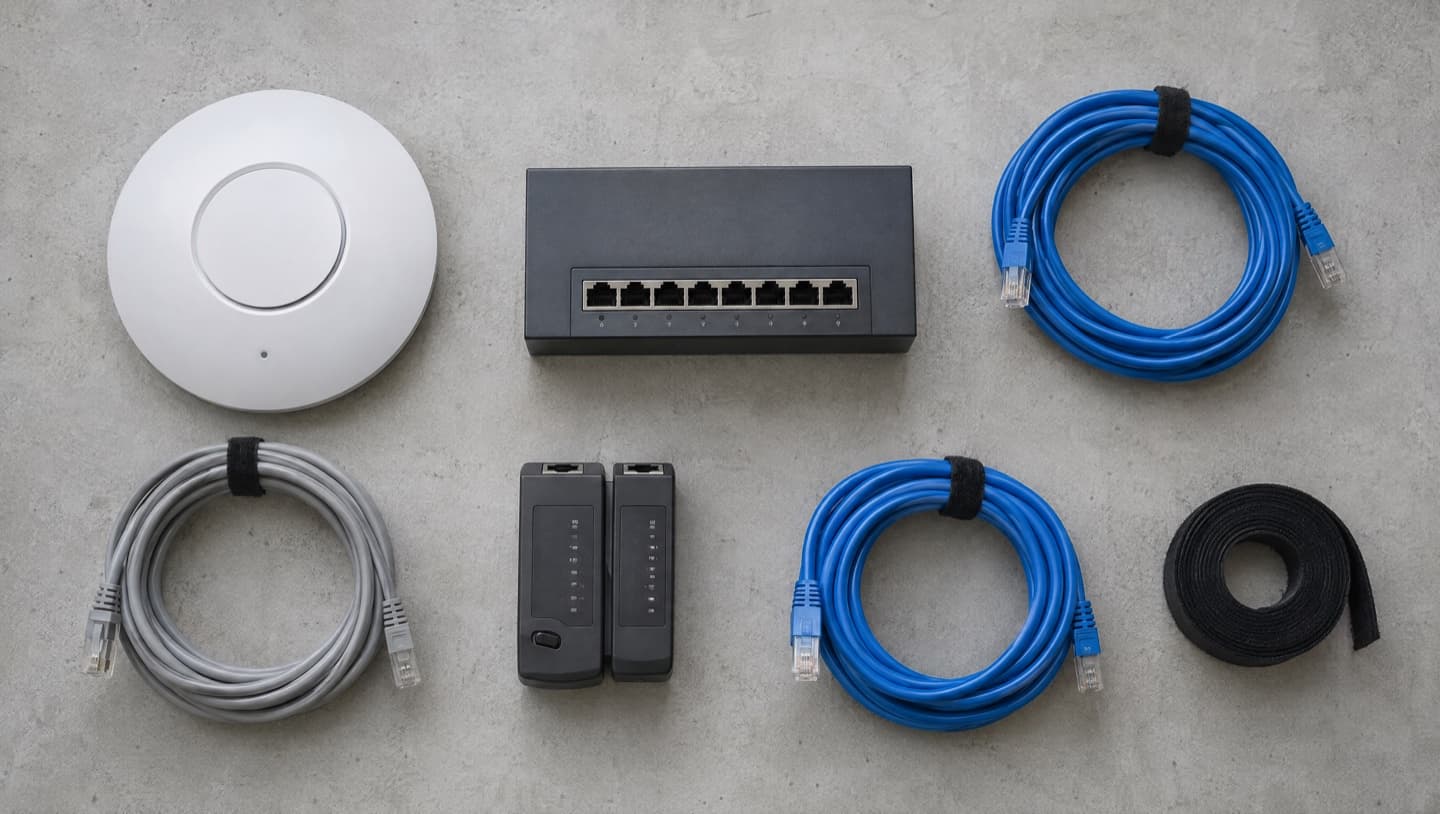
A single consumer router in the middle of a house can cover the house. A small office with a reception area, a few private offices and a back room usually needs more than one point of signal, and those points need to be connected to each other properly.
There are two common ways to get there:
| Approach | Good for | The catch |
|---|---|---|
| Mesh system | Small spaces, older buildings, no easy way to run cable | Each unit relays the signal wirelessly, so speed drops the further you get from the main unit |
| Wired access points | Offices where cable can be run to each point | More work up front, much steadier once it's in |
In a multi-room or multi-floor space, wired access points are almost always the better long-term answer. Mesh is a reasonable choice when running cable genuinely isn't possible, like a leased space where you can't open the ceiling.
Placement matters as much as the hardware. Access points work best up high and in the open, not inside a cabinet. A few good placements beat a lot of badly placed ones that interfere with each other.
Set up a separate guest Wi-Fi for clients and personal phones, so they can get online without being on the same network as the machines that hold your files. Most business-grade access points and many routers can do this out of the box.
Cable anything that doesn't move
Wi-Fi is for things that move: laptops, phones, tablets. Anything that sits in one place all day is better on a cable, because a cable doesn't care about walls, microwaves or the neighbour's network.
That usually means:
- Desktops at fixed desks
- Tills and anything wired to a scanner or card terminal
- The office printer
- Any server, network storage box or backup drive
- The access points themselves
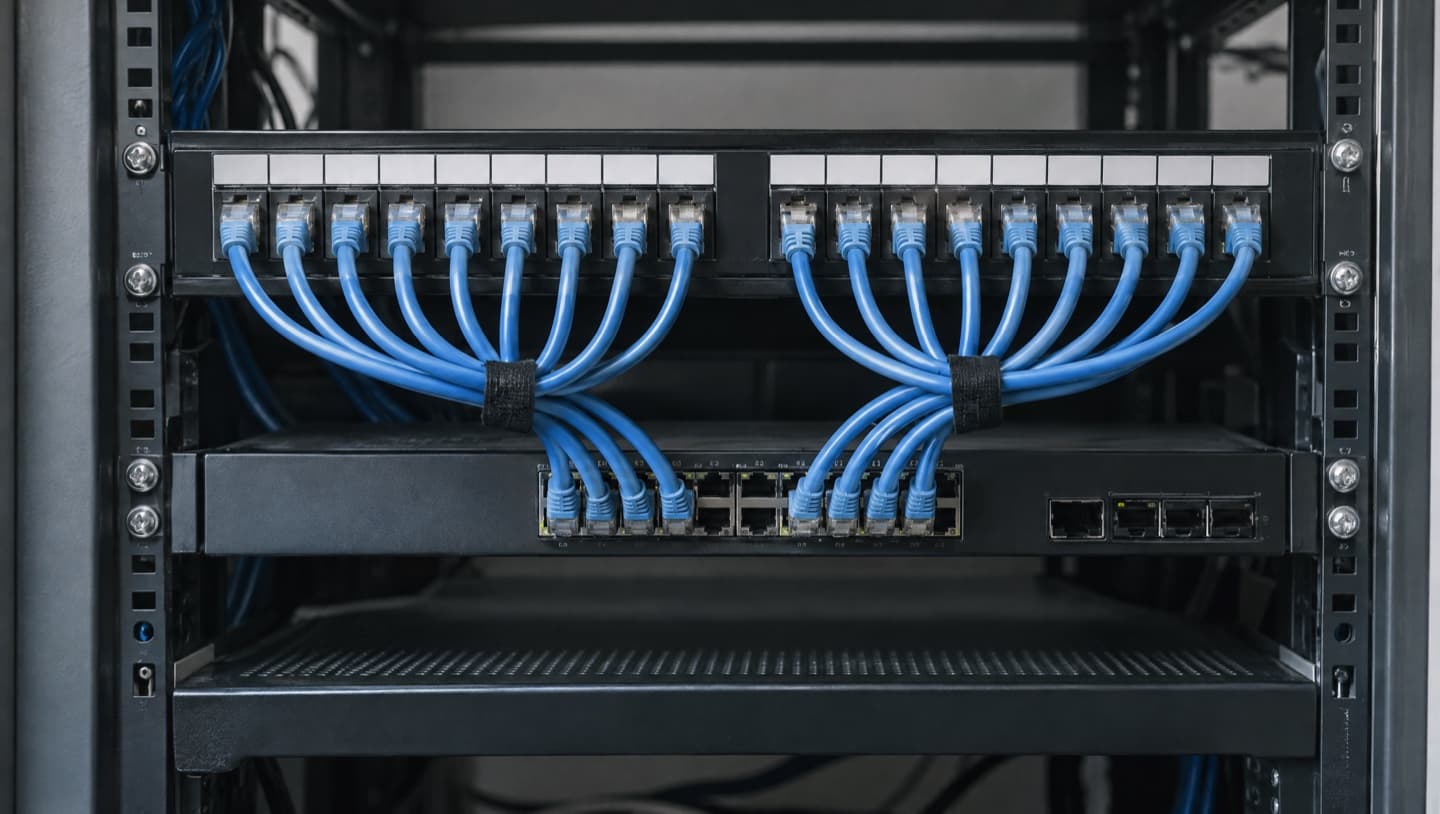
Every device you move onto a cable is one less device competing for the Wi-Fi, so the laptops that do need it get a better connection too. And we tidy the cables, because a network closet that looks like a bird's nest is a network nobody wants to touch when something goes wrong.
Give the printer a permanent address
A shared office printer that keeps going "offline" for everyone is rarely the printer. On most networks, the router hands out addresses to devices as they connect, and those addresses can change when the router or the printer restarts. Every computer in the office is still looking for the printer at its old address, and it isn't there any more.
The fix is giving the printer a fixed address that never moves. It's a few minutes of setup, and it ends most of the recurring printer calls an office has. Our guide to printers that won't connect covers the rest of what goes wrong on the home side.
Backups that run on their own, and get tested
This isn't strictly networking, but it lives on the network and it's the one thing that matters most when something else fails.
A good small office backup is automatic, keeps a copy on a local device and a copy in the cloud, and gets tested by actually restoring a file. A green tick in a backup app is a promise. A restored file is proof.
OneDrive, Google Drive and Dropbox are good at keeping files the same everywhere. That includes copying a deletion, an overwrite or an encrypted file to every machine just as faithfully as a good one. Sync is useful. It isn't a backup on its own.
If the office keeps its files on a server or a network storage box with several drives, know this before the day it matters: when one drive in the array fails, the instinct is to rebuild straight away. Talk to someone first. A rebuild puts every remaining drive under heavy load, which is exactly when a second marginal drive tends to fail. Imaging the drives before any rebuild is the safer order, and business data recovery is a very different job once two have gone.
Who holds the keys
Every small office network has a handful of passwords that, if lost, turn a ten-minute fix into a very long day:
- The router and access point admin logins
- The internet provider account
- The Microsoft 365 or Google Workspace admin account
- The domain name and the company that hosts it
These should belong to the business, not to the person who set them up. If the only person who knows the Microsoft 365 admin password is the employee who left last spring, or a relative who helped out once, sort that out now, on a quiet day. Keep them somewhere shared and safe, like a business password manager, and turn on two-step sign-in for the admin accounts and email.
The same goes for people. New staff should sit down to a computer that already has their accounts, email, shared drives and the printer set up. Leavers should have their access closed the day they go, not discovered three months later.
Write it down
The last step is the one almost nobody does. A single page that says where the internet comes in, what each box in the closet is, which devices have fixed addresses, where the backups go, and where the passwords live. It doesn't need to be fancy.
That page is what lets anyone, including you, fix a problem without starting from scratch. A network that's documented is a network that can be looked after by whoever's next, and you stay with whoever looks after it because it works, not because you're stuck.
Common questions
Rarely. If the signal can't reach part of the office, a faster plan sends the same weak signal there. Most small office Wi-Fi problems come from where the router sits, how many access points there are, and what's competing for the signal. Fix the placement first, then decide whether you need more speed.
As a modem, usually yes. As the only Wi-Fi for a multi-room office, often not, especially when it's tucked in a closet or behind a desk. Many offices keep the provider's box for the connection and add their own access points for the Wi-Fi.
Wired access points are steadier and better for multi-room or multi-floor offices where cable can be run. Mesh is a fair choice when cable isn't possible, like in a leased space, but each unit relays the signal, so it gets slower further from the main unit.
Usually because its network address changes when the router or printer restarts, and every computer is still looking for it at the old one. Giving the printer a fixed address on the network stops most of this for good.
Not on its own. Sync keeps files the same everywhere, which includes copying a deletion or an encrypted file to every machine. A real backup keeps separate copies, locally and in the cloud, that a mistake can't overwrite, and gets tested by restoring something.
No. Most of the businesses we look after are small teams, and a sole trader with one laptop and a printer is a perfectly normal client. The size of the network changes. The basics of placement, cabling, backups and access don't.
When it's worth calling someone
If the office has dead zones, drops at the same time every day, loses the printer every week, or has a backup nobody has ever tested, that's a setup problem worth fixing once. CompuTech is one technician, which for a small business is usually the point: the person who looks at your setup is the person who does the work and the one who answers when something breaks.
On-site across Calgary, plus Airdrie, Chestermere, Cochrane and Okotoks, with a travel fee outside Calgary confirmed before the visit. Same or next day for anything hands-on, Monday to Saturday. Scope and price agreed before any work, month to month with no lock-in, and no fee if we can't fix it. Here's how visits are priced.